
Skins. Codes. Clear answers.

Guides/Skins & trading

Skins & trading

TF2 item qualities: compare Strange and Unusual items

Match the full item name, quality, counters and named effects before comparing TF2 listings or accepting a trade.

2 min read

THE QUICK ANSWER

The same base name can describe different TF2 items. Read the quality and special properties in the final offer.
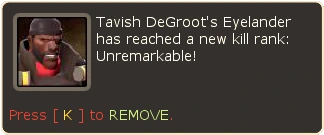
TF2 Strange example — This Eyelander notification says the weapon reached the kill rank Unremarkable. The rank records a counter milestone, not a CS2 wear condition.
TF2 Strange example — This Eyelander notification says the weapon reached the kill rank Unremarkable. The rank records a counter milestone, not a CS2 wear condition. Official TF2 Wiki screenshot: TF2 Wiki — Strange ranks

01

Read the full name and quality

TF2 item qualities distinguish versions of an item. The official community wiki explains their labels and inventory colours. Two listings with the same base name may have different qualities or properties.

Read the full name, quality and item type, then check the remaining details. A thumbnail does not show every modifier.
Compare the complete TF2 item descriptionQuality: Read the quality as part of the full item name, not just the base name.; Strange properties: Check which events the item's counters track.; Unusual and modifiers: Match the named particle effect, paint and relevant killstreak properties.Compare the complete TF2item description01QualityRead the quality as part of thefull item name, not just thebase name.02Strange propertiesCheck which events the item'scounters track.03Unusual and modifiersMatch the named particle effect,paint and relevant killstreakproperties.
Compare the complete TF2 item description. Quality: Read the quality as part of the full item name, not just the base name.; Strange properties: Check which events the item's counters track.; Unusual and modifiers: Match the named particle effect, paint and relevant killstreak properties.

Strange and Unusual describe TF2 properties; they are not CS2 float or wear categories. Compare the complete item details.

02

Check what Strange counts

Strange items count specified events and gain ranks as those counters increase. Check which event the item tracks; weapons and cosmetics need not count the same activity.

Strange is not a CS2 wear condition. Use TF2’s counter and quality details rather than applying float or Factory New assumptions.

03

Match the Unusual effect

Unusual items have particle effects. Match the exact named effect when comparing items with the same base name, and preview it where available.

An item can combine properties. Read its complete description for counters, effects and modifiers instead of relying on a single quality label.
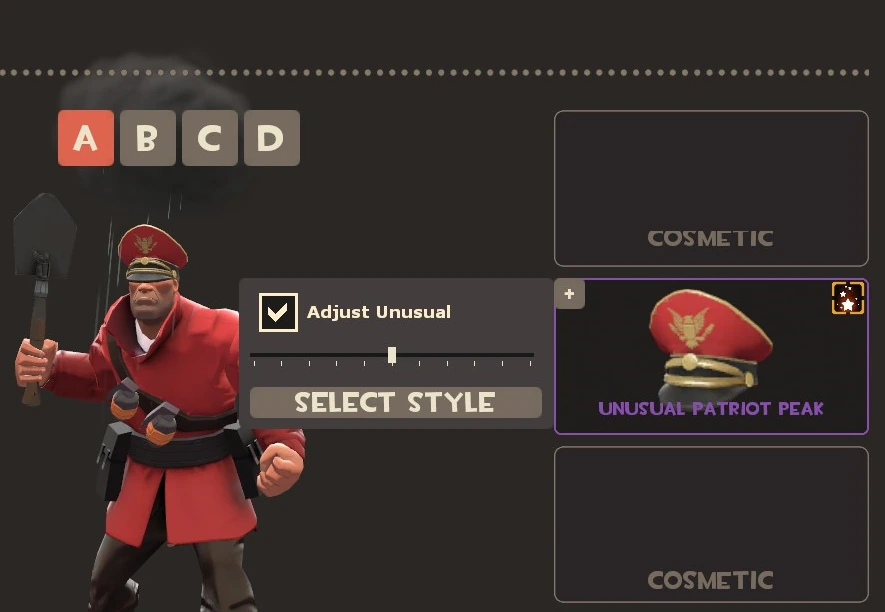
TF2 loadout example — UNUSUAL PATRIOT PEAK appears in purple and the Adjust Unusual control changes effect positioning. Match the named effect in the actual item details when comparing listings.

TF2 loadout example — UNUSUAL PATRIOT PEAK appears in purple and the Adjust Unusual control changes effect positioning. Match the named effect in the actual item details when comparing listings.

Open the full-size image to read small interface details.
Compare the actual properties
Same hat, different qualityCompare separate versions
Same Unusual hat, different effectCheck each named effect
Strange itemRead which event its counter records

04

Inspect the final offer

Open the item details in the actual Steam offer and check the relevant paint, effects, killstreak properties and trading restrictions. The seller’s message is not the offer you will accept.

Compare like-for-like attributes. An asking price does not prove a recent sale at that price. Keep the trade reference if you need help afterwards.

BEFORE YOU CONTINUE

Quick checklist

  • Match the full item name and quality.
  • Read the counter on a Strange item.
  • Match the named Unusual effect.
  • Check modifiers and restrictions in the final offer.

Game documentation & official community references

The Valve-hosted TF2 wiki is maintained by the community. Use its item references alongside Steam’s trading instructions.

Keep exploring skins & trading

Find practical guides for inspecting CS2 skins, understanding Rust cosmetics and comparing TF2 items.

KEEP READING

A useful next read.

All guides

Steam & trades · 2 min read

Review a trade offer

Check the recipient, every item and the final Steam confirmation before accepting. If an offer changes or is replaced, review it from the start.

Read guide

Market & inventory · 2 min read

Missing inventory item

Check whether the item appears in Steam, in the game or only on the other website. Then read its trade status before changing settings.

Read guide

Skins & trading · 2 min read

Steam fees in dollars

Steam shows the buyer’s total and the seller’s credit separately. For CS2 and TF2, check the 5% Steam fee, 10% game fee and the final preview.

Read guide

Skins & trading · 2 min read

Understand TF2 Strange Parts

Check whether a listing sells an unused Strange Part or an item with its counter applied. Up to three Parts fit a compatible Strange item; removal destroys the Part.

Read guide

Skins & trading · 4 min read

Make sense of a full TF2 backpack

Check your TF2 backpack capacity before buying more items. Premium changes the base capacity; a Backpack Expander is a separate, single-use tool that adds 100 slots.

Read guide

Skins & trading · 3 min read

Music Kits and MVP counters

Read the Music Kit variant and equipped state before diagnosing an anthem or counter. StatTrak Music Kits track Official Competitive MVPs, rather than weapon kills.

Read guide

Skins & trading · 3 min read

Paint Cans and team colours

A Paint Can recolours supported parts of a compatible cosmetic. Team Spirit follows your team colour; it does not give every item a new weapon finish.

Read guide