THE QUICK ANSWER
Read the cosmetic’s paint compatibility and preview both teams. A Paint Can has one use, and restoring the original colour discards applied paint.
01
Identify a Paint Can rather than War Paint
Valve’s Team Spirit item description says it paints other items the colour of your current team and has one use. The ordinary A Distinctive Lack of Hue paint is another single-use painting tool. Match the exact paint name before comparing a painted cosmetic.
A Paint Can and War Paint are different item systems. A weapon-finish voucher is not a paint colour you can apply to a hat. Read the item type as well as a seller’s use of the word “paint”.
Colour is only one part of the preview
Receiving cosmetic
Its paintable region determines which surfaces change.
Paint choice
Team Spirit follows the current team colour.
Style selection
Hold the style constant while comparing paint.
Original preview comparison; no exact cosmetic colours or item renders are invented.
Original explanation · not an account screenshot02
Preview the actual paintable cosmetic
The community-maintained Paint Can reference describes supported paintable cosmetic areas. The amount and location of colour depend on the receiving item. Preview the actual cosmetic rather than assuming its whole model will change.
For a team-dependent paint, compare both team views. A preview from one team does not establish the appearance on the other. Keep the selected item style consistent while comparing the colour.
| Cosmetic | Does this item support paint, and which region changes? |
|---|---|
| Paint | Is it the exact ordinary or team-dependent paint you want? |
| Style and team | Are both previews showing the same style and intended team? |
03
Restoring colour does not refund paint
The indexed Danish version of the community Wiki documents selecting the item in the backpack and using Restore to return its original colour. Its removal explanation discards the paint. Read the current prompt before confirming.
Removing paint is a change to the item’s configuration. Save the present colour if you need a record for a listing or discussion; a screenshot records the appearance but does not preserve a reusable can.
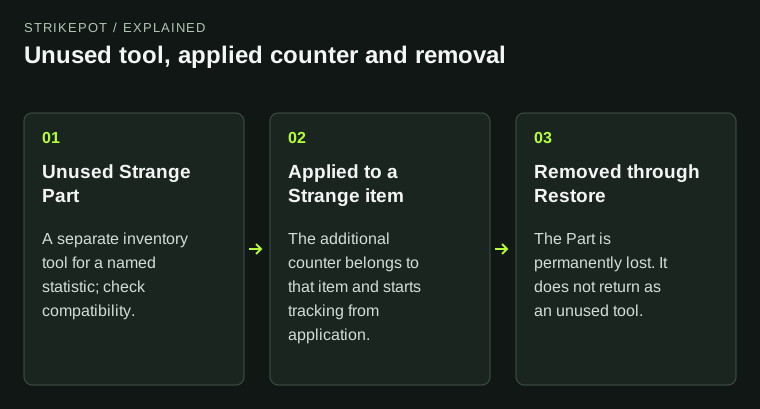
An unused can becomes applied colour
Unused Paint Can
Separate single-use tool.
Painted cosmetic
Colour is now a property of the receiving item.
Restore colour
Original colour returns and applied paint is discarded.
Original state diagram distinguishing the tool from its applied result.
Original explanation · not an account screenshot04
Check what the trade actually contains
A painted cosmetic and an unused Paint Can are separate objects. Read the cosmetic’s applied paint details in the actual offer instead of expecting the can to be delivered alongside it.
BEFORE YOU CONTINUE
Quick checklist
- Identify Paint Can versus War Paint.
- Check the receiving cosmetic’s paintable region.
- Preview both teams and the same style.
- Understand that restoration discards paint.
Official sources
Public game documentation and item descriptions reviewed on 26 October 2026 (America/Toronto). Community-maintained references are labelled where used.
- Valve — Team Spirit item description · reviewed
- Valve — A Distinctive Lack of Hue item description · reviewed
- Official TF2 Wiki — Paint Can (community-maintained; indexed reference) · reviewed
- Official TF2 Wiki — Paint Can, Danish removal instructions (community-maintained; indexed reference) · reviewed
Readable Steam item descriptions verify the paint tools, team-colour meaning and single use. English Wiki direct access returned 403; indexed localized Wiki text supports paintable areas and Restore/removal. No paint application, restoration, cosmetic preview, purchase or trade was tested.
Keep exploring skins & trading
Find practical guides for inspecting CS2 skins, understanding Rust cosmetics and comparing TF2 items.