THE QUICK ANSWER
Valve lists 50 base slots for a free TF2 account and 300 for Premium. A Backpack Expander adds 100 slots when used, subject to the item’s stated maximum; owning the tool is different from applying it.
01
Check the in-game backpack first
A full backpack is a storage question. Start in TF2 and inspect your backpack, its pages and any message about available space. Identify whether the item is already in your Steam inventory, waiting in an offer, or not delivered at all.
Write down the current capacity before changing anything. This gives you a useful before-and-after check if you later upgrade the account or use an Expander. An inventory estimate on another website is not the same as the capacity TF2 shows.
If an item is missing only from a website, follow the inventory or offer guide instead. Buying extra backpack space does not establish that a missing trade was delivered.
02
Premium and extra slots are different things
Valve’s Free-to-Play FAQ lists a base backpack of 50 slots for a free account and 300 for Premium, with Premium capacity expandable up to 4,000. It also lists other differences in trading, crafting and drops.
The same FAQ says a purchase in the in-game Mann Co. Store converts a free account to Premium. Do not assume that a purchase on an unrelated website or the Community Market follows that in-game upgrade rule.
Consider what you need before paying. More storage, account features and a particular cosmetic are different goals. Check the store’s own confirmation and account information rather than relying on a seller’s promise of an upgrade.

Original comparison based on Valve’s FAQ and item description. A storage tool and a Premium account upgrade are separate changes.
| Premium account | Valve’s FAQ lists 300 base slots instead of the free account’s 50. |
|---|---|
| Backpack Expander | The item description says it adds 100 slots when used. |
| Maximum | The current Valve FAQ and Expander description state 4,000; read the actual account and item notices. |
03
Recognize the Backpack Expander before using it
The Backpack Expander is a tool item. Valve’s Community Market description says it adds 100 slots, has one use and has a maximum capacity of 4,000. The Market artwork below shows the tool itself, not a screenshot of an expanded account.
The Team Fortress Wiki also distinguishes Expanders from Premium: its indexed explanation allows free accounts to use Expanders while keeping the separate Premium capacity difference. Adding space is not the same as changing the account type.
Having the tool in your inventory is not proof that it has been used. Read its in-game action and confirmation before applying it, then check the backpack capacity again. Do not consume another tool simply because an old website view has not updated.
- Check the backpack capacity currently shown in TF2.
- Locate the exact Backpack Expander tool and read its description.
- If you choose to use it, read and confirm TF2’s own item-use prompt.
- Return to the backpack and compare the available capacity with your earlier value.
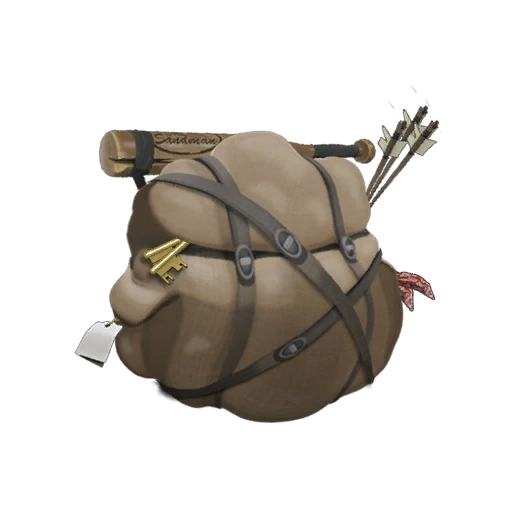
Valve’s Backpack Expander item rendering. The tool adds space when used; this artwork is not a screenshot of an expanded account.
Open the full-size image to read small interface details.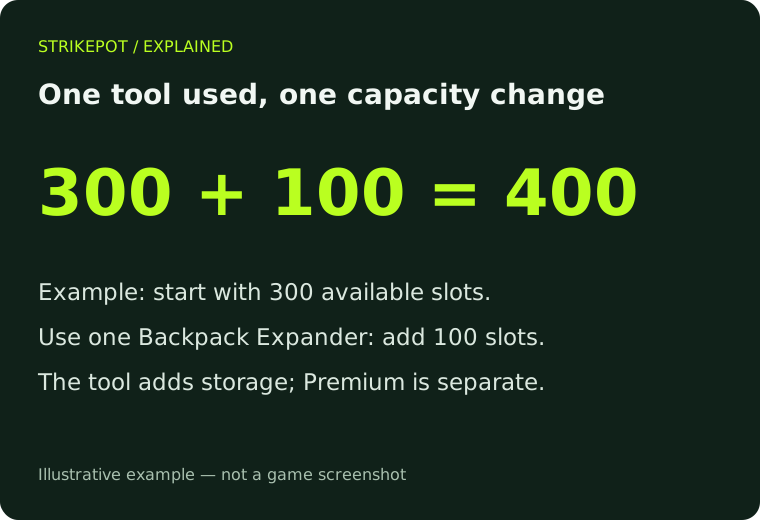
Example below the maximum: a backpack with 300 slots becomes 400 after one Expander is used. This is arithmetic, not an account screenshot.
Open the full-size image to read small interface details.04
Avoid deleting something you meant to keep
If storage is tight, review the items themselves before removing anything. Similar icons can hide differences in quality, counters, custom names or attached parts. Read the complete item details rather than choosing by thumbnail alone.
Sorting or rearranging a backpack changes where items appear; it does not add capacity. A full backpack and an account trading restriction also need different checks. Use the exact message for the action that failed.
Do not treat deletion, crafting or a completed trade as a harmless cleanup button. These actions can change or remove items you own. This guide does not perform any item use, purchase, trade or deletion.
05
If the capacity still does not match
Keep the item name, whether it remains in the backpack and the before-and-after capacity together. If you paid for an upgrade, keep its receipt and identify the store used. Do not post payment details or authentication codes.
Check the current Valve FAQ and the item’s own description before following an old guide: historical pages can show older maximums. For an unresolved account discrepancy, send Steam Support the exact notice and the steps you actually completed, rather than buying another item to test it.
BEFORE YOU CONTINUE
Quick checklist
- Read the capacity in TF2 and save a before value.
- Separate Premium status from Expander use.
- Check the exact item before consuming, crafting or deleting anything.
- Verify the new capacity after a confirmed change.
Official sources
Valve’s public Free-to-Play FAQ and Steam item description reviewed on 24 October 2026. The linked community-maintained Wiki was available through indexed excerpts only.
- Valve — Team Fortress 2 Free-to-Play FAQ · reviewed
- Valve — Backpack Expander item description, Steam Community Market · reviewed
- Official Team Fortress Wiki — Backpack Expander (community-maintained; indexed excerpt) · reviewed
No TF2 account, item-use confirmation, purchase, Premium upgrade, trade or deletion was tested. The English TF2 Wiki page returned HTTP 403 when opened, so its full current body was not verified. Base capacities and the current maximum are taken from Valve’s readable FAQ and item description; the item image is Valve’s published rendering, not an account screenshot. Prices are deliberately omitted.
Keep exploring skins & trading
Find practical guides for inspecting CS2 skins, understanding Rust cosmetics and comparing TF2 items.