
THE QUICK ANSWER
Find the item in Steam first. An item can be visible yet restricted, or present in the game while absent from Steam Community.
01
Find the item in Steam
- Confirm that you are viewing the expected Steam account and game inventory.
- Read the item’s own description and status.
- Compare the item name and variant with the one you expected.
- Record whether the item appears in Steam, in the game, or only on the other service.
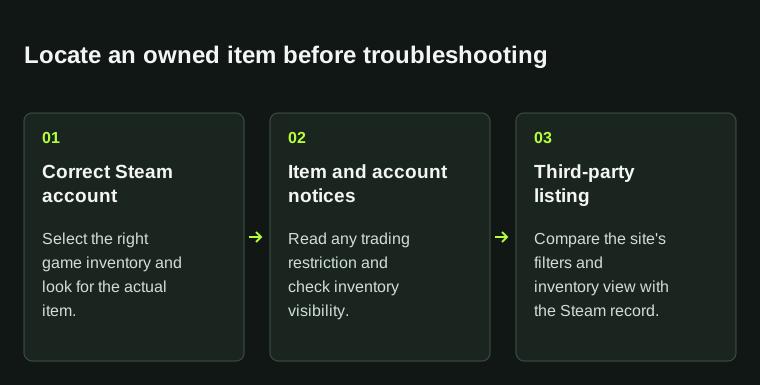
An item missing only from a site's filtered inventory is a different issue from an item absent from Steam.
02
Read the item’s restriction
Read the message shown when you try the blocked action. Steam documents several account and Market restrictions, and Steam Support cannot shorten them. Keep the exact reason and any displayed expiry.
A website can also filter items or have a display problem. Record the affected item and the site’s error so its support team can check eligibility or processing.
03
Compare the two inventory views
Capture the item in Steam and the other service’s error or empty result. Include the game, full item name, time with time zone and any relevant order or trade reference. Hide unrelated account details.
If the item is absent from Steam itself, use Steam’s trading help. If it appears in Steam but not on the website, ask that website to check its inventory display and item rules.
04
Check visibility and tradability separately
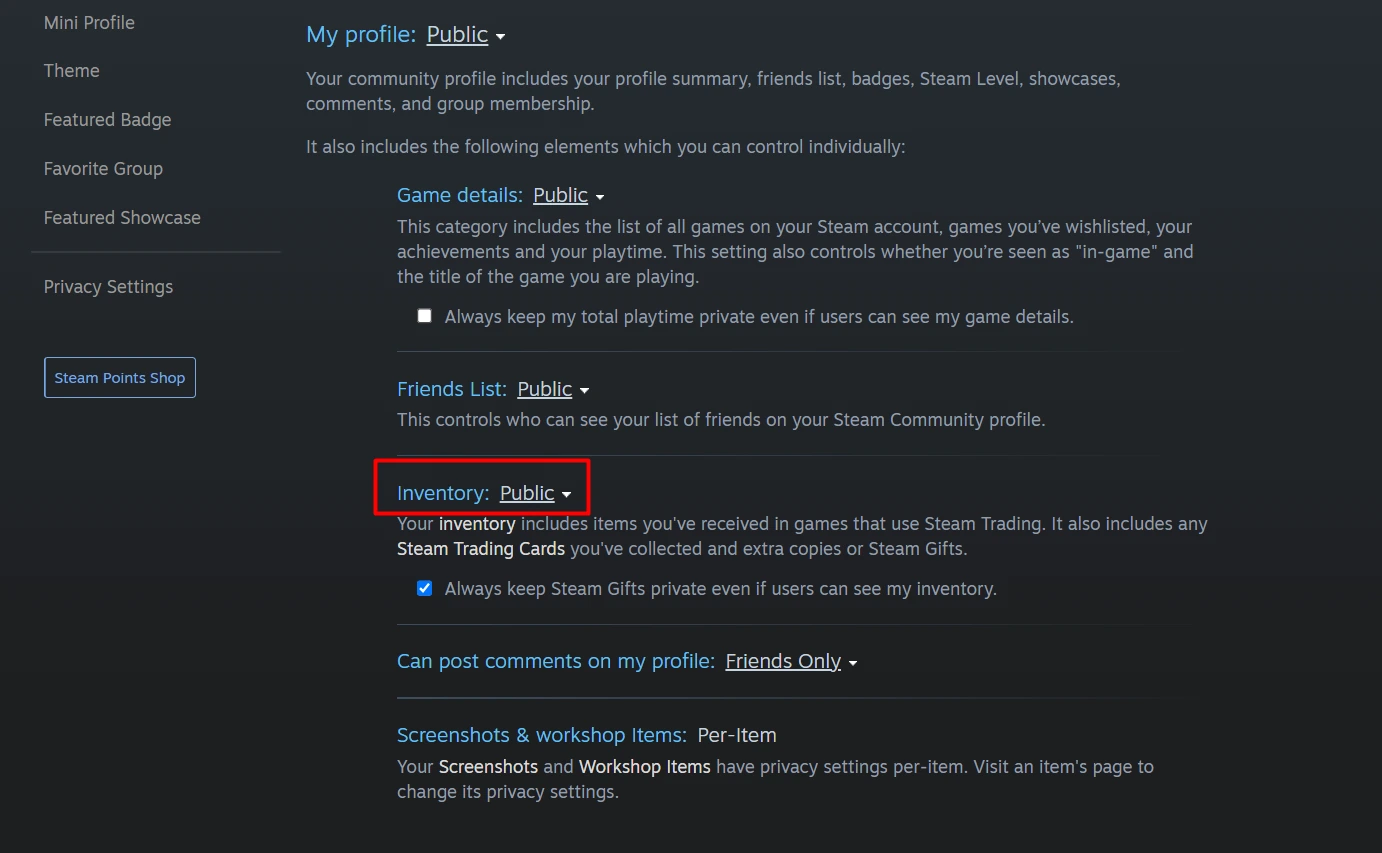
Inventory privacy controls who can see the inventory. An individual item’s trade status controls whether it can be transferred. Check both instead of repeatedly changing privacy.
If the item appears in CS2 but not Steam Community, check whether it is rented or inside a Storage Unit. The related guides explain those cases. Tell support which inventory contains it and which Steam account you checked.
BEFORE YOU CONTINUE
Quick checklist
- Correct account and game selected.
- Exact item status captured.
- The two inventory views compared.
Official sources
Read the official documents below for the service’s rules and account instructions.
Need the details for a particular website?
The code directory records each partner’s code, referral method and offer status. Use the relevant partner page when your question also involves one of those details.
Partner pages may include affiliate links. A listing does not confirm a reward or account eligibility.