
THE QUICK ANSWER
Multiply price by quantity before placing an order, then check active orders and completed purchases separately.
01
Choose a buy order or a listing
A buy order specifies the market item, price you will pay and quantity you want. It does not reserve the particular item shown in someone’s screenshot.
If a pattern or sticker arrangement matters, inspect individual listings. An ordinary price-and-quantity order does not select those exact visual details.
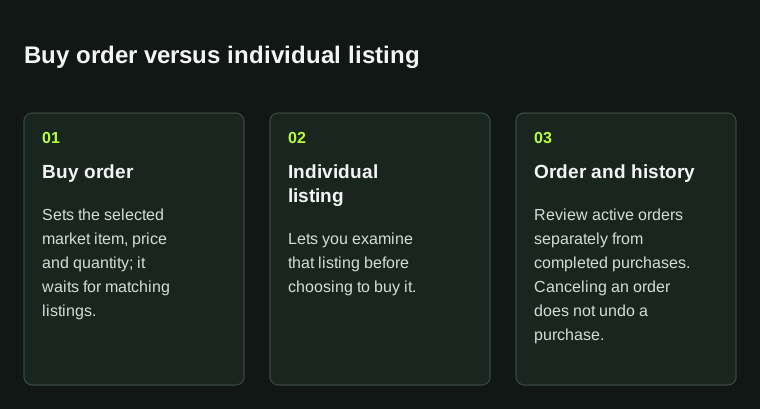
A price-and-quantity order does not reserve the precise pattern or sticker arrangement shown in a screenshot.
02
Check how orders are matched
Steam says eligible listings fulfil buy orders starting with the cheapest eligible items. When a new listing matches several orders, the oldest matching order is selected.
Check active orders and Market history. An order displayed on the page may still be waiting rather than having completed a purchase.
03
Work out the total budget
Multiply the price by the quantity and include your other active orders when reviewing the budget. A small price per item can add up across several purchases.
Use the amount on Steam’s confirmation screen. Read its currency and fee display instead of copying a value quoted in another currency.
| Maximum per item | $2.50 |
|---|---|
| Requested quantity | 4 items |
| Budget at that price | $10.00 |
04
Cancel orders you no longer want
Cancel an unfilled order you no longer want through the Community Market. Check the active-order list and transaction history afterwards: cancelling the remaining quantity does not reverse completed purchases.
Steam Wallet funds cannot be withdrawn to a bank as cash. Account for that limit if you intend to buy items and later sell elsewhere.
BEFORE YOU CONTINUE
Quick checklist
- Select the correct market item.
- Check both price and quantity.
- Review active orders and completed purchases separately.
- Use individual inspection when the exact appearance matters.
Official sources
Read the official documents below for the service’s rules and account instructions.
Keep exploring skins & trading
Find practical guides for inspecting CS2 skins, understanding Rust cosmetics and comparing TF2 items.