THE QUICK ANSWER
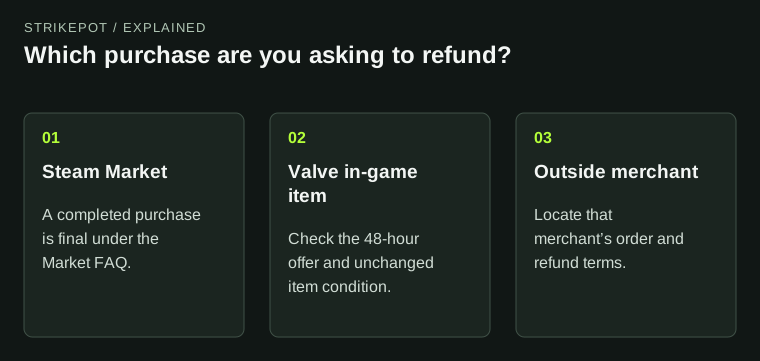
Identify where the purchase happened first. A completed Steam Community Market transaction cannot be refunded under its published rules; the general game refund window is not the rule for every skin purchase.
01
Start with the seller and purchase route
Steam’s Community Market FAQ says completed Market purchases are final and cannot be reversed or refunded. This applies when you bought another user’s item through the Market, even if you selected the wrong finish or expected a different appearance.
An item purchased in a Valve game follows a different policy. Steam’s published offer allows an in-game refund request within 48 hours if the item has not been used up, changed or transferred. A CS2 skin delivered through Steam by an outside website still needs that website’s purchase policy; Steam delivery does not make it a Steam purchase.
| Steam Community Market | Completed purchases are final under the Market FAQ. |
|---|---|
| Valve in-game purchase | Check the 48-hour offer and the item’s unchanged state. |
| Outside marketplace | Use that merchant’s original order and refund terms. |
02
Find the receipt before changing the item
For a Market purchase, check Market history and the transaction email. For a Steam Store or in-game purchase, open Account Details and purchase history, then select the original purchase. Record the name, purchase time, currency and reference that belong to the disputed transaction.
The item name visible in your inventory is useful identification, but the receipt establishes what you paid for and who handled the purchase. If you have several copies, match the relevant record rather than assuming the most recent inventory entry is the one involved.
03
Check whether the item’s state has changed
If you intend to ask about an eligible in-game purchase, leave it in its present state while you review the rules. Valve’s condition concerns whether the item has been used up, changed or transferred; simply finding the receipt does not establish that condition.
Some item types have a more specific rule. The Armory Pass FAQ, for example, distinguishes an unactivated pass from an activated one and excludes the latter from refunds. Identify the actual product instead of applying the refund rule for a full game to a pass, a container, or a Market skin.
Match the product and its current state
Original purchase
Identify the exact item and receipt.
State now
Record use, changes, activation or a transfer.
Specific rule
Read that product’s condition before requesting review.
Original eligibility-check diagram. It does not suggest every listed state qualifies for a refund.
StrikePot illustration04
Use the original purchase to make the request
These are the steps in Steam’s request guide. They do not create refund eligibility for a final Market transaction. If a purchase came from an outside marketplace, describe the problem to that merchant using its order reference rather than a Steam trade ID alone.
- Open Steam Help on help.steampowered.com and sign in to the purchasing account.
- Choose Purchases and select the transaction you want Steam to review.
- Choose the problem that matches the purchase and open the offered refund request.
- Read the available refund destinations, explain the problem and submit the form.
- Keep the submission confirmation and the later decision as separate messages.
Follow the request to its decision
Purchase selected
Use the account and original transaction.
Request submitted
Keep its confirmation.
Decision received
Read approval or rejection and any refund destination.
Original process diagram based on Steam’s request guide, without a mock refund screen.
StrikePot illustration05
A request confirmation is different from approval
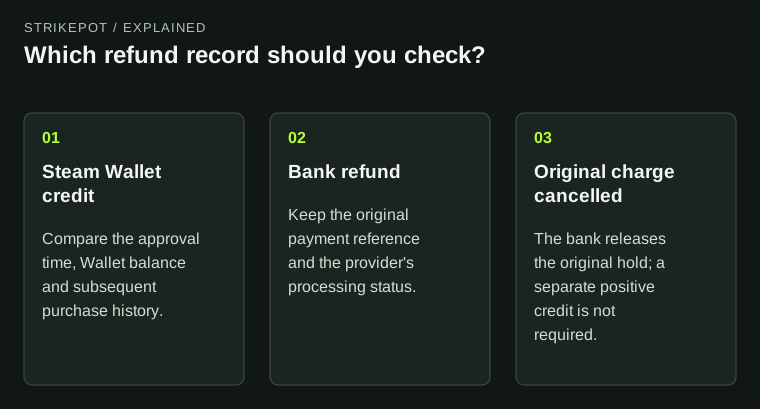
Keep the actual decision and its destination. Once Steam approves a refund, the separate pending-refund guide explains how to distinguish Wallet credit, a refund to the original payment method and cancellation of the original charge.
If the issue is that an in-game purchase never arrived, Steam’s refund FAQ asks you to contact the game’s support first and retain that correspondence. Explain non-delivery plainly. Buying a replacement creates another purchase and does not establish what happened to the first one.
BEFORE YOU CONTINUE
Quick checklist
- Identify Market, in-game or outside-merchant purchase.
- Find the original receipt and correct purchasing account.
- Read any product-specific condition before using or changing the item.
- Keep request submission and refund approval separate.
- For an outside purchase, use the merchant’s order reference.
Official sources
Official guidance checked on 27 October 2026. Dated updates below explain changes to earlier instructions.
- Steam Support · Community Market FAQ, final purchases and history · reviewed
- Valve · Steam Refunds, in-game and outside purchases · reviewed
- Steam Support · How To Request A Refund · reviewed
- Steam Support · Common Refund Questions, missing in-game purchases · reviewed
- Steam Support · Armory Pass activation and refund condition · reviewed