THE QUICK ANSWER
Use Collect to request the skin through Steam. Sell changes the item into Key-Drop balance instead; it does not send a cash payout.
01
Check the item and account before choosing an action
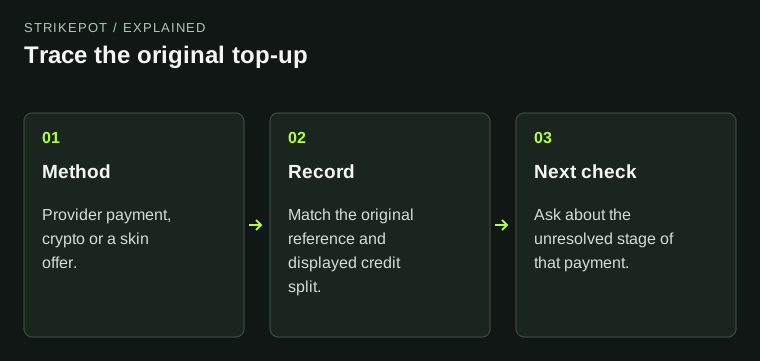
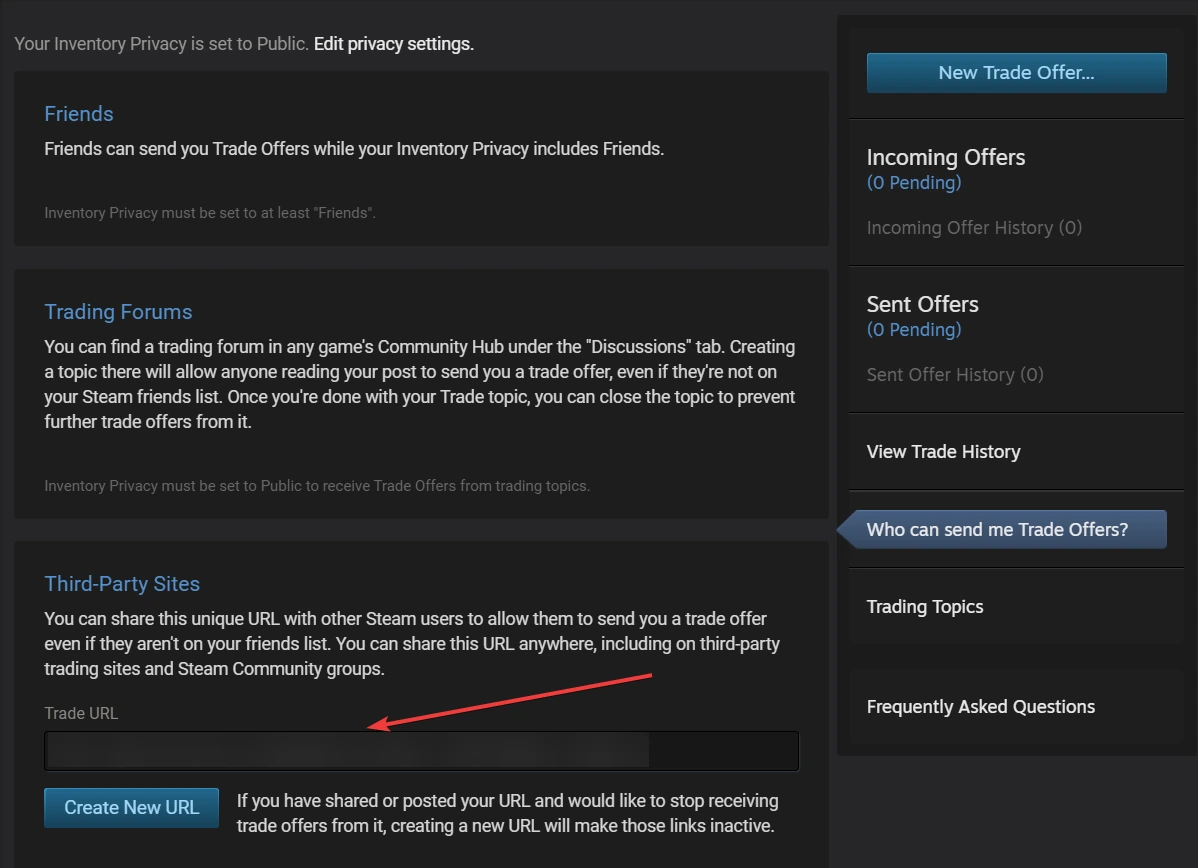
Key-Drop’s withdrawal help requires a configured Steam Trade URL and at least 2 USD actually added to the account. It explicitly distinguishes that top-up condition from simply seeing 2 USD in the balance.
Check the requirement against the account’s existing payment history. Do not treat bonus credit or a skin’s displayed value as proof that a deposit condition has been met.
02
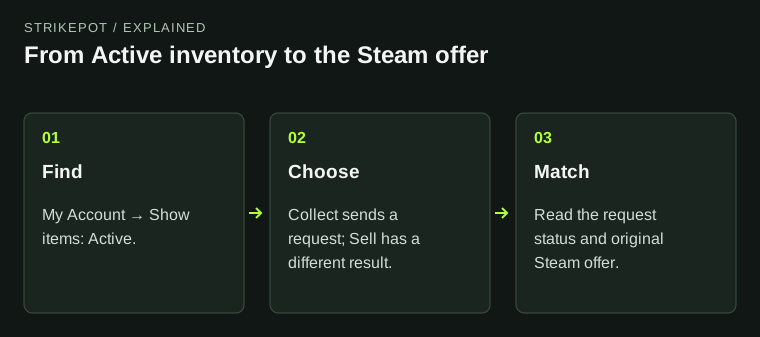
Find My Account → Show items → Active
If an older skin is absent, the separate Equipment guide explains the 90-day auto-sale rule. Check its record before concluding that Steam failed to receive a new withdrawal.
- Open My Account on the official Key-Drop site.
- Find the on-site inventory at the bottom of that view.
- Set Show items to Active to locate currently available items.
- Match the exact skin before opening its available actions.

Key-Drop’s official filter example: choose Active under Show items to find available inventory items.
Open the full-size image to read small interface details.Find the item before following the offer
My Account
Locate the on-site inventory.
Show items: Active
Find the currently available skin.
Collect
Read its request status and match the Steam offer.
The operator’s withdrawal sequence, redrawn as an explanation.
StrikePot illustration03
Choose Collect for Steam delivery, not Sell
Hover over the intended item and choose Collect to request its withdrawal, then read the changed item status. Key-Drop says a Steam trade offer is sent when there are no withdrawal obstacles.
Sell and Sell all have a different result: the skins are exchanged for funds inside Key-Drop. Its selling help says a completed sale cannot be reversed to restore the item. Check the action name before confirming.
Two buttons with different destinations
Collect
Requests delivery of the skin through Steam.
Sell / Sell all
Exchanges the item for funds inside Key-Drop.
Already sold
The published selling policy does not restore the item.
Read the action before confirming it.
StrikePot illustration04
Read the original offer in Steam
Open Steam directly and match the offer with the item requested. Compare the item name, condition and sender with the original withdrawal record before taking any action. A screenshot of a request is not the same record as a received offer.
If no matching offer arrived, keep the Key-Drop status and request time together. Do not accept a replacement offer supplied through an unsolicited message merely because it names the same skin.
05
A Trade URL error can point to a Steam restriction
Key-Drop’s Trade URL article directs users to check inventory visibility and Steam’s own restriction information. Read the actual Steam notice rather than rotating the URL repeatedly or assuming a typo is the only possible cause.
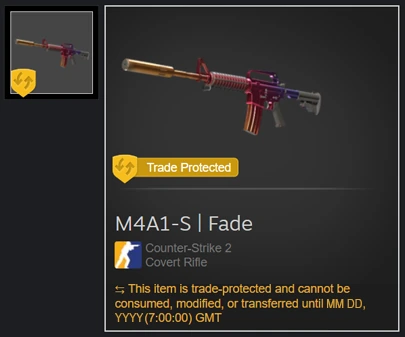
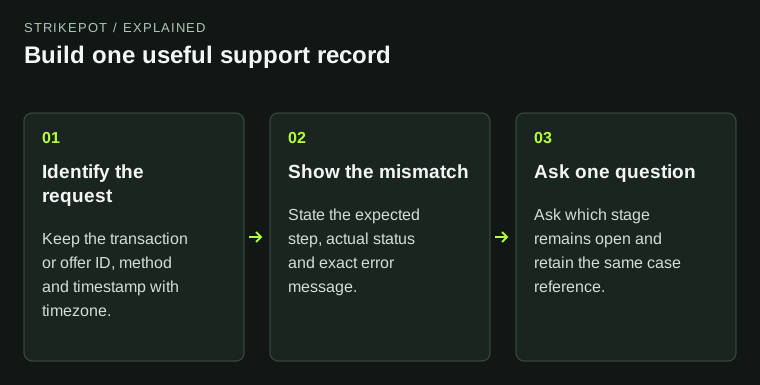
The operator’s article lists several waiting periods. Steam restrictions depend on the actual account event; use Steam’s current notice for the relevant reason and end time instead of adding those periods together. Give official support the request reference and exact message if the item remains blocked.
Keep the two records together
Key-Drop record
Requested item, time and displayed status.
Steam record
Matching offer or the actual restriction notice.
Support question
Ask which step is preventing this request.
Match the request and the delivery record rather than trying unrelated actions.
StrikePot illustrationBEFORE YOU CONTINUE
Quick checklist
- Check the existing top-up condition and configured Trade URL.
- Use Show items → Active to find available items.
- Distinguish Collect from irreversible on-site Sell.
- Match the original Steam offer before accepting it.
- Read the actual restriction notice if delivery is blocked.
Official sources
Official Key-Drop guidance reviewed on 27 October 2026. The dated help pages below explain the published rules.
- Key-Drop — How to withdraw skins (updated 19 May 2026) · reviewed
- Key-Drop — How to sell skins (updated 19 May 2026) · reviewed
- Key-Drop — Wrong Trade URL notice (updated 19 May 2026) · reviewed
- Key-Drop — Equipment and 90-day auto-sale (updated 19 May 2026) · reviewed
A skin-delivery request, an on-site sale and an affiliate-program payout are different operations. Use the current status and terms for the actual item.
Need the details for a particular website?
The code directory records each partner’s code, referral method and offer status. Use the relevant partner page when your question also involves one of those details.
Partner pages may include affiliate links. A listing does not confirm a reward or account eligibility.