THE QUICK ANSWER
Start with the payment you are comparing: Key-Drop says to apply a valid code before each top-up; CaseHug documents different first and later rates. Then check how an owned skin reaches Steam.
01
First payment or later payment? Read that before the percentage
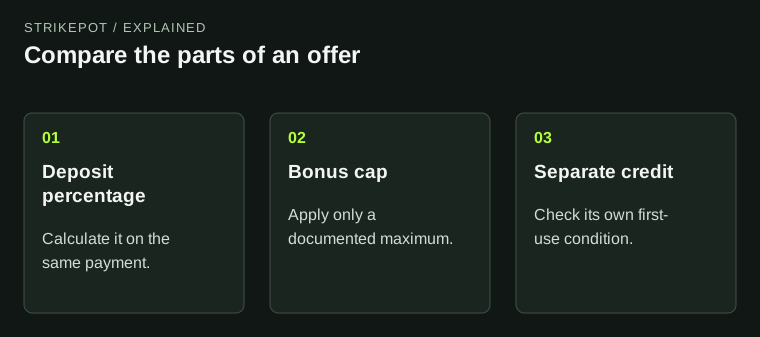
Both services publish a 20% top-up benefit, but that headline does not describe the same payment history. Key-Drop’s promo help says a valid code applies to the next top-up and must be entered before every top-up. CaseHug describes 20% on a new user’s first top-up with a code, then 10% on subsequent top-ups with an active code.
A first-use credit is a separate part of either offer. Key-Drop’s help describes a limited credit for eligible accounts with an active Steam account; CaseHug lists $1 of platform credit with its first-top-up programme. Read the amount and eligibility shown for your account. Do not carry a first-use gift into every later payment.
Put the percentage on the right payment
Key-Drop
Apply a valid code before each top-up.
CaseHug first top-up
Read the new-user offer and its separate platform credit.
CaseHug later top-up
Use the subsequent-payment terms, not the first rate.
Compare the active offer for this payment; the headline percentage alone leaves out its scope.
StrikePot illustration02
Compare the fields that change your next step
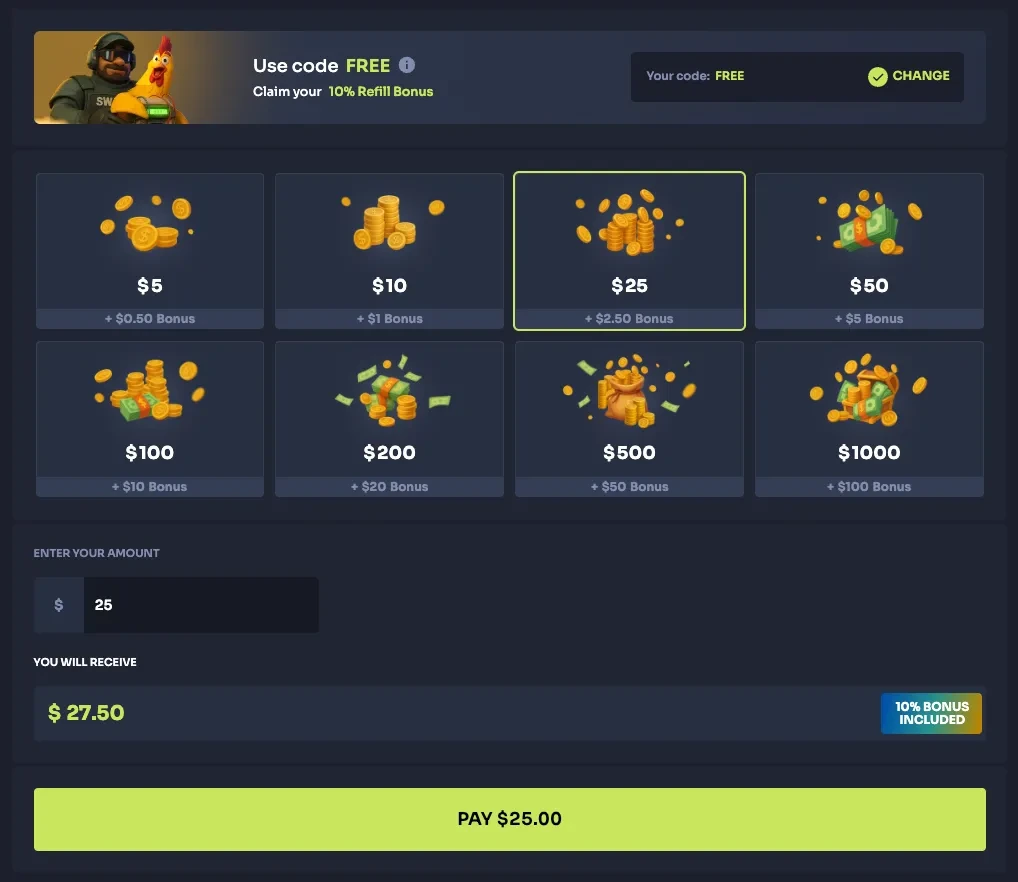
CaseHug — Promo codes
Open the full-size image to read small interface details.| Key-Drop code entry | Deposit → apply the valid code before the top-up. Repeat that check for later top-ups. |
|---|---|
| CaseHug code entry | Enter the code in the top-up field, or use its /r/ referral link to assign the code. |
| Key-Drop skin transfer | My Account → Show items: Active → select the skin → Collect. |
| CaseHug skin transfer | My Account → Inventory → choose the skin → Claim on Steam. |
| Record to keep on either site | Current offer, code confirmation, exact item and the resulting Steam offer/status. |
03
Check STRIKEPOT on the screen you are using
StrikePot lists STRIKEPOT for both partners, with separate referral destinations. Open the guide for the site you intend to use rather than assuming the same code makes all conditions identical.
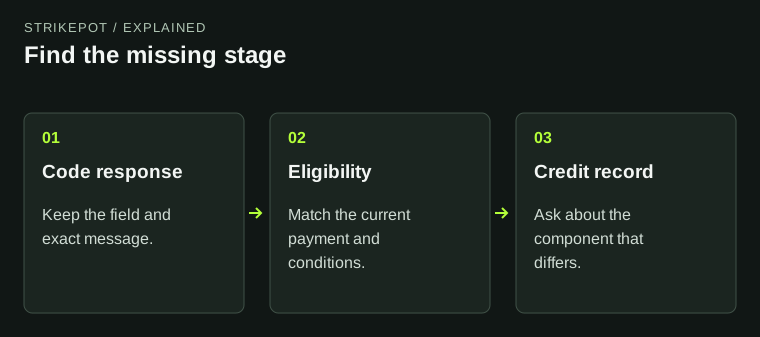
Keep code acceptance separate from payment eligibility. A code can be visible while the payment you selected does not meet an offer’s terms. Read the current summary before any payment; an unrecognised code is a different issue from a missing bonus on a completed payment.
04
A bonus balance is not a Steam skin
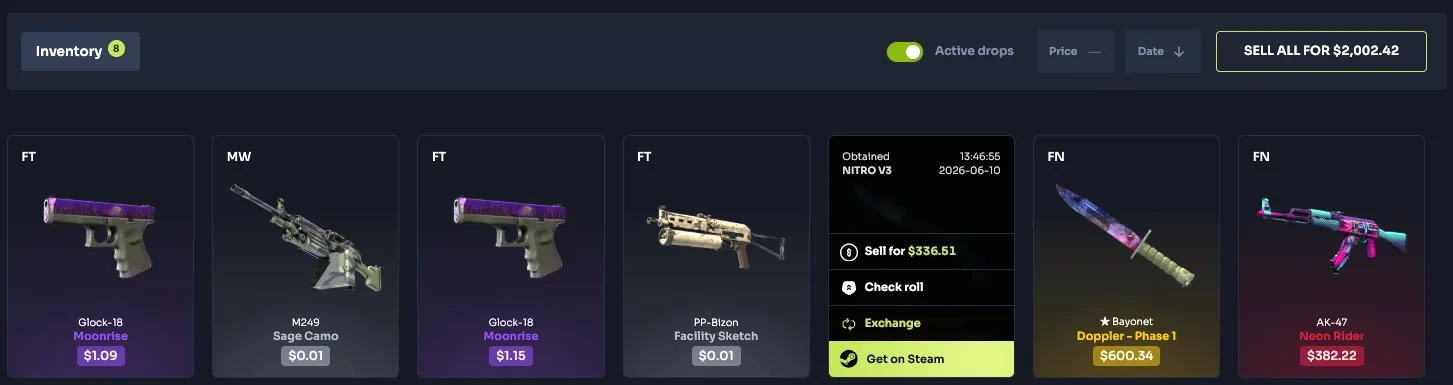
On Key-Drop, the published withdrawal guide asks for a valid Steam Trade URL and at least $2 of account top-ups. It explicitly distinguishes funds added from simply having $2 in the balance. The inventory’s Active filter and Collect control concern an owned skin; receiving promo credit is not that same event.
CaseHug’s claim guide starts from an item in the site inventory and sends a Steam offer through Claim on Steam. Its separate availability guide explains that an unavailable skin can be out of platform stock. Waiting for stock and fixing a Steam account restriction therefore require different checks.
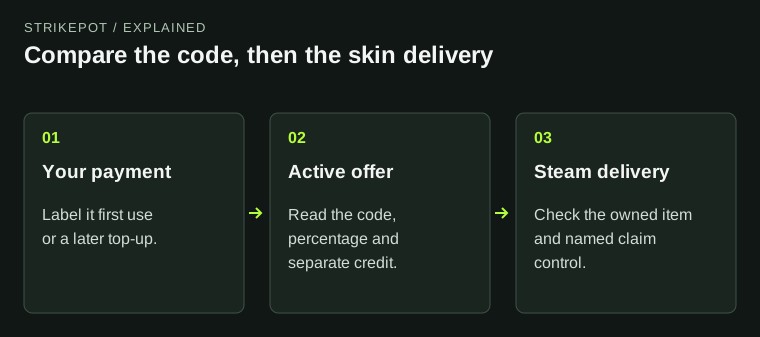
From code to a received skin
Code confirmation
Read the accepted offer and account conditions.
Owned item
Find the exact skin and its withdrawal control.
Steam record
Match the offer and received inventory item.
These are different records. Promo credit does not establish that a skin was sent.
StrikePot illustration05
Choose the comparison that matches your question
This comparison does not name a universal winner. A percentage does not establish the value of an outcome, the availability of a particular skin or a delivery deadline. Those are separate facts to check.
- If the question is about an offer, label the payment first-use or later and record the active code and displayed benefit.
- If the question is about a skin, identify the exact item in the site inventory and read its current withdrawal state.
- Use the named claim control for that site, then compare the resulting Steam offer with the intended item.
- If it fails, keep the exact status and reference. Ask about that stage instead of making another payment to test it.
BEFORE YOU CONTINUE
Quick checklist
- Compare the payment you actually mean: first or later.
- Read the accepted code and current benefit together.
- Keep first-use credit separate from repeated percentages.
- Check the owned skin and its actual Steam offer.
Official sources
Official offer and inventory instructions checked on 27 October 2026. Use the current account summary for the amount and eligibility of a specific offer.
- Key-Drop — promo-code scope and limited first-use credit · reviewed
- Key-Drop — skin withdrawal requirements and Collect · reviewed
- CaseHug — first and subsequent top-up benefits · reviewed
- CaseHug — inventory and Claim on Steam · reviewed
- CaseHug — unavailable withdrawal stock · reviewed
The compared benefits are platform credit or top-up bonuses, not a promise of cash withdrawal. Read current Steam restrictions and each item’s status separately.