
THE QUICK ANSWER
A DMarket icon means the item is held on DMarket; a Steam icon means it is already in Steam. Check its lock timer before requesting delivery, then verify every generated offer.
01
Find where the item is held
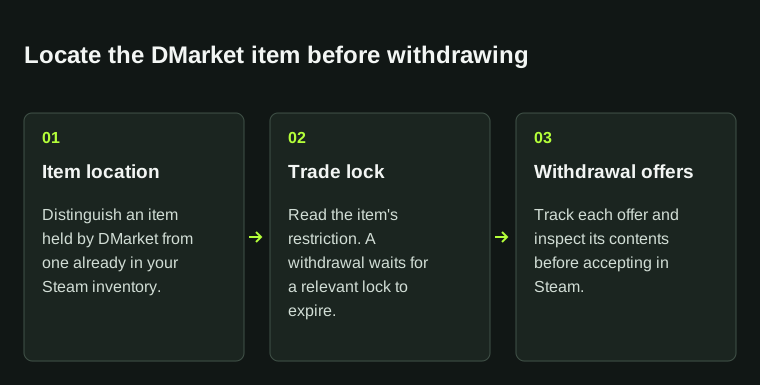
In DMarket’s withdrawal instructions, the DMarket icon marks items eligible to withdraw from its inventory. The Steam icon marks items already in your Steam inventory. Check that icon and the item name first.
If the item has a Steam icon, check the correct Steam account, game inventory and filters. If it is on DMarket but absent from Steam, record that location and its current status for the delivery check.
This sequence concerns item delivery to Steam. A money withdrawal uses a different record and support question.
02
Wait for the item’s lock timer
DMarket says it cannot bypass a Steam trade lock. Items showing Trade Protection or Trade Lock become withdrawable after their timer expires. Read the item’s own countdown before treating a disabled control as an error.
Save the restriction and end time. If withdrawal remains unavailable afterwards, send support that notice and the time you checked. Nobody in chat can remove the Steam lock by receiving your skin.
03
Request and check each offer
DMarket gives you ten minutes to accept a generated offer; if it expires, you must create another. Use the live offer deadline if it differs. Several selected items may generate separate offers, so match them one by one.
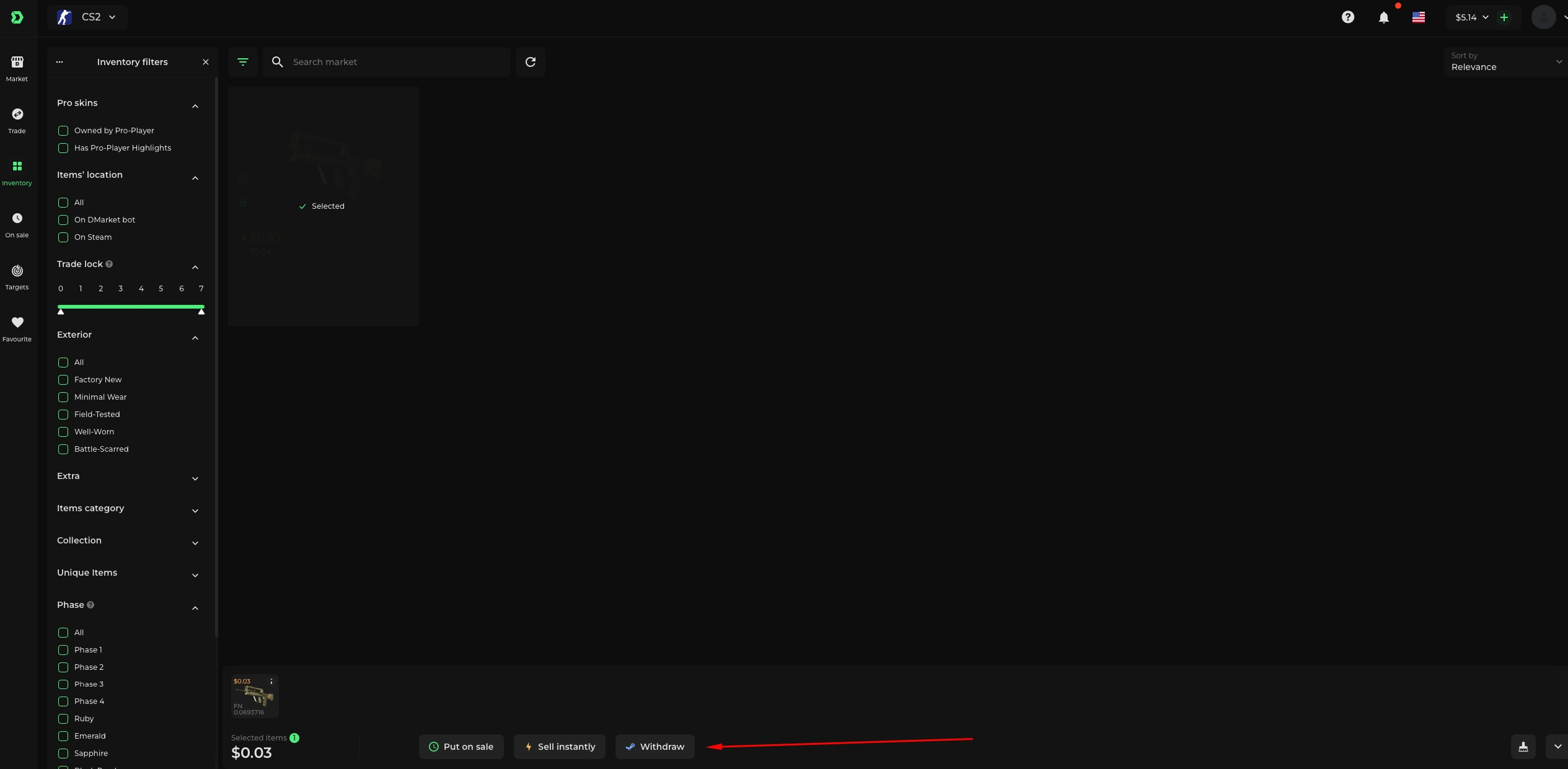
- Open Inventory and select the intended eligible item or items.
- Choose Withdraw, then create the trades individually or together.
- Use the request’s Accept trade link to open Steam and compare the sender and items before accepting each matching offer.
- Return to DMarket, then verify the received items in Steam.
04
Report item delivery separately from cash
A cash payout or locked P2P sale balance has a different reference from an item withdrawal. State which operation you need support to trace.
For delivery, include the item’s location and lock status, withdrawal reference, Steam offer ID and last completed step. Say whether the offer is missing, expired or accepted with the item still absent. Keep credentials and payment data out of the report.
05
If a sale balance is still locked
DMarket’s P2P help dated 21 September 2026 says sale proceeds remain locked while Steam Trade Protection is active. Its Tradable balance help allows some CS2 Market purchases before cash withdrawal becomes available; that balance does not pay for other games or Target purchases, and other balances are spent first.
Check the balance label and sale reference. Follow the locked-sale guide for that record, or the cash-withdrawal guide once funds are available. Creating another item offer will not trace a payment hold.
06
If only part of the withdrawal completed
List each item with its offer reference and final Steam status. If one arrived while another offer expired or remains restricted, report those outcomes separately. This lets support trace the unfinished part without repeating the completed transfer.
| One item received | Match that specific item to its accepted offer. |
|---|---|
| Another offer expired | Retain its reference and the visible recreate action. |
| Lock remains after expected end | Save the notice and observation time for official support. |
BEFORE YOU CONTINUE
Quick checklist
- Check the DMarket or Steam inventory icon.
- Record any lock countdown before retrying.
- Match every offer to the selected items.
- State that the request concerns item delivery, not a cash payout.
Official sources
Read the official documents below for the service’s rules and account instructions.
Need the details for a particular website?
The code directory records each partner’s code, referral method and offer status. Use the relevant partner page when your question also involves one of those details.
Partner pages may include affiliate links. A listing does not confirm a reward or account eligibility.