
THE QUICK ANSWER
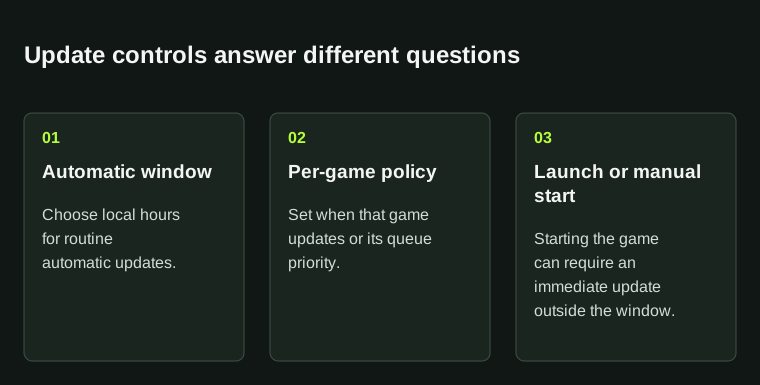
A Steam auto-update window controls automatic downloads. It does not guarantee that an old build will launch unchanged: starting the game can require an immediate update.
01
Choose the setting for the behavior you want
Steam offers an automatic-update window, per-game update choices and manual queue controls. They solve different needs. Use a time window when you want routine updating at quieter hours; use a game’s update setting when its priority differs from the rest of your library.
Before changing anything, note your present settings and the game you need next. For example, postponing an unused game is a different task from preparing tonight’s multiplayer game. The second task usually needs confirmation that the update has actually finished.
02
Set the automatic-update window
Open Steam → Settings → Downloads and set the hours when automatic game updates may run. Valve describes these hours in local time. Confirm the displayed start and end so an overnight window means the interval you intend.
The window does not prevent you from starting an update manually in Downloads. Valve also says launching a game forces its update immediately. A game updating outside your routine window after you press Play can therefore be consistent with the documented behavior, rather than evidence the schedule was ignored.
03
Set a game’s own update policy
Open the game’s Library Properties and its Updates tab. Steam documents keeping a game updated, giving it high update priority, or updating it when launched. Choose the policy for that title and keep it with your schedule notes.
“Only update this game when I launch it” postpones routine updating; it is not a supported lock to any historical version. If you need a particular branch for compatibility, check the game developer’s branch instructions separately. Do not rely on an update policy as a save or mod backup.
An update policy does not lock an old build or confirm that an installation is ready for offline use.
04
Check downloads during gameplay and bandwidth separately
There is also a rule for downloading other updates while playing. Review that alongside the per-game choice if downloads pause when you start a game. A bandwidth limit controls rate, which is different from when a game joins the queue or whether another game pauses it.
When preparing for limited connectivity, inspect Downloads before leaving rather than relying on a priority label. Keep enough time and storage for the installation stage as well as the transfer. A scheduled entry has not completed the work merely because the chosen hour has arrived.
05
Verify the next update and restore unwanted changes
Watch the next relevant entry in Download Manager and compare it with your chosen policy. If you manually override the queue for one session, keep that exception in mind when judging whether the automatic rule works.
Restore the previous setting if it no longer suits the library. For persistent unexpected behavior, record the exact game policy, global time window, local time and whether you pressed Play or manually started the download. Those details separate a policy question from a genuinely stalled transfer.
BEFORE YOU CONTINUE
Quick checklist
- Choose automatic window, per-game priority or manual start for the actual goal.
- Check the local-time interval.
- Expect game launch to require a current update.
- Review downloads-during-gameplay and rate limits separately.
- Confirm completion before limited-connectivity play.
Official sources
Official documentation reviewed on 7 November 2026.
These controls schedule or prioritize updates. They do not promise preservation of an old build, mod compatibility or a completed installation at a chosen time.