THE QUICK ANSWER
A zero network rate does not prove an update has stopped. Check the progress and disk activity first; use the cache reset for a stalled download, and be ready to sign in again.
01
Is Steam downloading, installing or waiting?
Open Downloads from Steam’s View menu. Read the item’s status as well as its rate. Steam’s progress includes work on local files, so the network can pause while the update continues on disk. A moving progress bar or ongoing disk work is a reason to watch the update before interrupting it.
Valve’s Downloads redesign explicitly included disk allocation in total progress. Its SteamPipe documentation also explains that patching can involve rebuilding large files. A small transfer therefore does not necessarily mean a small amount of local work.
| Zero network rate, but disk work or progress continues | Let that stage finish. Do not assume the cache is broken. |
|---|---|
| Queued, paused or scheduled | Check the queue and download settings before resetting anything. |
| No progress and an error is shown | Keep the exact error; use the matching installation or connection check. |
| The game is installed but crashes at launch | File verification is a separate check; clearing cache is not a complete diagnosis. |
02
Check the queue and download limits
The Download Manager shows queued and completed updates. Start the item you actually want to update and check whether Steam is waiting for a schedule or another download.
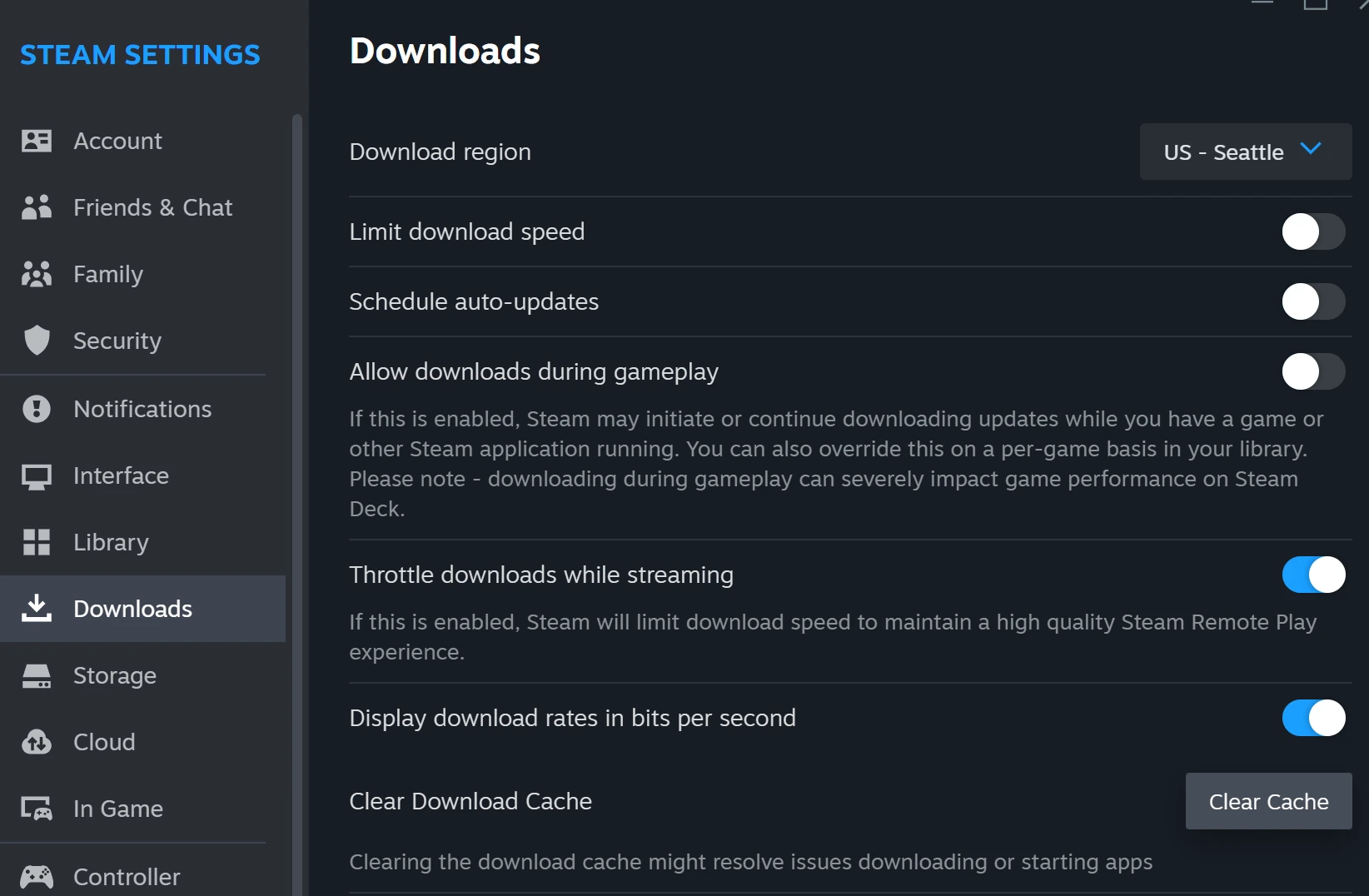
In Steam → Settings → Downloads, review any speed limit, update schedule and rule for downloads during gameplay. A deliberately limited or waiting transfer does not need a cache reset. Keep your usual settings in mind before changing them.
03
Clear the download cache when the transfer is stuck
Valve recommends this built-in reset for games that will not download or start. It leaves currently installed games in place, but restarts Steam and requires another sign-in. Check that you can access your account and authenticator before confirming.
- Close any running game, then open Steam → Settings.
- Select Downloads. Find the Clear Download Cache row and its Clear Cache button.
- Read the confirmation, then choose Confirm if you are ready for Steam to restart.
- Sign back in, return to Downloads and retry the same item. Check its status and progress rather than just whether the button responded.
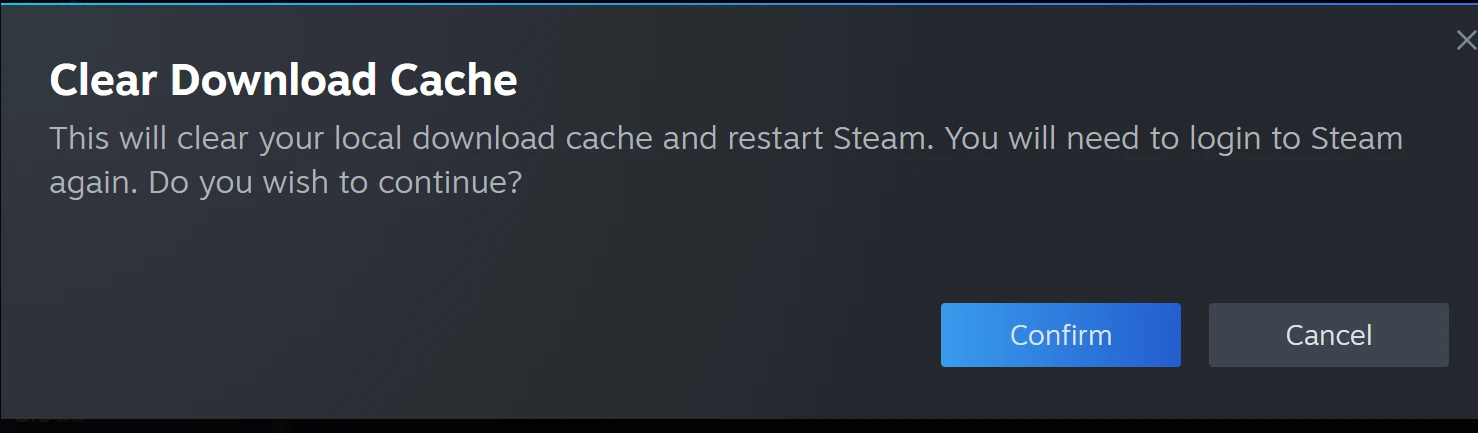
Valve’s confirmation example — The reset restarts Steam and requires another sign-in. It is not an uninstall command.
Open the full-size image to read small interface details.04
If it moves slowly rather than stopping
Check the units before comparing Steam with an Internet plan. Eight bits make one byte: for example, 80 Mb/s equals 10 MB/s before overhead. That arithmetic is a unit conversion, not a promised download rate.
Valve suggests checking the selected download region and, if necessary, trying a nearby one. Choose your own region or a nearby location in Downloads settings, then compare the same transfer. Avoid cycling through many regions without keeping track of the result.
05
Keep the error instead of repeating the reset
If the same failure returns, use Steam’s installation guide for the specific problem. Available checks include restarting Steam and the computer, checking the library drive and repairing the library folder. Read the matching instructions before making another change.
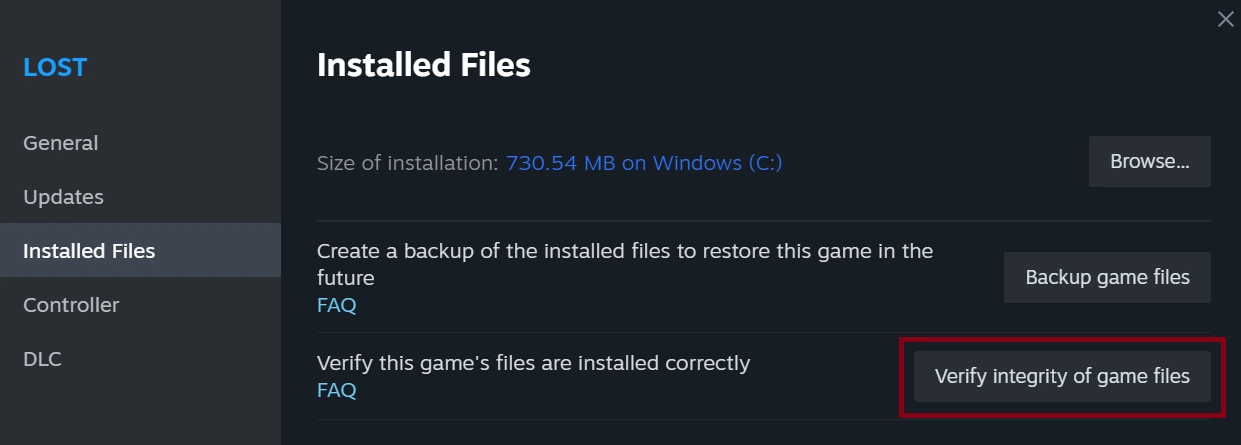
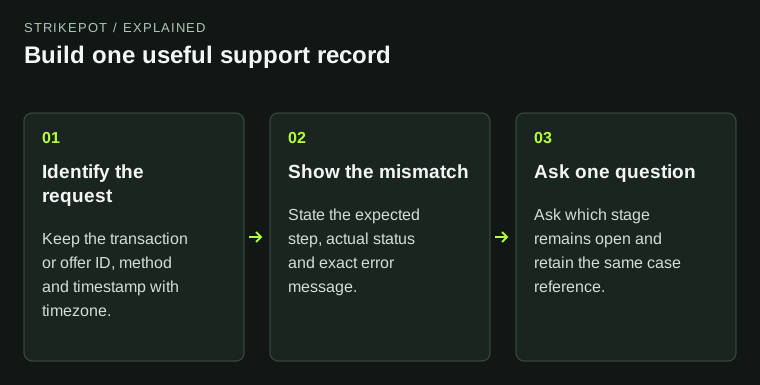
Do not start by deleting game folders or saved data. For a support request, the useful record is the game, exact download state, error, target drive and what changed after one reset. If the download finishes but CS2 still fails to start, move to the installed-files guide below.
BEFORE YOU CONTINUE
Quick checklist
- Read the state, progress and disk activity—not only 0 B/s.
- Check the queue, schedule and speed limit.
- Be ready to sign in before clearing the cache.
- Retry once, then follow the remaining error.
Official sources
Public Valve documentation reviewed on 24 October 2026. The images are examples published by Steam Support, not a test performed on a reader’s computer.
- Steam Support — Clear download cache · reviewed
- Steam Support — Managing Steam Downloads & Updates · reviewed
- Steam Support — Slow Downloads and Connection to Content Servers · reviewed
- Steam Support — Update & Installation Issues · reviewed
- Valve — Downloads-page redesign, 9 September 2021 (historical explanation) · reviewed
- Valve Steamworks — SteamPipe and local patching · reviewed
The current public FAQ text and two official image references were read from Steam Support’s embedded FAQ data on 24 October 2026. The FAQ calls the reset Clear Download Cache; its published screenshot labels the action button Clear Cache. The 2021 announcement is historical evidence for progress including disk allocation, not a claim that its entire interface is unchanged. No client reset or account sign-in was performed.