THE QUICK ANSWER
Make two plans: restore the installed game, and preserve your own progress and custom content. Steam’s built-in game backup does not guarantee both.
01
Decide what the backup must preserve
Valve says its backup tool supports games that fully download, install and patch through Steam. Many titles using separate installers or downloaders are not compatible. Check the game before assuming this tool can package the whole installation.
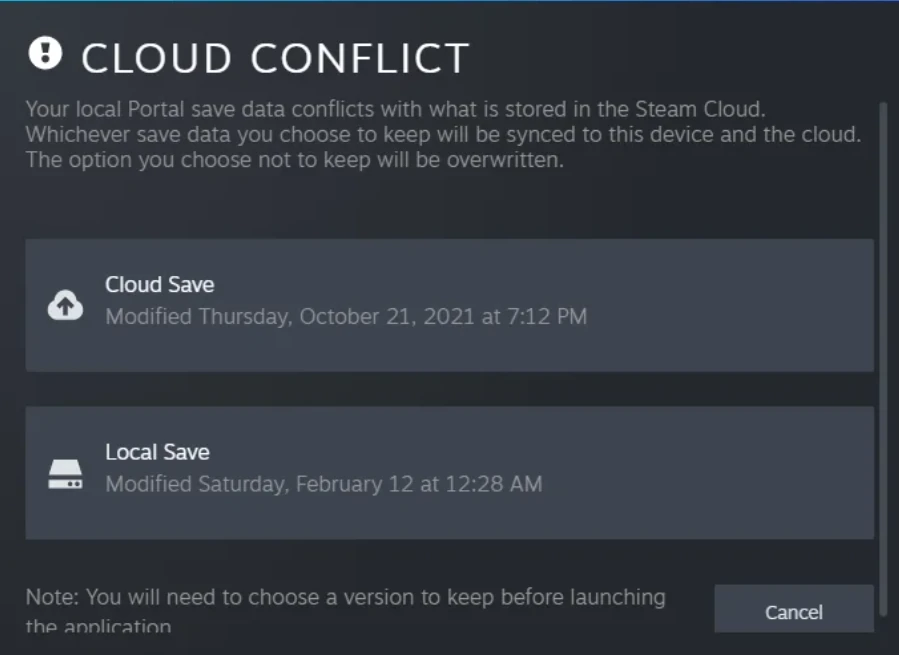
For Valve-created games, the FAQ explicitly excludes saves, custom multiplayer maps and configuration files from the game backup. Third-party save locations vary by developer. Make a separate copy of personal files using current game-specific instructions.
A game archive and a save copy are separate
Install archive
Restores compatible game files.
Personal-file copy
Preserves saves and custom settings at game-specific paths.
Account inventory
Remains an account record, outside the install archive.
Original backup-scope explanation; no claim is made that one local folder covers every game.
Original explanation · not an account screenshot| Game installation backup | Compatible installed files that Steam can restore. |
|---|---|
| Save/configuration backup | Your progress, settings and custom content copied separately. |
| Steam inventory | An account-side item record, not a local game-backup archive. |
02
Create the game-file archive
Valve’s current route is Library → game Properties → Installed Files → Backup game files. Choose a destination with enough space, then create the backup and wait for completion.
Name or label the backup with the game and date in your own records. Keep the personal-file copy identified separately. An archive named “all saves” is misleading if it only contains the game’s install content.
- Exit the game and preserve the personal files you need.
- Open Properties → Installed Files → Backup game files.
- Browse to the backup destination and choose Create Backup.
- Use Open folder after completion and verify that the expected archive is present.
03
Restore through the correct account
The documented restore route is Steam → Restore Game Backup. Valve instructs you to install Steam, sign in to the correct account, browse to the archive and follow the restore process. Copying a game archive does not grant another account a license.
Keep the original archive while checking a restore. After the installation is available, inspect the game’s expected state and restore personal files only through the developer’s appropriate procedure. A launch screen is not proof that an old campaign or custom setup survived.
Check the archive before you need it
Create
Let the backup finish.
Keep originals
Retain working files and the separate save copy.
Restore and inspect
Check installation and desired personal state.
Record
Keep the result with the backup’s date and location.
Original preservation workflow based on Valve’s recommendation to test backups.
Original explanation · not an account screenshot04
Test before relying on the archive
Valve recommends testing created backups because an interrupted or interfered-with backup may not be usable. When possible, verify restoration while the original data is still available. Avoid deleting the only working installation as the first test of an unverified archive.
Record the archive location, game, creation date, separate personal-file locations and restore result. Steam may still need updates for the restored installation. A useful backup record says what was preserved and what remains outside the archive.
BEFORE YOU CONTINUE
Quick checklist
- Check whether the game is compatible with Steam backup.
- Copy saves and custom files separately.
- Create the archive through Installed Files.
- Test restoration before depending on it.
Official sources
Public Valve documentation reviewed on 26 October 2026 (America/Toronto).
- Steam Support — Using the Steam Backup Feature · reviewed
- Steam Support — Moving a Steam Installation and Games · reviewed
The public FAQ was read from the complete embedded data-faqstore article in Steam Support HTML. Procedures are documented guidance; no account sign-in, client operation, security change or transaction was performed. Examples and decision aids are original editorial explanations.