THE QUICK ANSWER
Start in Settings → Crosshair/Scopes and open Share or Import. Copy your current code before importing another one, then check its shape, size and scope dot in the current client.
01
Save the crosshair you already use
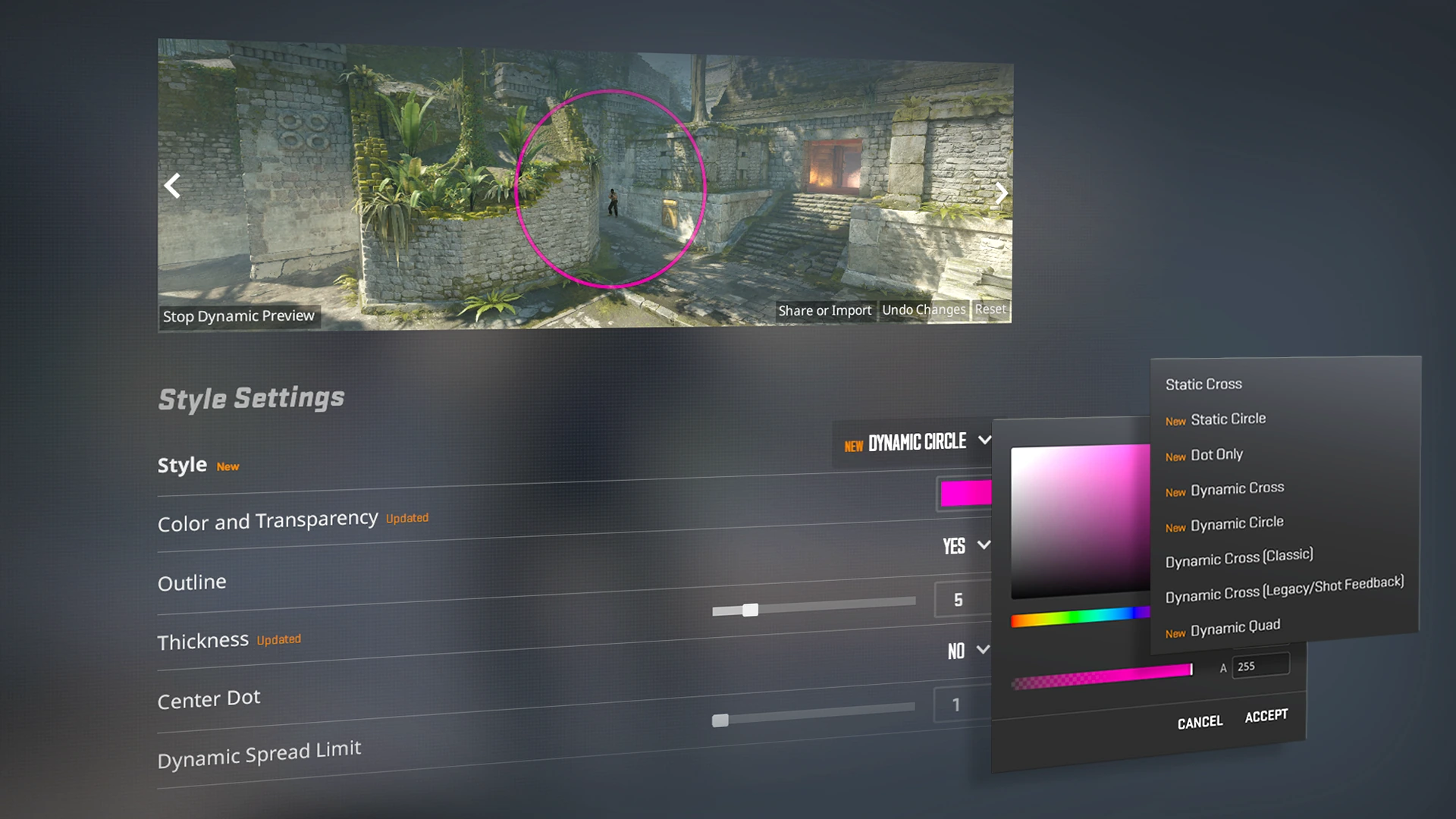
Before trying a code from a player or guide, keep a copy of the setup you have now. Open CS2’s Settings and find Crosshair/Scopes. The Share or Import control sits beneath the crosshair preview in Valve’s September 2026 illustration.
Open that control and copy the code for your current setup into a private note. Add a short label and the date so you can tell your backup from the code you are about to try. Also note your resolution and any settings you particularly want to keep, such as the scope dot.
This takes less effort than rebuilding a familiar crosshair after an import. The nearby Undo Changes and Reset controls have different purposes; resetting is not a substitute for saving your own setup.
02
Import one code and check the preview
Use a complete code from a source you trust. You do not need to install a crosshair pack or run someone else’s configuration file just to try a shared crosshair.
The steps below describe the share/import workflow. They do not certify that a particular player’s code is current or that an old code will be converted correctly.
- Open Settings → Crosshair/Scopes and select Share or Import beneath the preview.
- Save your existing code before replacing anything.
- Paste the complete new code into the import field and confirm the import.
- Look at the preview and review the resulting style, color, size, gap and scope dot before leaving Settings.
- Try the result in a practice session. Keep your saved code available if you want to return to the previous setup.
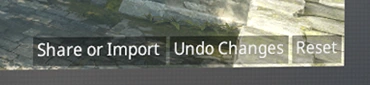
Detail from Valve’s September 2026 illustration: Share or Import is below the preview. Undo Changes and Reset are separate actions.
Open the full-size image to read small interface details.03
Why an older code may need another look
Valve changed the crosshair settings in September 2026. The September 22 announcement introduced the Crosshair/Scopes tab and new shapes. On September 30, Valve changed the share-code format to include more settings, including scope-dot scale and color.
Those notes do not establish that every older code still imports, that all older codes fail, or that a third-party converter produces an identical result. If CS2 rejects a code, check that you copied it completely and ask its source for a newly exported code from an updated client. Keep the error message if that still fails.
If the code imports but looks different, compare the actual settings rather than repeatedly pasting the same text. A code listed as current on a website can still predate a format change.
| Code rejected | Check the full copied text and request a fresh export. |
|---|---|
| Imports, but the shape is wrong | Compare style, gap, size, outline and scope-dot settings. |
| Looks different after changing resolution | Review the preview at the resolution you will actually use. |
| Want the previous setup back | Use your saved personal code, then verify the preview again. |
04
Read the new size values in context
Valve’s September 23 notes describe crosshair thickness and length in pixels and explain that the game rescales them when display resolution changes. Its example doubles a two-pixel thickness when moving from 1280×720 to 2560×1440, keeping the same proportions.
That is why a list of numbers without a resolution or client context is incomplete. Use the preview to check the result on your display instead of assuming the same number always means the same physical appearance.
Dynamic styles can also expand with weapon inaccuracy and spread. Their expansion is useful feedback, but it is a different choice from a static marker. Pick a style you can read clearly, rather than a style chosen only because somebody else uses it.
05
Test visibility, then save the version you keep
Try the crosshair against both bright and dark parts of a practice map. Look at a target while standing still and while moving so you can see whether the marker remains readable and whether its motion distracts you.
Change one thing at a time. For example, compare color before also changing size and gap. This is a practical way to judge visibility; it is not a promise of better aim or a ranking advantage.
Once you settle on a setup, return to Share or Import and save a fresh code with a clear label. A code is a convenient backup, while a short note about what you changed makes it easier to compare later.
BEFORE YOU CONTINUE
Quick checklist
- Copy your own code before importing another.
- Use the current Crosshair/Scopes settings.
- Check the imported shape and scope dot.
- Test visibility at your normal resolution.
- Save a fresh code for the setup you keep.
Official sources
Valve’s September 2026 announcements and official crosshair illustration were reviewed on 24 October 2026.
- Valve — Rush Hour: new Crosshair/Scopes settings and official menu illustration (22 September 2026) · reviewed
- Valve — Counter-Strike 2 Update: crosshair pixel units and resolution scaling (23 September 2026) · reviewed
- Valve — Counter-Strike 2 Update: changed share-code format and scope-dot settings (30 September 2026) · reviewed
The official announcements were obtained through Steam’s public news API; the full menu illustration and its Share or Import, Undo Changes and Reset labels were visually inspected. No CS2 client, personal configuration or imported player code was tested. Valve’s notes confirm a format change but do not establish universal compatibility or failure of older codes. The menu image is from September 2026, not a new screenshot of a personal game session.