THE QUICK ANSWER
Do not select a save just because it says Cloud or Local. Match it to your last real session. If you are unsure, cancel the launch and preserve the available files first.
01
Read which warning Steam is showing
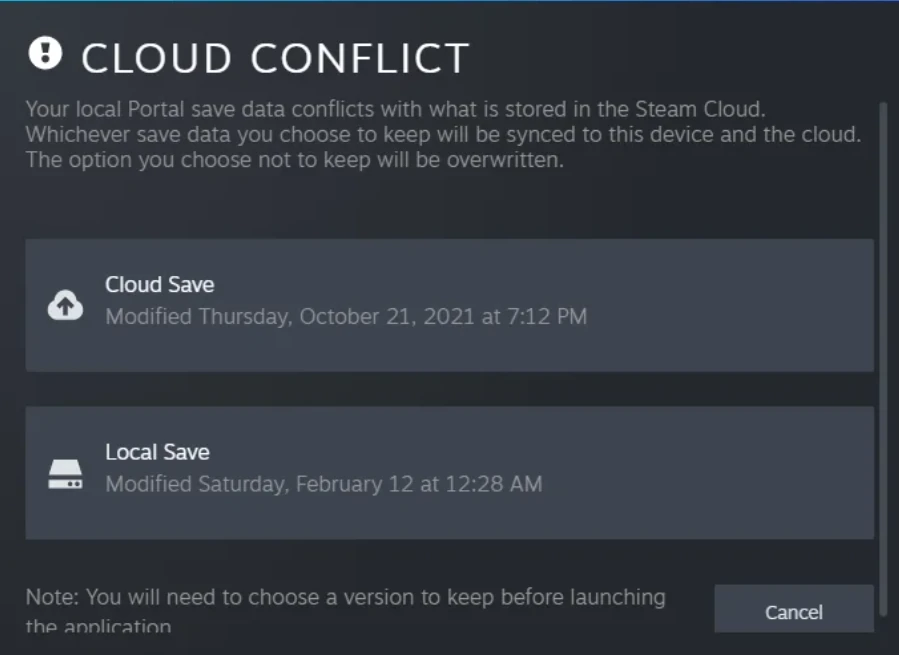
A sync warning says Steam could not bring the files up to date. A conflict asks you to choose between different versions. Playing past an unresolved sync warning can create a conflict and risk progress.
In a conflict, compare the displayed dates with where and when you last played. Neither the cloud copy nor the local copy is automatically the one you want. Valve’s example below uses Portal and historical timestamps; your own session history is what matters.
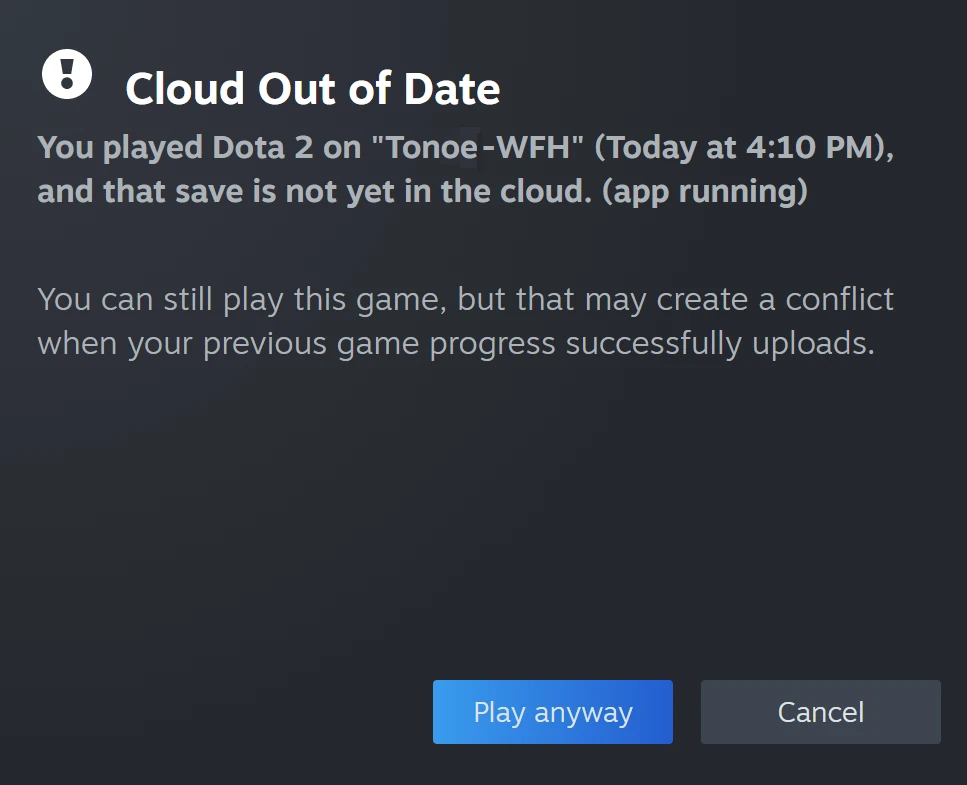
Valve’s Cloud Out of Date example — This Dota 2 warning describes a save that has not reached the cloud. The option to play anyway is not proof that syncing succeeded.
Open the full-size image to read small interface details.02
Keep a separate copy before you replace a save
Before choosing, note which computer or Steam Deck holds the progress you want. Avoid starting another session on a different device while investigating. That gives you one clear timeline rather than another set of changes.
Use the game developer’s instructions to locate its save files. Make a separate backup of the relevant files on any device you can still access, without moving or deleting the originals. Name the backup with the game, device and date so you can identify it later.
There is no single save-folder path that fits every Steam game. Steamworks lets developers select file locations and which files are synchronized; some use the game folder, others use user-document or application-data folders. A copied configuration folder is not necessarily a backup of a campaign save.
03
Choose using the session you want to keep
Use a short note like this before clicking a version: “I completed this section on my desktop on Friday evening; I have not played on the laptop since Thursday.” Compare that history with the conflict window, then keep the version that corresponds to it. This is a decision aid, not a rule to always pick the newest-looking timestamp.
If the dates do not make sense or the expected device is unavailable, stop and ask the game’s support team how its saves are stored. Guessing can replace the only good copy.
| Your latest session was on this computer | Check whether the local copy corresponds to that session. |
|---|---|
| Your latest session was on another device | Preserve and check that device before accepting a replacement here. |
| You cannot tell which copy contains the desired progress | Cancel the launch; identify the files before choosing. |
04
Let the last device finish before switching
For normal Steam Cloud integration, selected files are synchronized around game sessions. Let the game exit and Steam finish its upload before opening it elsewhere. Large or numerous files can take longer than the game window takes to close.
Steam’s 2025 developer presentation also shows why a game left suspended on a Deck can complicate switching devices. Dynamic Cloud Sync can handle supported games differently; do not assume that every title supports it. Closing the game and checking synchronization is the clearer handover when you are troubleshooting.
05
Check what this game actually saves
A Steam Cloud badge means the title integrates with the feature; it does not specify that every file or setting is covered. Developers choose that scope. Steamworks supports several save locations and platform rules, so ask the developer before expecting a Windows save to appear unchanged on another operating system.
Cloud sync is also different from a Steam inventory. Choosing a save will not deliver a missing skin or remove an item’s trading restriction. Use the inventory guide for those problems.
06
If the wrong progress has already loaded
Stop creating new saves and check the previous device, if you still have it. Keep any remaining local copy before attempting a game-specific recovery. Steam Support says it cannot recover lost saves or decide cloud conflicts for you.
A successful sync means files transferred; it does not prove that they contained the progress you intended. After resolving the issue, check the expected save slot or checkpoint in the game before treating the recovery as complete.
BEFORE YOU CONTINUE
Quick checklist
- Identify a sync warning or an actual file conflict.
- Match each copy to the device and session you want.
- Back up the correct game files without deleting originals.
- Let syncing finish before changing devices.
Official sources
Public Valve documentation reviewed on 24 October 2026. Steam Support’s images are labeled examples; no personal save was changed.
- Steam Support — Steam Cloud: sync errors, conflicts and lost progress · reviewed
- Valve Steamworks — Steam Cloud integration, file paths and platform scope · reviewed
- Valve — Steamworks Features 2025, Steam Cloud slides 29–47 (historical technical explanation) · reviewed
The complete public Cloud FAQ, including its current image references, was read from Steam Support’s embedded FAQ data on 24 October 2026. Steamworks documentation and Valve’s 2025 presentation were also consulted. Backup and session-timeline advice is an editorial precaution; it cannot determine which of a reader’s saves contains the desired progress. Save paths, supported files and recovery instructions vary by game. No cloud conflict was created, no save restored, and no account or game session was tested.