THE QUICK ANSWER
Prepare while you still have a connection. Invisible friends status only changes presence; Steam Offline Mode changes which network-dependent features are available.
01
Choose Offline Mode rather than invisible status
Steam Offline Mode lets compatible games run without an active Steam Network connection. Valve says client features requiring a connection are unavailable. Invisible friends status is different: it makes you appear offline while you can still use Community messaging.
Choose the mode for the task. If you only want friends not to see that you are online, Offline Mode is unnecessary. If you need to play without internet, a hidden presence setting does not prepare the installed game or stored sign-in information.
Prepare before the connection disappears
Update online
Finish Steam and game downloads.
Launch once
Complete first-run requirements.
Save access appropriately
Use remembered credentials only on your own trusted computer.
Test offline
Confirm the intended supported activity works.
Original preparation sequence from Valve’s Offline Mode procedure.
Original explanation · not an account screenshot02
Prepare the intended game while online
Valve’s setup procedure starts online with remembered account credentials, fully updated files and a successful launch of each game you plan to use. Some games need that first online launch to finish installation or authentication.
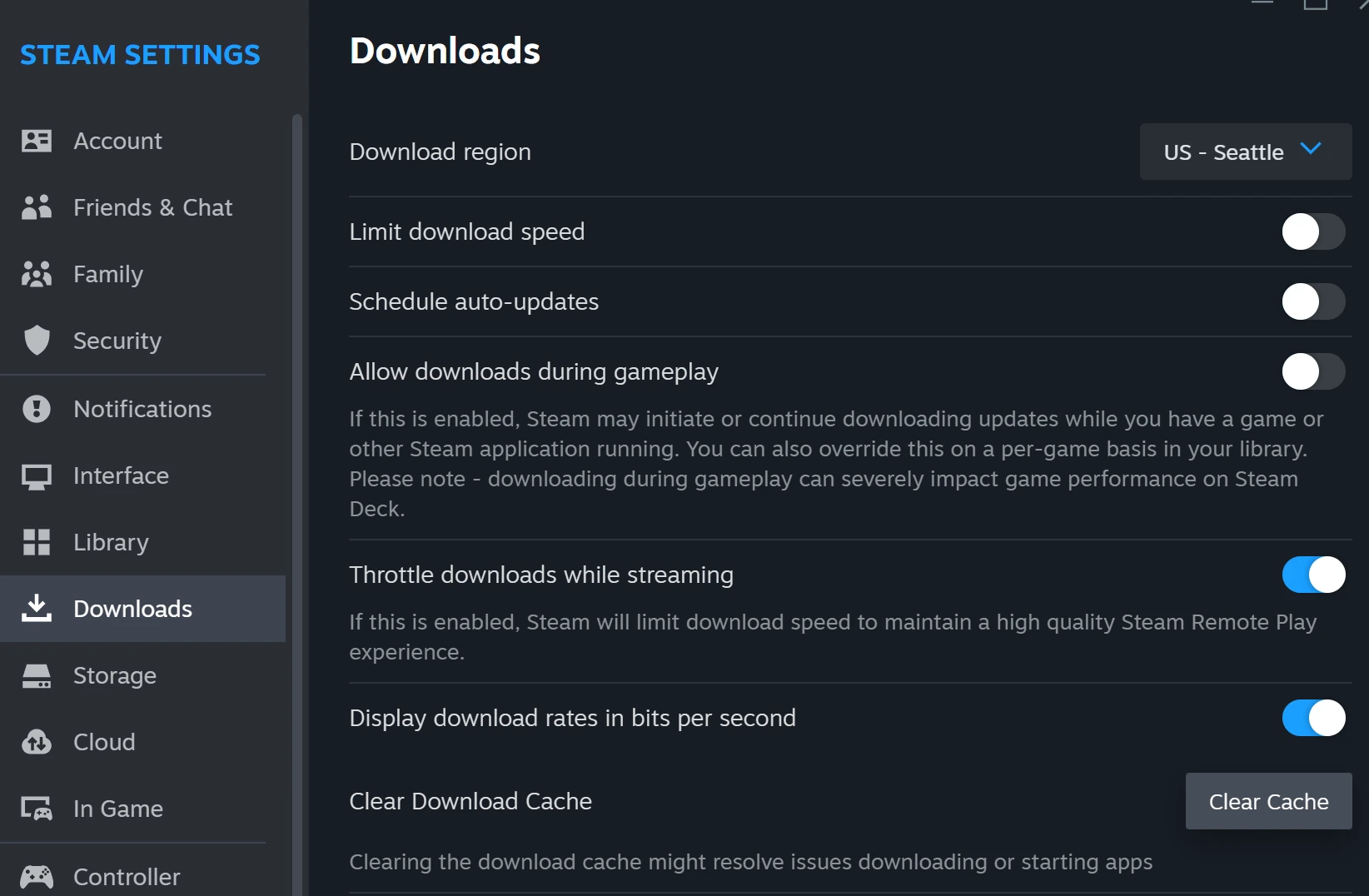
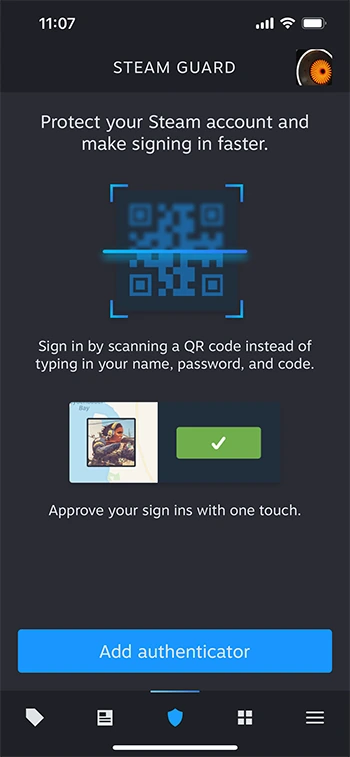
Do this only on a computer where keeping your sign-in is appropriate. Check Steam’s Security setting that controls saving account credentials, complete the normal game launch, then exit the game cleanly. A game showing downloaded files is not the same as one whose first-run requirements are complete.
- While connected, update Steam and the intended game.
- Launch the game once and confirm its normal start-up works.
- Close it and check that Steam may retain credentials on this computer.
- Use Steam → Go Offline and test the intended offline game before you travel.
03
Check the game’s own connection requirements
Valve says games requiring an active connection or an external launcher do not work through this Offline Mode procedure. Read the game’s own requirements. Offline Mode is not a way to play an online-only multiplayer session without its servers.
Prepare a specific offline activity, such as a supported single-player mode. Do not assume a game’s entire feature set works because its main menu opens. Likewise, a local file-copy plan is different: Steam LAN game transfers require both clients online.
Offline and invisible are different
Offline Mode
Network-dependent Steam features are unavailable.
Invisible status
You appear offline while remaining connected.
Online-only game
Its server requirement still applies.
Original mode comparison, not a promise that every title supports offline play.
Original explanation · not an account screenshot| Supported offline game mode | Update, complete first launch and test while preparation is possible. |
|---|---|
| Always-online or external-launcher requirement | Use the developer’s actual requirement; Offline Mode does not bypass it. |
| Inventory transfer or other network feature | Return online for the relevant Steam service. |
04
If Steam still requires a login
Valve says there is no offline bypass when the client requires sign-in. Reconnect to prepare it correctly. Its FAQ recommends closing Steam manually before shutdown and avoiding force-quitting, because stored information is needed for offline operation.
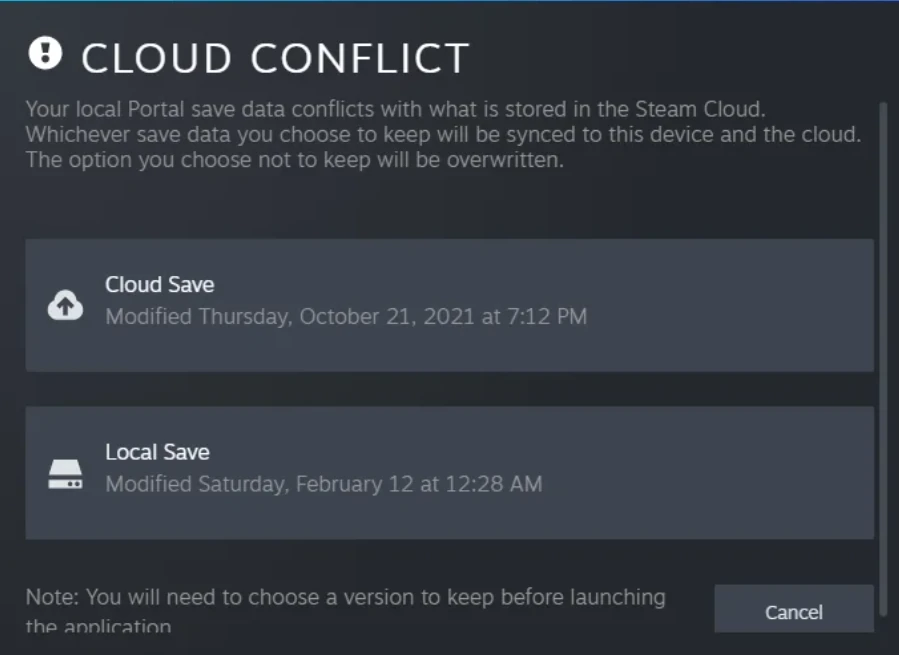
Record the exact message and which part failed: Steam sign-in, game startup or a game’s online feature. When reconnecting after offline play, let relevant Cloud synchronization finish before starting on another device. Keep any conflict separate from Offline Mode setup.
BEFORE YOU CONTINUE
Quick checklist
- Prepare while online.
- Finish updates and first launch for each intended game.
- Test a supported offline activity.
- Record whether Steam login or the game’s own online requirement blocks you.
Official sources
Public Valve documentation reviewed on 26 October 2026 (America/Toronto).
- Steam Support — Offline Mode · reviewed
- Steam Support — Addressing abuse and misconduct (Invisible Mode) · reviewed
- Steam Support — Steam Local Network Game Transfers · reviewed
The public FAQ was read from the complete embedded data-faqstore article in Steam Support HTML. Procedures are documented guidance; no account sign-in, client operation, security change or transaction was performed. Examples and decision aids are original editorial explanations.