
Skins. Codes. Clear answers.

Guides/Security

Security

Steam Guard: set up your authenticator and check sign-ins

Set up Steam Guard in the official Steam Mobile app, save your recovery code privately and approve only sign-ins you started.

2 min read

THE QUICK ANSWER

Open Steam Guard in the Steam Mobile app to set up the authenticator. Check each sign-in request yourself: having 2FA does not make an unfamiliar request safe.
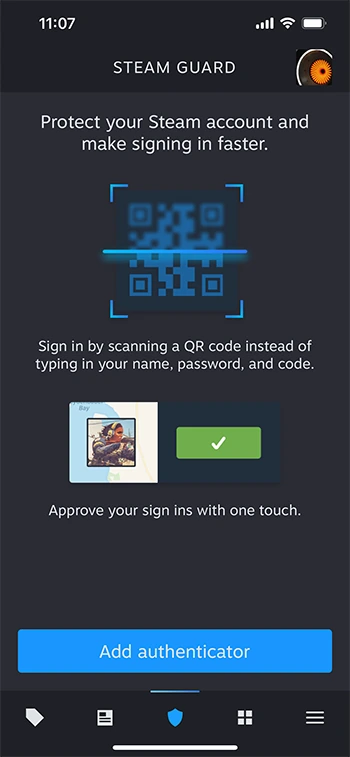
Steam Mobile App — Open Steam Guard, then choose Add authenticator. This is Valve’s official setup example; the illustrated QR is not a login code to use.
Steam Mobile App — Open Steam Guard, then choose Add authenticator. This is Valve’s official setup example; the illustrated QR is not a login code to use. Official reference: Steam Support — Mobile Authenticator

01

Set up Steam Guard in the app

Valve documents three sign-in methods: scan a Steam sign-in QR code, approve an app notification or enter the current authenticator code on Steam. Use one only for a sign-in you started.

  1. Open the Steam Guard tab in the official Steam Mobile app.
  2. Choose Add authenticator and complete the account’s verification prompts.
  3. Save the recovery code privately before leaving setup.
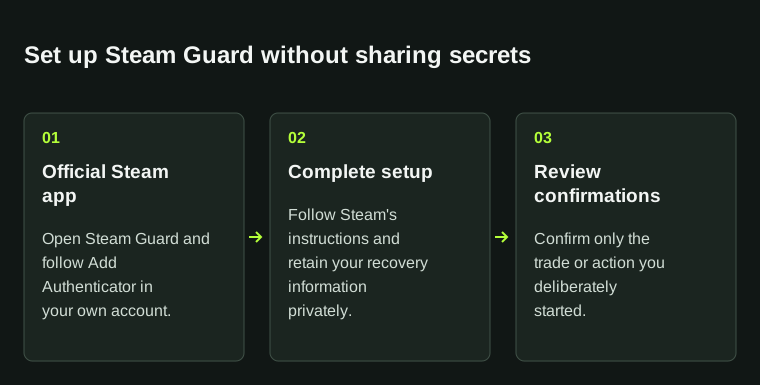
Set up Steam Guard without sharing secretsOfficial Steam app: Open Steam Guard and follow Add Authenticator in your own account.; Complete setup: Follow Steam's instructions and retain your recovery information privately.; Review confirmations: Confirm only the trade or action you deliberately started.Set up Steam Guardwithout sharing secrets01Official Steam appOpen Steam Guard and follow AddAuthenticator in your ownaccount.02Complete setupFollow Steam's instructions andretain your recovery informationprivately.03Review confirmationsConfirm only the trade or actionyou deliberately started.
Set up Steam Guard without sharing secrets. Official Steam app: Open Steam Guard and follow Add Authenticator in your own account.; Complete setup: Follow Steam's instructions and retain your recovery information privately.; Review confirmations: Confirm only the trade or action you deliberately started.

Use the official Steam app for authenticator setup. Passwords, login codes and recovery information stay private.

02

Check every sign-in request

  • Did you start this sign-in yourself?
  • Is the service and account on the confirmation screen the one you intended?
  • Does a chat message pressure you to approve something immediately?
  • Are you being asked to send a code or recovery information to another person?

03

Keep a way to recover access

Store recovery information somewhere private that you can reach if the phone is lost. Keep it out of shared notes, support templates and screenshots. If you cannot sign in, use Steam’s own recovery process.

Read the exact restriction notice before changing security settings. A change intended to remove one restriction can create another; save the notice with your troubleshooting notes.

04

If Steam asks for a code every time

Steam Guard remembers a recognized browser with a cookie. Private browsing, automatic history clearing or deleting cookies can make Steam ask for another code on the same computer. This does not explain a sign-in you did not start.

Check that you are using the same browser profile and retaining its Steam site data. Keep browser checks separate from account recovery, and leave Steam Guard enabled.

BEFORE YOU CONTINUE

Quick checklist

  • Use the official Steam Mobile app.
  • Keep recovery information private.
  • Approve only sign-in requests you recognize.

Official sources

Read the official documents below for the service’s rules and account instructions.

KEEP READING

A useful next read.

All guides

Security · 2 min read

Recover account access

Review Steam’s Authorized Devices, secure the linked email and use official account recovery if you cannot sign in.

Read guide

Security · 2 min read

Fake support messages

A message saying your Steam account was accidentally or falsely reported is a scam warning. Check your own Steam Support account before responding.

Read guide

Steam & trades · 2 min read

Review a trade offer

Check the recipient, every item and the final Steam confirmation before accepting. If an offer changes or is replaced, review it from the start.

Read guide

Security · 3 min read

Steam Guard on a new phone

Move your existing Steam Guard authenticator using the old authenticator or an SMS to the registered number. Steam documents a two-day restriction after transfer.

Read guide

Security · 3 min read

Review Steam access records

Compare Authorized Devices, your recent-login record and your own device timeline. A location label alone cannot identify the person using an account.

Read guide

Security · 3 min read

Understand Steam self-lock

Steam’s account-change emails can include a self-lock link for suspected compromise. Understand its restrictions, keep the unlock code private and continue official recovery.

Read guide