THE QUICK ANSWER
Use the records to identify activity you cannot explain, then follow account recovery. The device list and a historical login record answer different questions.
01
Keep the access records separate
Steam’s security article directs account owners to Authorized Devices when account access looks wrong. Recent Login History is a separate account-data page behind Steam sign-in. Open both through Steam’s own addresses rather than an exporter sent to you in chat.
Use Authorized Devices to review the access Steam currently presents for the account. Use the history page to investigate an event at an earlier time. Do not assume that removing a device deletes its historical record, or that an old entry proves a session is still active.
Two access records, two questions
Authorized Devices
What access does Steam currently present?
Recent Login History
What historical account activity is recorded?
Your timeline
Which events can you explain from your own use?
Original conceptual comparison. No private account fields or retention period are asserted.
Original explanation · not an account screenshot02
Compare with a short device timeline
Before interpreting an unfamiliar entry, list your own recent desktop, browser, phone and Steam Deck use. Note a browser-profile change, shared machine, travel or network change. These are questions to compare with the record, not excuses for an event you cannot explain.
Copy the timestamp exactly as displayed and preserve any timezone label. If you convert it to your local time, retain the original too. If the page does not label a timezone, mark it as unknown instead of assigning one from memory.
| Original account entry | Record the displayed device, time and location information without changing it. |
|---|---|
| Your own activity | Write where and how you actually used Steam around that time. |
| Remaining discrepancy | State the event you cannot match, without claiming who caused it. |
03
Treat location as supporting context
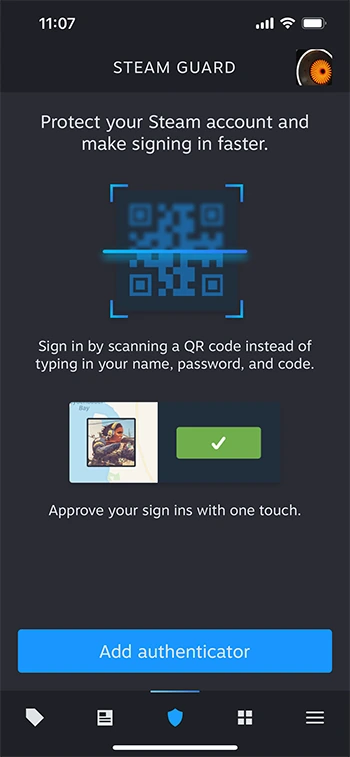
Valve describes the location shown for a Steam Guard QR sign-in as approximate geolocation. A city or map pin is therefore not a GPS record of the person holding a device. That documented limitation is a reason to compare several details before drawing a conclusion.
An unexpected device, a login you did not start and an unexplained trade together deserve a different response from a familiar device with a nearby city label. Do not approve a fresh login to test whether a map is accurate. Preserve the evidence you already have.
Preserve the time before interpreting it
Copy
Save the time exactly as displayed.
Label
Keep the displayed timezone or record unknown.
Compare
Match it against a device and session you recognize.
Original evidence workflow; this is not a login-history screenshot.
Original explanation · not an account screenshot04
Act on unexplained access, not on a guessed identity
If the records show access you cannot explain, use the compromised-account guide. Valve recommends Sign out everywhere when something looks wrong, along with password, email and system security checks. This page’s purpose is to prepare the observation; the recovery guide covers those account changes.
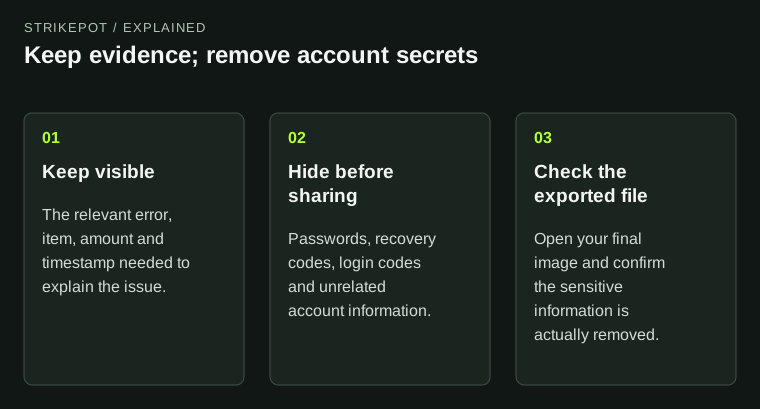
For a private report, describe the mismatch directly: “This device is unfamiliar and this timestamp does not match my use.” Remove full network addresses and unrelated device details from public screenshots. A clean-looking list does not prove that the computer or linked email is secure.
BEFORE YOU CONTINUE
Quick checklist
- Keep current-device and historical-login records separate.
- Preserve the original timestamp and any timezone label.
- Compare against your real device timeline.
- Use the recovery guide for unexplained access.
Official sources
Public Valve documentation reviewed on 26 October 2026 (America/Toronto).
- Steam Support — Account Security Recommendations · reviewed
- Steam Support — Steam Guard Mobile Authenticator · reviewed
- Steam Support — Recent Login History (sign-in required) · reviewed
Public Steam security and mobile documentation was reviewed. Authorized Devices and Recent Login History require account access; no private entries were opened. This guide does not claim a retention window, exhaustive log coverage or a fixed timezone convention. No session was revoked or account setting changed.