
THE QUICK ANSWER
The host launches a game that supports Remote Play Together, then invites a friend from the in-game Steam friends list. Joining the stream and joining a local player slot are separate checks.
01
Check the game and the host first
Look for Remote Play Together in the game’s Steam store features. The host must own and run the game; the invited guest does not need to own or install a second copy to join that streamed session. Launch the game normally on the host and verify its local multiplayer mode works.
Choose the local co-op or multiplayer mode you intend to share. A normal online-lobby invitation may use the game’s own network mode instead. Keep those two invitation types separate when a friend is asked to buy or launch a copy unexpectedly.
02
Send Remote Play Together from the running game
With the game running, open the Steam overlay, normally Shift+Tab. In the friends list, choose the friend and select Remote Play Together. The friend accepts the invitation to enter the streamed session. Valve’s troubleshooting also asks that each person sees the other online.
If the option is missing, check the supported feature, whether you launched the intended game and whether the overlay opens. Use the overlay guide for a failed overlay rather than treating every missing invitation option as a connection fault.
- Launch the supported game on the host.
- Open the Steam overlay and find the online friend.
- Select Remote Play Together and have the friend accept.
- Check the picture, then join the game’s local multiplayer mode.
03
Decide which input the guest should use
Valve supports guests using their own controllers and lets the host share or limit keyboard and mouse access. Review those permissions for the session. Granting a keyboard input does not automatically create another independent keyboard player; the game still applies its own local multiplayer rules.
At the game’s player-join screen, have one person press the required join control at a time. Confirm which character or player slot responds. If two people control the same action, record whether they are sharing keyboard/mouse input or whether the game has assigned a controller differently. The streamed picture working only establishes that video reached the guest.
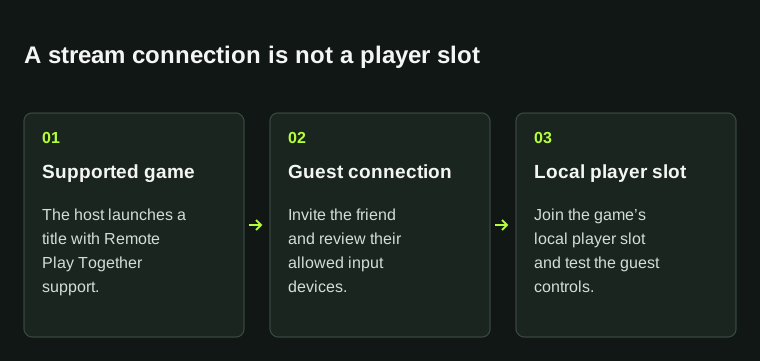
Joining the stream and controlling a local player are separate checks; the game still controls how players join.
04
Narrow a connected-but-no-control problem
If the guest sees the game but cannot act, check session permissions and the game’s expected local-player input before changing network settings. For a controller problem across games, check whether Steam recognizes that controller on the guest’s device. Keep the selected layout with the result.
When finished, end the session and check who remains connected before continuing into a different activity. For persistent trouble, report the game, host, guest device, invitation type, input permission and exact point of failure: invite missing, acceptance failed, no picture or no player control.
BEFORE YOU CONTINUE
Quick checklist
- Confirm Remote Play Together support.
- Launch the game on the intended host.
- Send the Remote Play Together invitation from the overlay.
- Review guest keyboard, mouse and controller access.
- Join and verify the game’s local player slots.
Official sources
Official documentation reviewed on 7 November 2026.
- Valve — Remote Play Together setup and input sharing · reviewed
- Steam Support — Remote Play Together invitation and controller checks · reviewed
The game determines its local multiplayer modes and player-input rules. A connected stream does not guarantee another player slot is joined.