
THE QUICK ANSWER
When the host picture is normal but the receiving device stays black, isolate the streaming video path. Change host encoding and client decoding separately and restore settings after each comparison.
01
Compare the host picture with the receiving picture
Look at the computer actually running the game. If its own game window is black or the game has failed to launch, solve that local failure first. If the host displays the game normally while the receiving device has sound and no picture, you have a more precise streaming-video symptom.
Note whether this happens for one game or every game you try. Valve asks for the affected title when a single game has a streaming black screen. Avoid reinstalling several working games before establishing which side first loses the picture.
02
Record the baseline before changing options
Keep the host and receiving device, operating systems, Steam channel and graphics-driver versions together. Update Steam on both ends and use graphics updates supplied for your hardware and operating system. Check the same simple scene again so a changed result is comparable.
Leave game resolution and other streaming choices stable while comparing the next settings. If several changes are made together, a returning picture will not tell you which one mattered. Keep the original state so you can reverse an unsuccessful test.
03
Compare hardware encoding on the host
For black screens across games, Valve documents a comparison with hardware encoding disabled in the advanced host settings. This change belongs on the computer running the game. Record the prior setting, make the comparison, then restore it if it does not help.
If the picture returns, keep the host graphics card, driver and result in your report. That narrows the path involved; it does not prove the graphics card is physically faulty or that software encoding is the best permanent setting for every session.
04
Compare hardware decoding on the receiving device
Valve separately documents disabling hardware decoding in the advanced client settings. Test this with the host setting returned to your baseline so it remains a distinct comparison. Here, client means the device receiving the stream, not the host.
Record whether the picture appears, remains black or changes to a different fault. A result such as “host encoding off fixes it; client decoding off does not” is actionable evidence. “I changed all advanced settings” is harder to investigate.
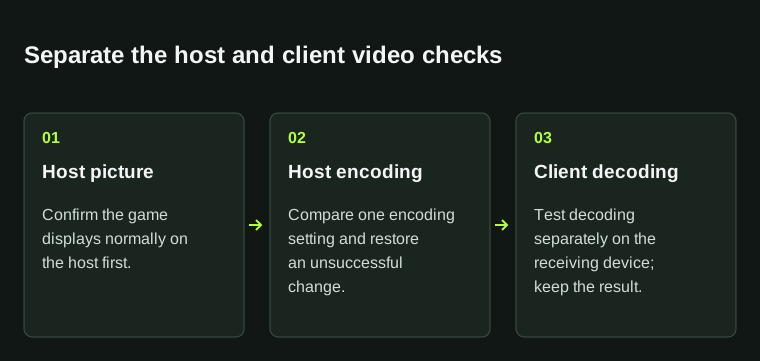
Change one setting at a time. A normal host picture with a black client picture narrows the question to the streamed video path.
05
Keep a specific report if the screen stays black
Include the local-host result, one-game versus all-games scope and the outcome of each comparison. If audio, input or the whole connection also fails, record those separately. The same black rectangle can accompany different failures.
Use a support report rather than applying old hardware-specific advice blindly. Historical laptop or operating-system fixes do not establish the right configuration for your current system. The useful next step is the smallest documented comparison that matches the host, receiver and symptom you actually have.
BEFORE YOU CONTINUE
Quick checklist
- Verify a normal local host picture.
- Record one-title versus all-title scope.
- Keep host encoding and client decoding tests separate.
- Restore unsuccessful changes.
- Report device and driver details with the results.
Official sources
Official documentation reviewed on 7 November 2026.
Hardware options differ by platform. The comparisons are documented diagnostics, not a promise of a permanent fix or a universal hardware requirement.