THE QUICK ANSWER
Find the computer actually running the game. A streamed session on a laptop does not mean the game or its save was installed locally on that laptop.
01
Name the host and receiving device
Valve explains that Remote Play runs the game process on one computer, sends its captured picture and sound to another device, and returns keyboard, mouse or controller input to the host. The device in your hands can therefore be displaying a game it is not running locally.
Write down which computer is the host and which device receives the stream. Note where the game is installed and where you selected play or streaming. That makes a report such as “the laptop has a black picture while the desktop game runs” much more useful than “Steam does not work.”
The host does the game work
Your input
Keyboard, mouse or controller action on the receiving device.
Host game process
Runs the installed game and renders the session.
Returned picture and sound
Displayed on the receiving device.
Original streaming loop explanation; no claim is made that files or licenses move with the stream.
Original explanation · not an account screenshot02
Choose streaming or an independent installation
Remote Play does not create a standalone game installation on the receiving device. Steam’s Local Network Game Transfer is the separate feature that copies eligible installation content. Cloud synchronization is another separate feature for the files a developer chooses to sync.
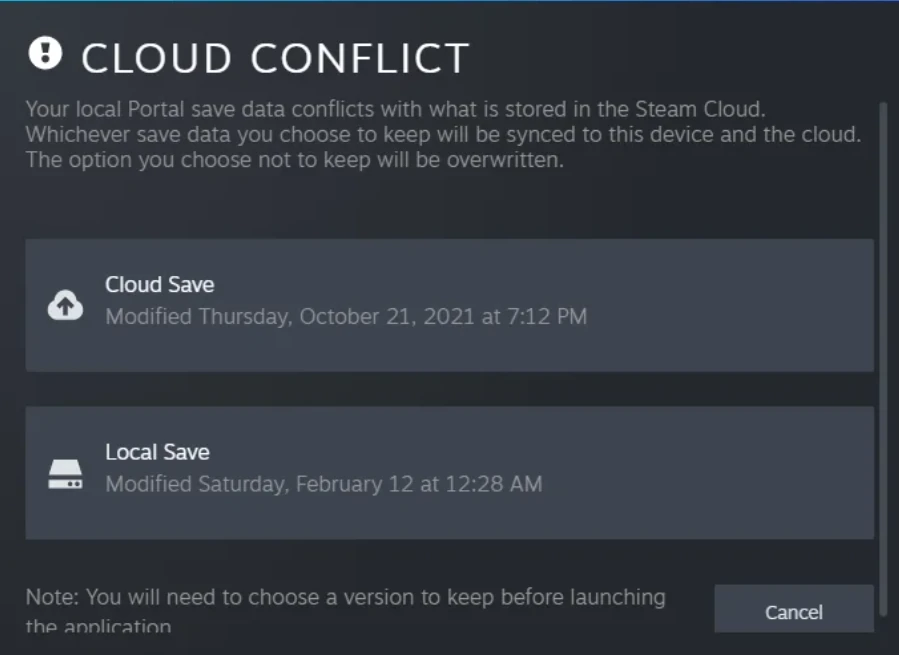
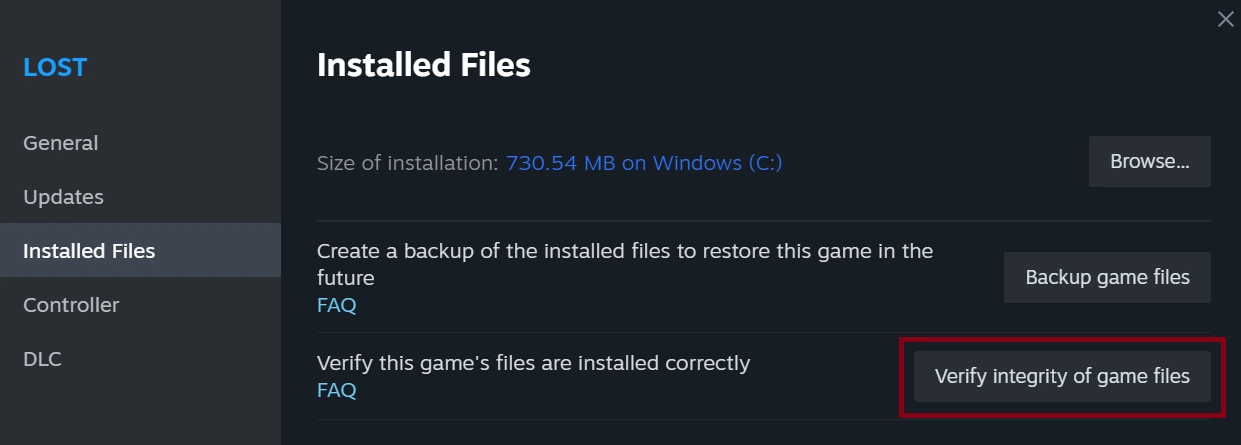
If you later launch a local copy on the receiving device, check its own installed files and saves. Do not assume the last streamed checkpoint proves a matching local save exists there. Resolve any Cloud warning before changing devices again.
| Remote Play | Host runs the game; receiving device displays it and sends input. |
|---|---|
| LAN file transfer | Copies eligible installation content for local use. |
| Steam Cloud | Synchronizes the game-selected files, where supported. |
03
Test the host before the stream
Valve’s troubleshooting assumes the game already launches correctly on the primary PC. Check a normal local launch on the host first. If the host itself crashes or cannot load the game, address that failure before tuning streaming quality.
If the host works, record the streaming symptom: no host found, black screen, delayed input or missing audio. Keep host and receiving-device versions, connection type and the point of failure. Valve recommends a wired network for the best streaming experience, but no connection type guarantees a particular latency.
- Identify the host and receiving device.
- Check a normal game launch on the host.
- Compare the same game through the stream.
- Record whether the failure belongs to the host game, discovery, video, audio or input.
Where should the next check happen?
Host cannot launch
Investigate the host’s game failure.
Host works; stream fails
Investigate discovery, video, audio or input.
Need local play later
Check a separate installation and its saves.
Original troubleshooting split based on Valve’s primary-PC requirement.
Original explanation · not an account screenshot04
Distinguish Remote Play Together
Remote Play Together is Valve’s mode for inviting others into supported local co-op or multiplayer sessions. The host owns and installs the game; guests join the streamed session. It is not the same ownership arrangement as using your own second computer or Steam Families.
Check the game’s supported feature and the intended host before troubleshooting an invite. End a remote session normally when finished. Steam’s FAQ also notes that a remote Steam session can reach the host beyond the game, so use your own authorized devices and control Remote Play through its settings.
BEFORE YOU CONTINUE
Quick checklist
- Identify the actual game host.
- Test the game locally there first.
- Separate streaming from install and Cloud synchronization.
- Name video, audio, input or discovery as the remaining failure.
Official sources
Public Valve documentation reviewed on 26 October 2026 (America/Toronto).
- Steam Support — Steam Remote Play · reviewed
- Valve — Steam Remote Play feature overview · reviewed
- Steam Support — Steam Local Network Game Transfers · reviewed
- Valve Steamworks — Steam Cloud · reviewed
The public FAQ was read from the complete embedded data-faqstore article in Steam Support HTML. Procedures are documented guidance; no account sign-in, client operation, security change or transaction was performed. Examples and decision aids are original editorial explanations.