THE QUICK ANSWER
Steam’s overlay must be supported and enabled for the game. Check global and per-game settings, then compare the same shortcut in one known-supported title.
01
Record which overlay function fails
Valve describes the overlay as an in-game interface that different games integrate differently. The default shortcut is Shift+Tab, when supported and enabled. Some games also rely on it for invitations, screenshots or in-game purchases.
Record whether the entire overlay will not open, it opens but freezes, or only one game function fails. The Steam desktop window working normally does not establish that the game’s overlay is enabled. Keep the game and client versions with the symptom.
Three checks before another launch
Global setting
Is the Steam overlay enabled?
Game setting
Is it enabled for this title?
Shortcut
Which combination is configured?
Retest
Open the same game and compare once.
Original setting sequence, not a fabricated Steam settings screenshot.
Original explanation · not an account screenshot02
Check both enable controls
Open Steam → Settings → In-Game and check Enable the Steam Overlay while in-game. Then open the affected game’s Properties → General and check its individual overlay setting. Valve documents both controls, so one enabled switch is not the whole check.
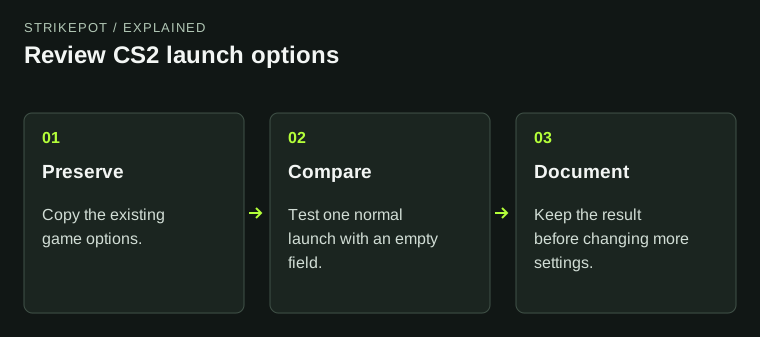
In the same global settings, read the current overlay shortcut. If it was changed, use the configured combination. Keep a note of the old setting before making a change so you can tell what affected the next launch.
- Read the global overlay switch under Settings → In-Game.
- Read the affected game’s switch under Properties → General.
- Check the configured shortcut.
- Restart the game and repeat one overlay test.
03
Use one comparison to narrow the scope
If another installed, supported game is available, compare the overlay there using the same shortcut. A failure in only one title suggests a different investigation from a failure everywhere. It does not by itself identify a broken file or a security problem.
If the overlay opens but becomes unresponsive under load, record when that happens. Valve notes that resource pressure can close the overlay. Review current drivers and ordinary background workloads; do not install an unknown “overlay fixer” from a chat message.
How wide is the failure?
One title
Investigate that game and its overlay integration.
Several supported titles
Investigate the client-level overlay state.
Only under heavy load
Record the point at which responsiveness changes.
Original scope diagnostic based on Valve’s supported/enabled and resource explanations.
Original explanation · not an account screenshot| Switch or shortcut differs from expected | Correct that one setting, restart the game and retest. |
|---|---|
| Only one title fails | Preserve the comparison and check that game’s integration/support. |
| Supported titles all fail | Use Steam’s client-level overlay troubleshooting with the recorded result. |
04
Follow the remaining evidence
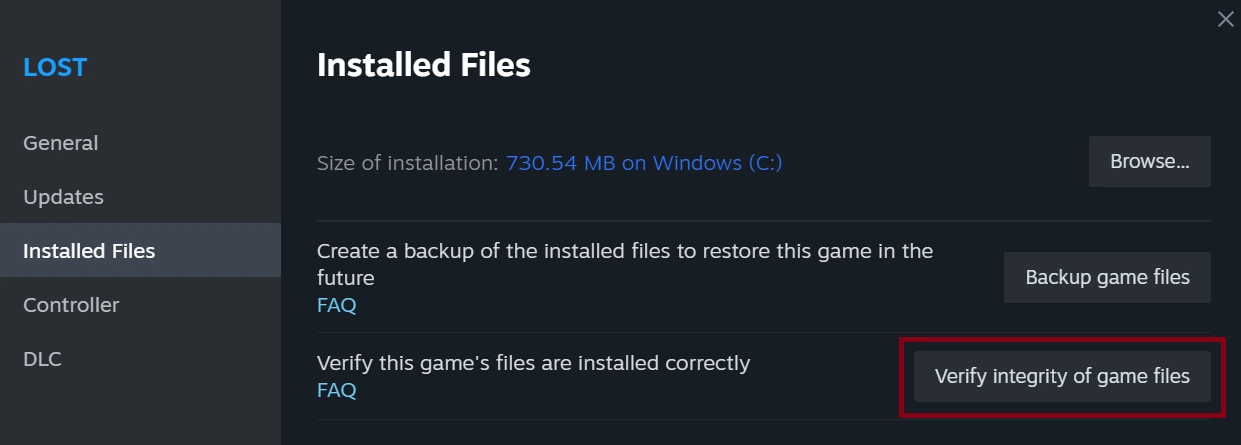
Valve’s next basic checks include restarting Steam/computer and verifying local game files. Use the existing file-verification guide when that check fits the affected title, then record whether the overlay behavior changed.
For persistent failures, keep the two switch states, shortcut, game/client versions and comparison result. The official FAQ includes more advanced software-interference checks; use relevant vendor or support help for those rather than disabling protective software indiscriminately. An overlay failure is not proof that inventory items disappeared.
BEFORE YOU CONTINUE
Quick checklist
- Record the exact overlay failure.
- Check global and per-game switches.
- Use the configured shortcut.
- Retest once and keep the game-versus-client comparison.
Official sources
Public Valve documentation reviewed on 26 October 2026 (America/Toronto).
- Steam Support — Steam Community Overlay · reviewed
The public FAQ was read from the complete embedded data-faqstore article in Steam Support HTML. Procedures are documented guidance; no account sign-in, client operation, security change or transaction was performed. Examples and decision aids are original editorial explanations.