
THE QUICK ANSWER
Remote Downloads sends an installation request to a computer already running Steam. Confirm that computer and its account before using the web or mobile install control.
01
Prepare the computer that will install the game
Valve’s Remote Downloads procedure requires Steam to remain running on your PC or Mac. Use your own secured computer and sign in to the intended account there. Decide where the installation should live before leaving it unattended, particularly if more than one library drive is available.
A switched-off computer or a closed Steam client cannot complete the running-client setup described in the FAQ. This workflow sends a download request; it is not a guarantee that a sleeping device will wake or that a disconnected external drive will become available.
02
Use the account’s game list or mobile library
From the official Steam site in a browser, sign in to the same account and open your Games list. Valve’s documented route uses the All Games view and its installation controls when another Steam client is active. The Steam Mobile app also supports Remote Downloads.
Find the intended game and read the installation state shown for the active computer before selecting Install. Keep track of the target machine when you use several computers. A library entry visible on your phone is not proof the game is installed on that phone.
03
Confirm progress on the target, not only the command
Refresh the remote library status and, when you can access the computer, inspect its Download Manager. A command being accepted and installation finishing are separate events. The target may be queued, constrained by available space or waiting on its own download settings.
If the game remains uninstalled, note whether the remote control was missing, the request produced an error or a download began and then stopped. Check the running account and target computer before issuing the same instruction repeatedly. For a transfer already active at 0 B/s, use the Download Manager guide to distinguish network waiting from disk work.
04
Choose another feature when the result you need differs
If you want to play a game on the phone using the computer’s live session, use Remote Play. If you want installation files supplied from another computer on the same network, use Local Network Game Transfer. Remote Downloads is the instruction to install, rather than either of those delivery or play modes.
Before relying on a remote install for a trip or an offline session, inspect the completed game on the target and perform its normal first launch while online. Some games need additional first-run work. A completed file download alone does not establish that every offline requirement is ready.
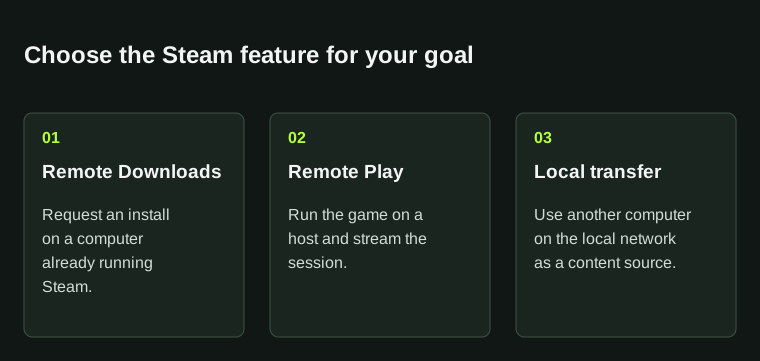
A remote install command is not a completed installation or a game running on your phone. Check progress on the target computer.
BEFORE YOU CONTINUE
Quick checklist
- Leave Steam running on your own intended computer.
- Use the same account on the official site or app.
- Read the target installation state before selecting Install.
- Check actual progress and completion.
- Prepare first launch separately if offline play matters.
Official sources
Official documentation reviewed on 7 November 2026.
- Steam Support — Remote Downloads · reviewed
- Steam Support — Download Manager and per-game settings · reviewed
The documented procedure requires an active Steam client on the target PC or Mac. It does not promise wake-on-LAN, automatic drive selection or successful offline preparation.