THE QUICK ANSWER
Check the source client before blaming the connection. Local transfer copies original game content; it does not copy saves, custom configuration or ownership.
01
Confirm that you need a file copy
Local Network Game Transfer supplies installation and update files from another Steam client on the same LAN. Remote Play instead runs the game on a host and streams its picture and sound. Choose the feature for the result you need.
Valve says only original game content is transferred. Saves, local configuration, Workshop content, Cloud files and shader files are excluded. Plan a separate game-specific save or configuration transfer when moving to a new computer.
Four gates for a local source
Reachable LAN
Both Steam clients are online and can see each other.
Permission
Both scopes allow the transfer.
Usable source
Released current game, source client idle.
Downloads result
Check local progress or fallback.
Original gate checklist based on Valve’s current requirements, not a network-settings screen.
Original explanation · not an account screenshot02
Check the source and receiving clients
The current FAQ requires both clients online, directly reachable on the same LAN, with transfer settings that allow the connection. The source must be idle, with no game or download running, and hold an up-to-date released game playable by both users. Preloads do not qualify.
Valve currently documents Steam Deck and desktop-mode PC hosting; a PC in Big Picture mode cannot send files through this feature. Older tutorials may describe different host limits, so use the current requirements rather than switching to a beta solely because an old guide says to.
| Both clients | Online, on the same reachable LAN, with compatible transfer permissions. |
|---|---|
| Sending client | Idle and holding current released game content. |
| Receiving account | Must be able to play the game. |
| Mode | Use the documented host mode rather than assuming every launcher can send. |
03
Read both transfer-permission settings
Valve lists Off, Only my own devices, Only my friends and Any user. The setting is bidirectional: allowing incoming local transfers also allows outgoing ones within that chosen scope. The default is Only my own devices.
Choose the scope appropriate to your own network and task. Broader sharing lets those local users discover installed games. A private game has an additional documented exclusion for other-user file transfers, so keep that game’s privacy state with the transfer notes.
What crosses the LAN?
Included
Original installation and update content.
Excluded
Saves, configuration, Workshop, Cloud and shaders.
Unchanged
Each account still needs its own eligible access.
Original scope illustration; it does not promise a transfer rate or ownership transfer.
Original explanation · not an account screenshot04
Watch Downloads and record any fallback
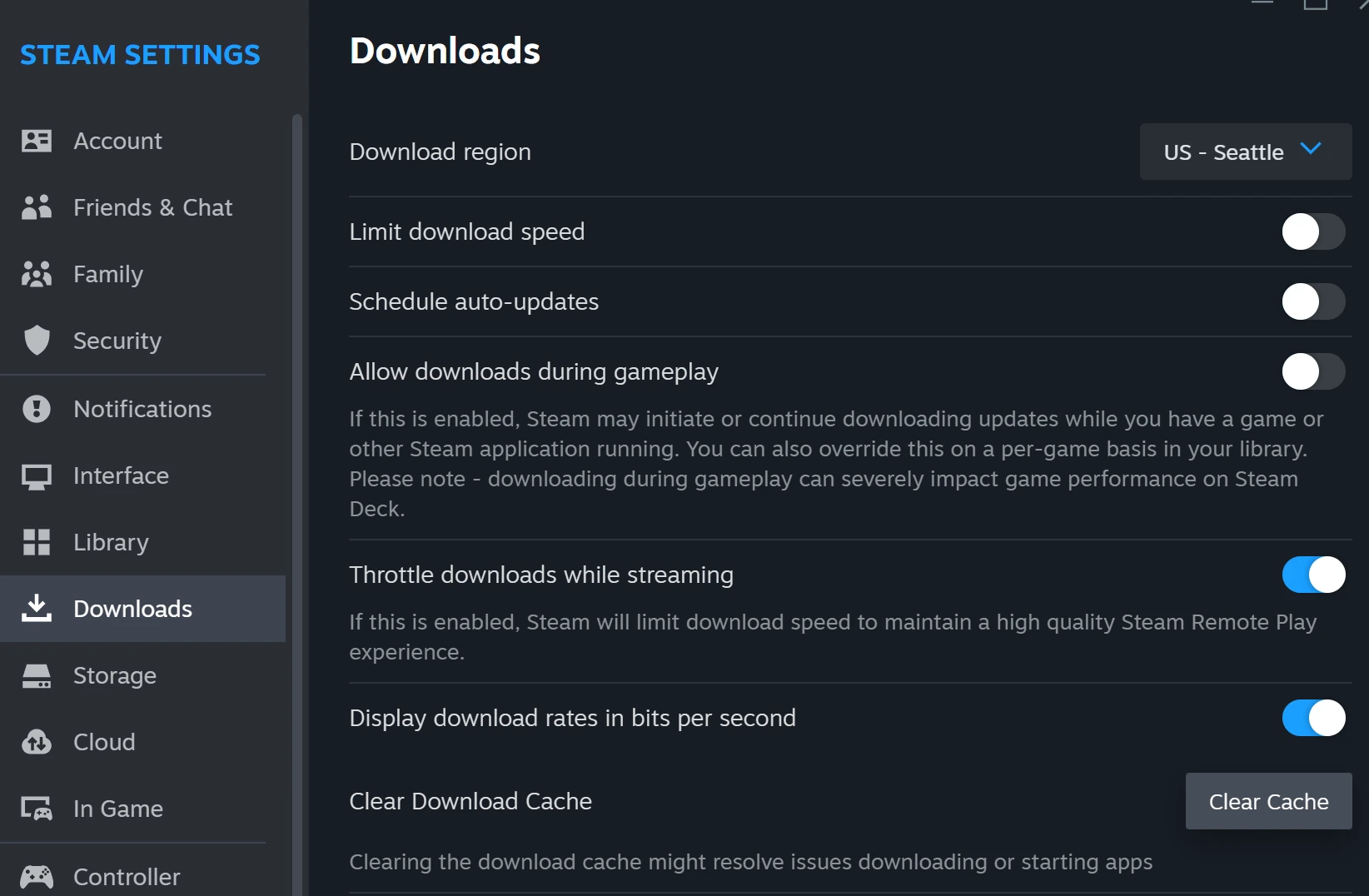
Start the intended install or update on the receiving device and inspect Downloads. Valve says local transfers are identified there. If the source disconnects or has no more usable content, Steam falls back to public content servers for the rest.
Record whether local transfer never appears, starts then stops, or completes a partial copy before internet download resumes. Keep client versions, the permission scope and source activity state. A fallback is not proof of corrupt files; Valve verifies received content and ignores invalid data.
BEFORE YOU CONTINUE
Quick checklist
- Choose file transfer rather than streaming.
- Make both clients online and the source current and idle.
- Check both permission scopes and host mode.
- Record local progress and any server fallback in Downloads.
Official sources
Public Valve documentation reviewed on 26 October 2026 (America/Toronto).
- Steam Support — Steam Local Network Game Transfers · reviewed
- Steam Support — Steam Private Games · reviewed
The public FAQ was read from the complete embedded data-faqstore article in Steam Support HTML. Procedures are documented guidance; no account sign-in, client operation, security change or transaction was performed. Examples and decision aids are original editorial explanations.