
THE QUICK ANSWER
Check that the drive and original library are available, then let Steam recognize the existing installation. Do not delete the game folder just because the Library button says Install.
01
Establish whether the files are actually present
An Install button can mean Steam does not recognize the local installation; it is not proof the game folder has been deleted. Check the drive and the game’s folder before choosing a recovery procedure. Record the exact library location, especially after reconnecting an external drive or reinstalling the Steam client.
Confirm the account can access the title as well. Recognizing files and owning a usable license are separate questions. A copy left on disk does not transfer ownership to a different account.
02
Reconnect the existing library in Storage
If the game lives in an alternate library, add that existing library location back to Steam’s Storage settings. Select the library containing the installation, rather than creating a similarly named empty folder. Valve documents that games can reappear once their alternate library is registered.
If the drive is unavailable or the expected folder is missing, stop before moving or deleting anything. A library list cannot read a disconnected volume. Re-establish the original location first so the next operation targets the files you meant to reuse.
03
Let the installation process recognize matching content
Valve’s recovery procedure uses the normal installation process to recognize game files that remain in the proper location. Select the game and the library where its files already exist, then follow the installation prompt while observing Downloads. Steam may still need to download missing or changed content.
Do not promise yourself a zero-byte recovery. Existing files are useful only to the extent they match what the current installation needs. If Steam instead targets a different drive, pause and check the chosen location before creating a second full installation.
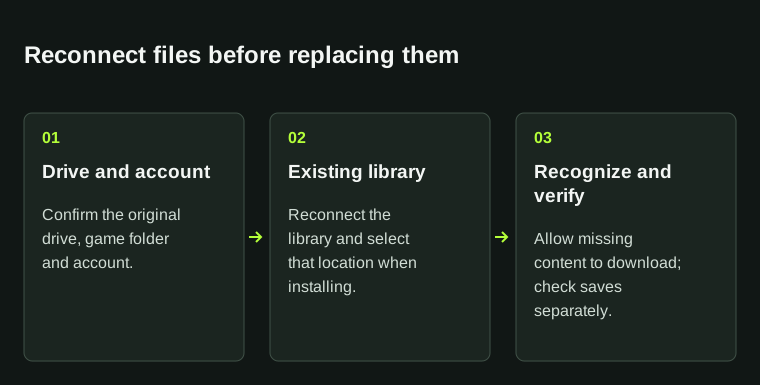
Do not delete the game folder because Steam shows Install. Recognized game files are not a separate backup of personal saves.
04
Check the restored entry and preserve personal data
Once the operation completes, inspect the game’s installation location and try a normal launch. Check the expected save or configuration separately. A recognized installation is not a backup of every personal file; games can store saves outside their install folder.
If recognition fails repeatedly, keep the current files and record the target library, Download Manager status and exact error. Use the matching storage or installation guide next. Avoid editing manifest files or deleting folders as an unrecorded first response, because that makes it harder to distinguish the original problem from later changes.
BEFORE YOU CONTINUE
Quick checklist
- Check the physical drive and actual game folder.
- Confirm the correct account and existing library.
- Choose the same library in Steam’s installation procedure.
- Allow missing or changed content to download.
- Verify the installation location and personal progress separately.
Official sources
Official documentation reviewed on 7 November 2026.
- Steam Support — Installed games appear uninstalled · reviewed
- Steam Support — Existing library paths in Storage · reviewed
- Steam Support — Update and installation issues · reviewed
Recognition may still require downloads. Existing installation files do not establish account ownership and do not replace a separate save backup.