THE QUICK ANSWER
Use Steam’s Move command for a game on the same computer. Selecting a new default library alone does not move an existing installation.
01
Separate a move from a new default
Valve’s Storage instructions distinguish adding another library path from moving an existing game. A new path becomes an available destination for future installs; the existing title stays where it is until you move it.
Write down the game, source drive and intended destination. Check the destination’s available space and whether the drive is reliably connected. This guide uses Steam’s game Move feature on one computer, not the separate manual procedure for relocating the Steam client.
Move the installation through Steam
Destination library
Create or select the target path.
Source game
Select the title on its current drive.
Move
Confirm the destination and let Steam finish.
Check
Confirm location and expected launch.
Original Storage workflow; no file deletion or manual client relocation is illustrated.
Original explanation · not an account screenshot02
Preserve personal files before the storage change
Exit the game before beginning. Keep a separate copy of saves and custom settings you care about, using that game developer’s file-location instructions. Valve notes that developers choose where saves live; they are not all inside the installation folder.
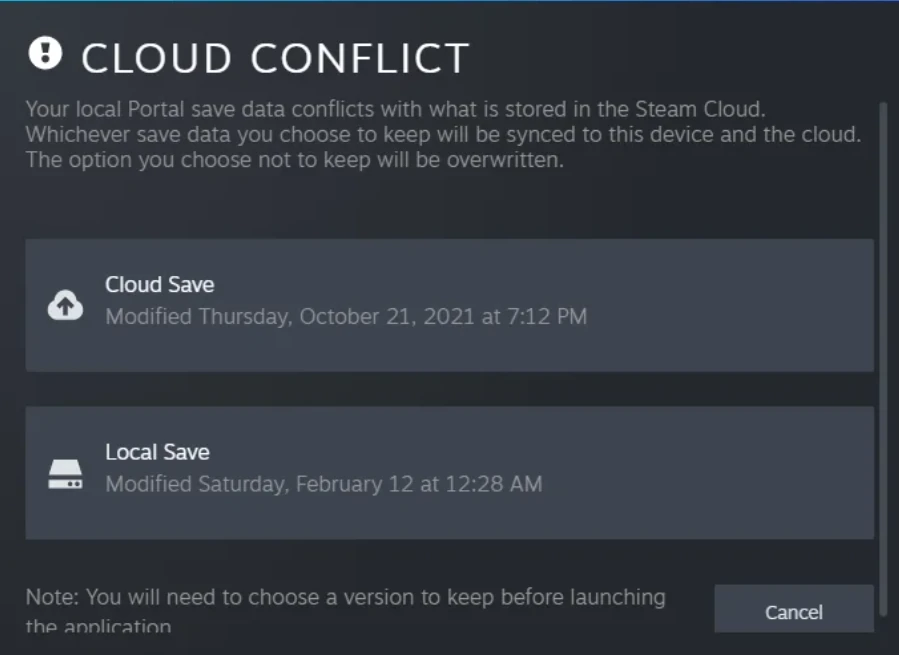
A Storage move concerns game installation files. It does not transfer a Steam account, move an inventory between accounts or choose the right version of a conflicting Cloud save. Resolve an existing sync warning before relying on a storage move as a backup.
03
Use the documented Storage route
Valve documents Settings → Storage, creating another library path with the add control, selecting the source drive, selecting the game and choosing Move. Read the destination before accepting the move.
Let the operation finish and keep the drive connected. Avoid changing library paths or starting several file operations while it runs; one clear move produces a more useful result than an uncertain partial copy.
- Open Steam → Settings → Storage.
- Add or select the destination library path.
- Select the source drive and the installed game.
- Choose Move and the intended destination, then let Steam finish.
Two storage choices do different work
New default destination
Makes a path available for future installs.
Move existing game
Relocates the selected installed title.
Personal-file backup
Preserves saves and custom files separately.
Original distinction based on Valve’s library and save-location guidance.
Original explanation · not an account screenshot04
Check location and launch before cleanup
Return to Storage and check that the title is listed on the destination drive. Launch the game normally and confirm the expected save or settings where relevant. A changed drive listing and a successful game launch answer different parts of the check.
If Steam reports an error, preserve its exact text and the two drive paths. Valve’s installation guide suggests an alternate drive as a diagnostic for storage-related failures, but a move is not proof that the original drive was faulty. Do not delete a leftover folder until you understand which library Steam is using.
BEFORE YOU CONTINUE
Quick checklist
- Identify source and destination.
- Back up game-specific personal files.
- Use Storage → Move and let it finish.
- Check the new location and expected game state.
Official sources
Public Valve documentation reviewed on 26 October 2026 (America/Toronto).
- Steam Support — Moving a Steam Installation and Games · reviewed
- Steam Support — Update & Installation Issues · reviewed
The public FAQ was read from the complete embedded data-faqstore article in Steam Support HTML. Procedures are documented guidance; no account sign-in, client operation, security change or transaction was performed. Examples and decision aids are original editorial explanations.