
THE QUICK ANSWER
Xbox-style prompts can appear because a game receives emulated Xbox input or supplies only that button art. A working PlayStation controller is not automatically being detected incorrectly.
01
Check detection, mapping and prompts separately
Write down three things: the physical controller, the device Steam recognizes and the symbols displayed by the game. They are related but not identical. If Steam lists your PlayStation controller correctly while the game shows A/B/X/Y, changing the cable is not the first useful conclusion.
Valve’s developer guidance explains that gamepad input sent through Steam Input can appear to a game as ordinary Xbox input. Games need appropriate integration or a supported prompt choice to display a different controller’s art. A successful button press and a matching on-screen symbol are therefore separate results.
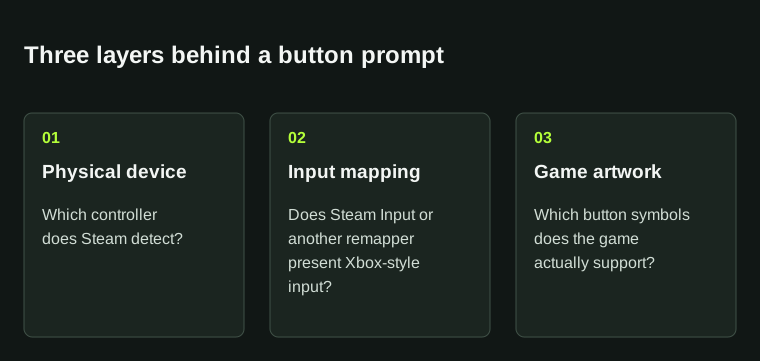
Working controls can coexist with Xbox-style artwork. Changing input mappings does not guarantee new button art.
02
Look for the game’s supported prompt choice
Check the game’s control or interface settings for a controller-symbol option and read its official support instructions if available. Some games expose a choice; others determine art automatically or supply a fixed set. There is no Steam-wide promise that every game can display every controller’s symbols.
When a choice exists, compare one familiar action after changing it. Verify that the requested action still matches the button you intend, especially with a custom layout. Selecting a different picture set does not necessarily change what the binding sends.
03
Record any external remapping layer
An external remapping tool can present an emulated Xbox controller to Steam. Valve documents this for PlayStation controllers: Steam may see the emulated device instead of the physical one. Keep the tool and detected-device name in your notes before adding another layer or reinstalling drivers.
If you compare the direct supported input path with an existing remapper, preserve your working configuration first and change only that path. Do not leave several uncertain mappings active and then use prompt art as the only test of whether the controller works.
04
Preserve the working controls while reporting art mismatches
Test movement, confirmation and one important gameplay action in a safe context. If those behave correctly but the art remains Xbox-style, report a prompt mismatch with the game, controller, detected device and selected layout. This is different from no input, swapped actions or double input.
Do not disable a working compatibility path solely to force different icons unless the developer documents another supported route. The useful outcome is either a supported prompt selection or a clear understanding of the game’s limitation while the controls remain usable.
BEFORE YOU CONTINUE
Quick checklist
- Compare physical controller, detected device and game symbols.
- Look for a supported prompt-art option in the game.
- Record any remapper that presents an Xbox device.
- Preserve working controls and compare one action.
Official sources
Official documentation reviewed on 7 November 2026.
- Valve Steamworks — Gamepad emulation and controller glyphs · reviewed
- Valve Steamworks — Native and legacy input concepts · reviewed
- Valve Steamworks — PlayStation controllers and remapping tools · reviewed
Correct button art depends on the game’s integration and supported settings. A particular prompt choice is not available in every game.