
THE QUICK ANSWER
Rust’s November PC update adds Steam Input controller support. Start with the game’s current layout, then test gameplay and inventory separately.
01
Check the controller before launching Rust
Connect the controller and make sure Steam detects it. Open Rust’s controller configuration in the Library and note the selected layout. Keep its name before changing anything, so you can return to the same starting point.
A downloaded community layout can send different inputs from the game’s own actions. Use the linked Steam Input guide if a binding sends a keyboard key when you expected a named game action.
- Connect the controller and confirm Steam detects it.
- Open Rust’s per-game controller configuration.
- Note the current layout and inspect the action you want to use.
- Launch the updated PC game through Steam.
02
Test movement and inventory as separate tasks
In a safe place, try movement, camera control and one interaction. Then open the inventory and crafting interface. Write down which context fails instead of changing the whole layout after one missed action.
Facepunch describes a stick cursor for inventory and crafting, with a D-pad alternative in the gamepad options. Compare those two navigation choices using the same simple task, such as selecting an inventory slot.
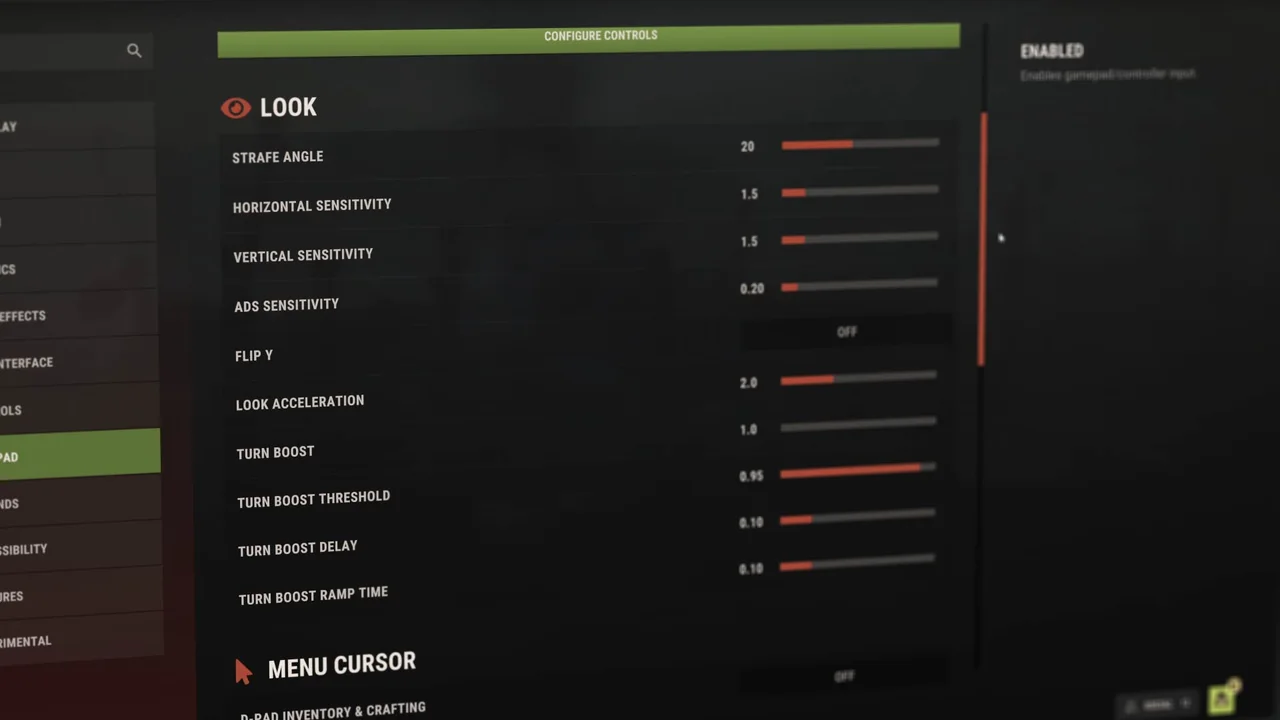
Gamepad options shown in Facepunch’s November PC update.
Open the full-size image to read small interface details.03
Adjust one binding at a time
Keep the original layout, change one relevant binding or navigation option and repeat the same task. Check the active game context when a button works in a menu but fails during gameplay. Avoid stacking several remapping tools while trying to identify the first failing layer.
This is the initial PC gamepad release, so every action is not guaranteed to have dedicated controller support. Keep another input available for an action you cannot complete; a missing action does not prove the controller itself is broken.
04
Describe a repeatable failure
For a useful report, record the controller model, wired or wireless connection, selected layout, failing action and whether it happens in a menu or gameplay. Include the expected and actual result. That gives support something more precise than “controller not working.”
BEFORE YOU CONTINUE
Quick checklist
- Confirm Steam detects the controller.
- Keep a note of the original Rust layout.
- Test movement, interaction and inventory separately.
- Compare stick-cursor and D-pad navigation.
Official sources
Read the official documents below for the service’s rules and account instructions.
- Facepunch — PC gamepad support · reviewed
- Valve — Steam Input setup concepts · reviewed