
THE QUICK ANSWER
An approved and paid child purchase request adds the games to the child’s account. It is different from the adult buying a copy for their own library and sharing it.
01
Agree on the purchasing account first
Steam Families lets a Child member request that an Adult in the family pay for a shopping cart. Valve says approved games are added directly to the child’s account. Establish that recipient before anyone pays, particularly when several family members use the same computer.
For example, a child’s requested game and an adult’s personal copy may both be visible within the same family library. They are different purchases with different owners. Keep the intended account and exact edition in view; shared access is not a substitute for checking the recipient.
02
Review the request as a purchase
The adult can approve and pay using the mobile device or email route described by Steam. Open the request through the official Steam account context and review the cart before completing it. Check the title, edition, included DLC and final price rather than approving from a game’s short name alone.
If the request is unexpected or the cart is wrong, stop before payment and confirm it with the child. An invitation to a family and a purchase request serve different purposes. Neither requires sending account passwords or Steam Guard codes to another person.
03
Check completion rather than assuming approval is delivery
Keep the completed purchase record and inspect the child’s account for the resulting game. A request that has been sent is not itself a completed order. If a payment or order status remains unresolved, preserve that exact state before creating another purchase.
When reporting a missing game, write down who requested it, which account should receive it and whether there is a completed receipt. Remove payment details before sharing screenshots outside official support. This gives support a clear entitlement question instead of an unexplained family-library screenshot.
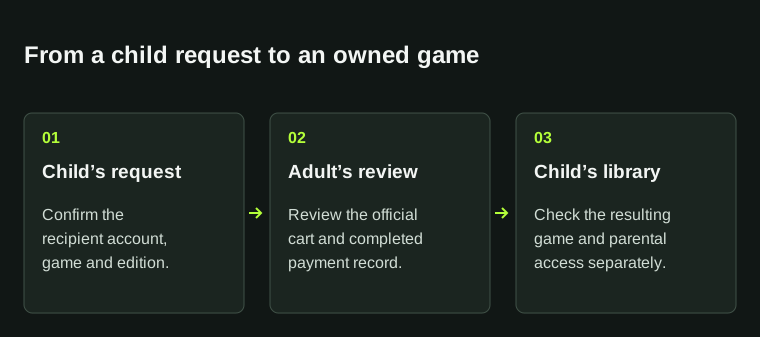
A sent request is not a completed purchase. An approved and paid request adds the games to the child’s account.
04
Check parental access after ownership
Ownership and permission to play are separate. Adults can apply parental controls to Child members, so a completed purchase may still need an appropriate access decision. Keep that decision in family settings rather than buying another copy in an attempt to clear the restriction.
Use the shared-copy guide if you deliberately want to play someone else’s eligible copy. Use the game’s DLC guide if the base game is present but an add-on cannot be used. These checks answer what was purchased, what was shared and what is permitted without confusing the three.
BEFORE YOU CONTINUE
Quick checklist
- Confirm the child’s recipient account and exact edition.
- Review the cart through official Steam.
- Distinguish a request from a completed purchase.
- Check ownership and parental access separately.
Official sources
Official documentation reviewed on 7 November 2026.
A request, a payment result and permission to play are separate states. Read the actual order and family controls for the affected accounts.