THE QUICK ANSWER
Open the correct game’s Properties → DLC before buying again. Record whether the DLC is absent, owned but not installed, or installed but unavailable inside the game.
01
Open the game’s own DLC manager
Valve documents three entry points: the game’s Properties → DLC, the Library gear menu → Properties → DLC, or Manage My DLC in that game’s Library page. The manager shows which DLC the account has and whether it is installed.
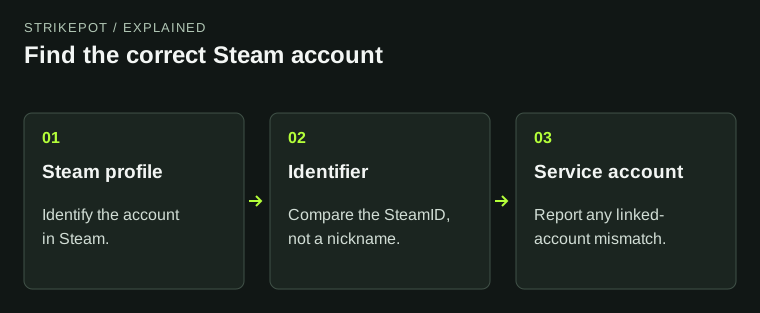
Confirm the Steam account, base game and exact add-on name. Similar editions, cosmetic packs and separate products can have similar names. A store listing for a pack is not the same as seeing that pack in this account’s DLC manager.
- Open the intended base game in your Steam Library.
- Use Properties → DLC or the Library page’s Manage My DLC control.
- Find the full add-on name and read its ownership/installation state.
- Save that state and the relevant receipt or activation reference if there is a mismatch.
Locate the missing DLC stage
Account entitlement
Is the add-on in this account’s DLC manager?
Installation
Does the manager show it installed?
Game access
Where does the developer say the content appears?
Original three-stage model, not a recreation of a DLC checkbox list.
Original explanation · not an account screenshot02
Identify the missing stage
If the add-on is absent from the account’s manager, compare the purchase or activation record and account first. If it is present but not installed, follow the manager’s current install control and check Downloads. If installed content is missing only inside the game, consult the product’s own access instructions.
This distinction prevents an unnecessary second purchase. For example, a cosmetic DLC may unlock a crafting choice, while another add-on supplies a separate campaign. Use the actual product description rather than assuming every DLC creates a tradable Steam inventory item.
| Absent from DLC manager | Investigate the account’s ownership or activation record. |
|---|---|
| Owned, not installed | Check the installation state and associated download. |
| Installed, unavailable in game | Check the developer’s access, progression or content instructions. |
03
Check which game copy supplies access
For a Steam Families title, the selected family member’s copy can determine which shareable DLC is available. Valve says copies with different DLC sets may behave differently, including save compatibility. Record the copy and add-on set before switching.
Free-to-play games and their purchased DLC are excluded from Families sharing under Valve’s current FAQ. Do not treat a relative’s ownership as proof that the add-on belongs to your own account. A shared game entry and an owned item entitlement are different records.
An add-on can have different forms
Downloaded expansion
Adds installed game content.
In-game entitlement
May unlock a game-specific feature or choice.
Steam inventory item
A separate item record with its own permissions.
Original conceptual comparison; the actual product description decides which case applies.
Original explanation · not an account screenshot04
Send the result to the appropriate support route
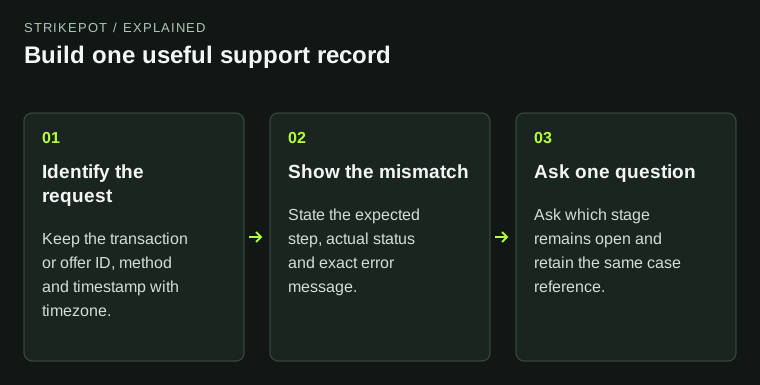
Keep the exact add-on name, base game, account identifier, manager state and failed in-game action together. A screenshot of an installed checkbox is useful context, but it does not show that every in-game unlock condition has been met.
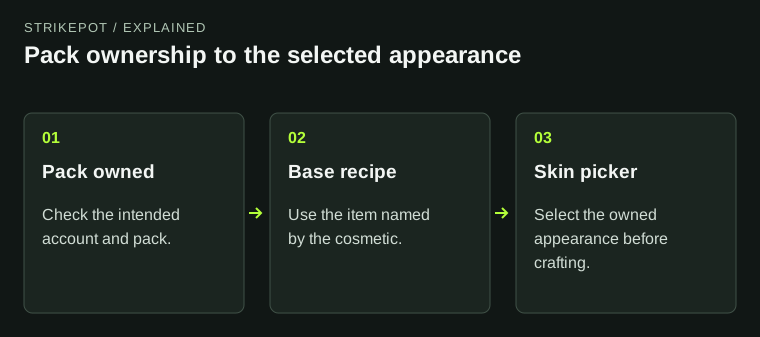
Steam handles Steam purchase and account questions. The game’s developer handles its own in-game content behavior; Valve’s third-party-support article explains that boundary. For Rust cosmetic crafting specifically, use the existing pack guide rather than general DLC-installation steps.
BEFORE YOU CONTINUE
Quick checklist
- Confirm account, base game and exact add-on.
- Read the DLC manager’s installation state.
- Separate entitlement from in-game access.
- Keep a shared-copy DLC set with the report.
Official sources
Public Valve documentation reviewed on 26 October 2026 (America/Toronto).
- Steam Support — Find Downloadable Content for My Games · reviewed
- Steam Support — Steam Families User Guide & FAQ · reviewed
- Steam Support — Third-Party Game Support · reviewed
The public FAQ was read from the complete embedded data-faqstore article in Steam Support HTML. Procedures are documented guidance; no account sign-in, client operation, security change or transaction was performed. Examples and decision aids are original editorial explanations.