
THE QUICK ANSWER
Copy cloud_log.txt before another troubleshooting session, then match the relevant time window to the device and game. A transfer log cannot tell you which checkpoint you wanted.
01
Use the log to answer a transfer question
Steam records Cloud activity in cloud_log.txt. It can help establish what happened around a failed synchronization, especially when the game window has already closed. Use the log from the device that showed the warning; a laptop’s successful download does not document an earlier desktop upload.
Keep the question narrow: did the problem happen when leaving the last session, before launching on the next device, or after returning online? Write down that session’s approximate time and your time zone before looking through the file. This avoids treating every old entry as part of today’s failure.
02
Open the logs folder for this Steam installation
Valve’s default locations are C:\Program Files (x86)\Steam\logs on Windows, ~/Library/Application Support/Steam/logs on macOS and ~/.local/share/Steam/logs on Linux. If Steam is installed elsewhere, start with that installation’s own logs folder. These are Steam-client log locations, not a universal map of game saves.
Find cloud_log.txt and copy it to a separate folder for inspection. Open the copy in a text editor rather than editing or deleting the original. If you are collecting information from two devices, label each copy with the device name so the two timelines remain distinguishable.
03
Keep the surrounding lines and the visible warning
Locate the time window around the session you recorded. Keep nearby lines together rather than copying an isolated word such as error without context. Record the exact warning from Steam as a separate item; it describes what the client asked you to do, while the log is a record of activity.
A log entry showing a file transfer does not reveal the in-game contents of that file. It cannot establish that a particular campaign slot was the latest or that the file is compatible with another operating system. Use your session history and the developer’s save instructions for those decisions.
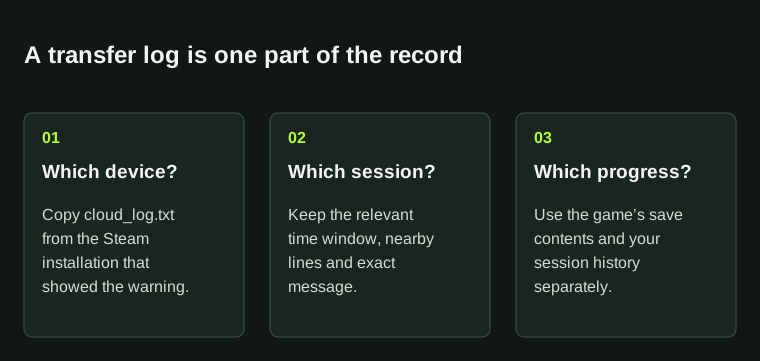
A successful file transfer does not prove that the file contains your intended checkpoint.
BEFORE YOU CONTINUE
Quick checklist
- Identify the device and session that failed.
- Copy cloud_log.txt from the relevant Steam installation.
- Keep the surrounding time window and original warning.
- Use save contents and session history separately from transfer evidence.
Official sources
Official documentation reviewed on 7 November 2026.
Log locations may differ with the Steam installation. Transfer records do not identify the desired in-game checkpoint or recover overwritten saves.