
THE QUICK ANSWER
Download into a separate backup folder first. A file available in Steam Cloud is a candidate to inspect, not proof that it contains the progress you want.
01
Download without replacing your local save
If you need a copy of a file already uploaded to Steam Cloud, use Steam’s official remote-storage page in a browser. Sign in to your own account on Valve’s domain, find the relevant game, open its file list and use the download control for the file you need. Keep the download in a separate folder rather than saving it over the game’s current files.
This is useful when you want to preserve what is currently available before investigating a conflict or moving a save. It does not turn Steam Cloud into an archive of every earlier checkpoint. Do not interpret a download button as a promise that an overwritten version is recoverable.
02
Identify the complete save set
Record the game, account, displayed filename and file date before downloading. If the game lists several files, ask its developer which ones belong together. A campaign may depend on more than the one file whose name looks familiar; a settings file may contain no campaign progress at all.
Valve lets developers choose which files they synchronize. The Cloud badge alone therefore cannot tell you which file to restore or where to put it. Follow the current instructions for that game and operating system. Do not copy another game’s example save path into this procedure.
03
Keep the current local files as well
Close the game before preparing a restore. If you can still access the device with the desired progress, keep a separate copy of its relevant local files too. Give your folders descriptive names such as Desktop-before-restore and Cloud-download, with the date in your own notes. Leave the originals intact while identifying the right version.
For example, a Cloud file from Sunday is not automatically better than a local file from Monday. The useful question is which session contains the checkpoint you intend to keep. If you cannot identify it, pause before replacing anything and use the conflict guide linked below.
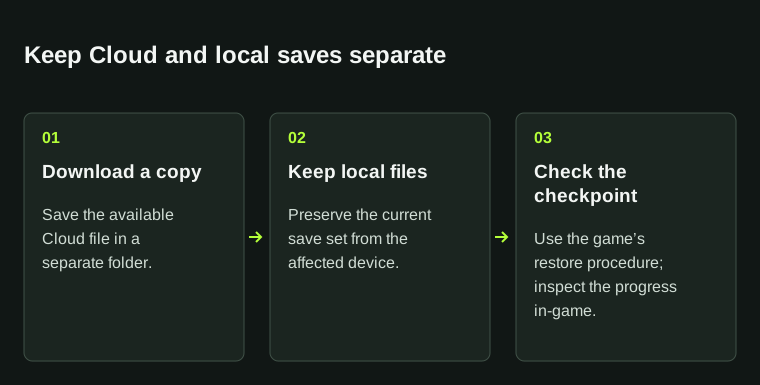
A downloaded Cloud file is a candidate to inspect. Its date alone does not identify the progress you want.
04
Restore through the game’s documented procedure
Downloading and restoring are separate actions. Once you have the copies, follow the developer’s restoration instructions, including any required filenames or companion files. Keep the untouched download so that an unsuccessful attempt does not consume your only candidate.
After a documented restore, check the intended slot or checkpoint in the game. Opening the main menu or completing a sync is not enough to confirm the expected progress. If the Cloud list does not contain the desired save, investigate the previous device and the game’s own backup options; Steam Support cannot reconstruct lost saves for you.
BEFORE YOU CONTINUE
Quick checklist
- Use only Steam’s official remote-storage page.
- Download into a separate folder.
- Preserve current local files and identify the complete save set.
- Follow the game’s restoration procedure and inspect the intended checkpoint.
Official sources
Official documentation reviewed on 7 November 2026.
- Valve — Steam Cloud remote storage · reviewed
- Steam Support — Steam Cloud · reviewed
- Valve Steamworks — Steam Cloud file scope · reviewed
- PQube — Official example of downloading Steam Cloud save data · reviewed
The files available depend on the game and account. Downloading does not provide a guaranteed version history; restoration paths and compatibility are game-specific.