THE QUICK ANSWER
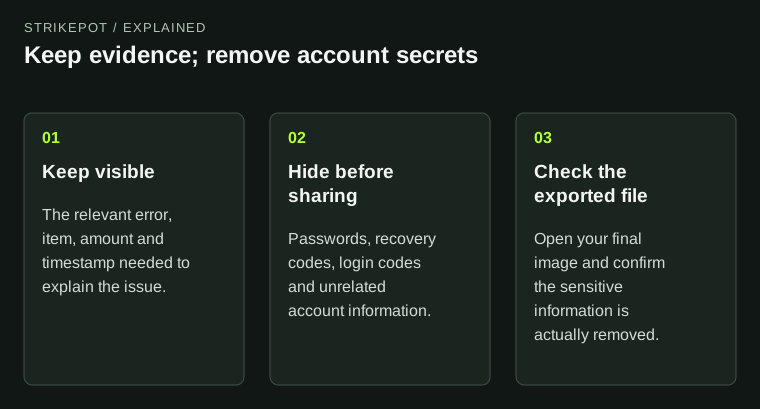
The tool covers only the areas you select. Use solid masks, export the PNG and reopen the downloaded file to check it before sending it through the intended support channel.
01
Choose the local screenshot you intend to share
The file selector accepts PNG, JPEG or WebP up to 12 MiB and 16 megapixels. Select a file you control and check the displayed dimensions once it loads. The original file is not changed.
The tool keeps the selected image in this page and does not upload or save it. It does not scan the screenshot for secrets or decide which information support needs. Keep the error, item and useful status visible while choosing the areas to cover.
Review two different images
Local original
The selected input remains unchanged.
Masked preview
Add the solid rectangles you deliberately choose.
Flattened PNG
Download and reopen this separate output before sharing.
Original file-state diagram; it is not a screenshot and does not guarantee that every secret has been covered.
Original explanation · not an account screenshotTry it with your own details.
This tool keeps your input in this page. It does not upload it, add it to the address or save it. Downloads happen only when you choose them. Reset the form when you finish.
02
Place solid masks by dragging
Drag across the preview to add a solid dark rectangle. Check that the rectangle fully covers the sensitive area, including surrounding characters that could reveal part of a token or account detail. Add another mask for each separate region.
Use Undo last mask if the most recent rectangle covers the wrong area. The preview can be displayed smaller than the original image; the tool maps the drag to the image’s original pixels. It does not offer blur or automatic text recognition.
03
Use original-image coordinates for keyboard placement
For a precise rectangle, enter Left pixel, Top pixel, Mask width and Mask height, then choose Add solid mask. The top-left corner is x=0, y=0. Coordinates and sizes are whole numbers, and the complete rectangle must fit inside the image.
For an invented 1200 × 800 image, left 100, top 200, width 300 and height 40 selects a 300 × 40 region starting at that position. These are coordinate examples, not a recommendation that every email address fits the same box.
Keyboard rectangle in original pixels
Left, Top
Start at the rectangle’s upper-left corner; the image origin is 0,0.
Width, Height
Enter positive whole-pixel dimensions.
Boundary check
Keep the complete rectangle inside the loaded image.
Review
Confirm the chosen region fully covers the intended text.
Original coordinate explanation for the implemented mask fields.
Original explanation · not an account screenshot| Left and Top | Position of the rectangle’s upper-left corner in original pixels. |
|---|---|
| Width and Height | How much of the image to cover; both must be at least one pixel. |
| Inside the image | Left + width and top + height must remain within its dimensions. |
04
Prepare the flattened PNG, then review the file
Add at least one mask, then choose Download flattened PNG to prepare redacted-screenshot.png. Select its download link to save the generated file. The PNG contains the rendered image and solid masks rather than editable redaction layers.
Open that downloaded PNG and inspect every sensitive area at a useful zoom. The tool does not guarantee that all secrets were selected, remove sensitive information elsewhere in the image or verify the recipient. Avoid claiming that a mask also removes all metadata.
05
Share only the reviewed export and reset the form
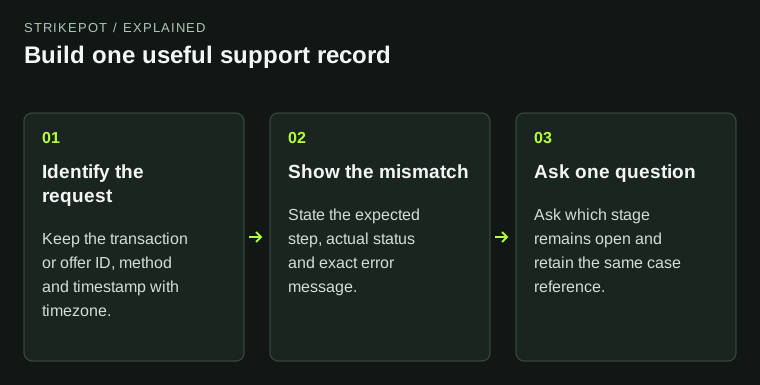
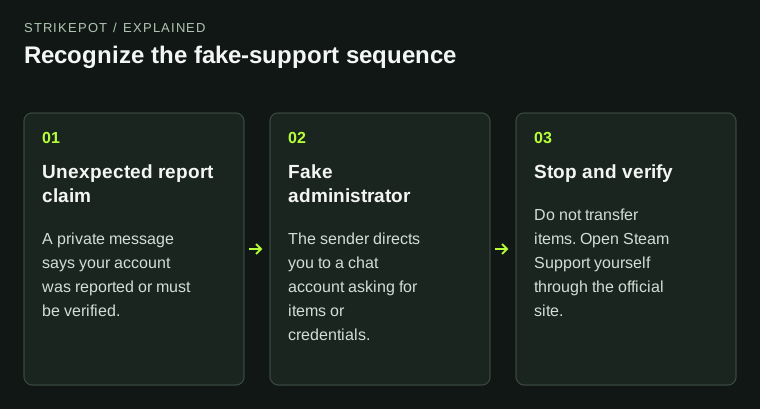
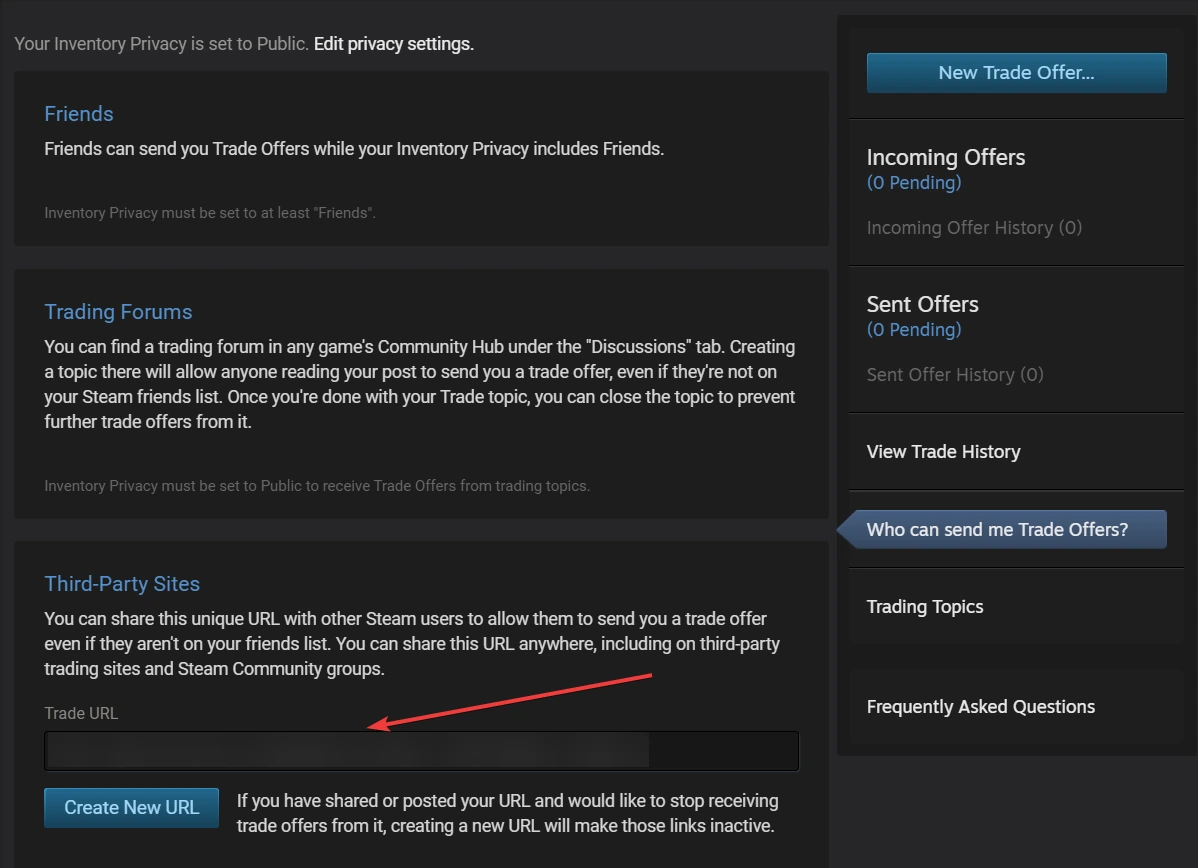
For a public post, cover passwords, codes, recovery information, trade-link tokens and unrelated personal details. Steam’s account-ownership guidance explains why billing and recovery evidence also need care. If verified private support requests specific ownership evidence, follow that channel’s instructions.
Remove image clears the loaded preview and masks from this page without deleting the original file. Reset this form also clears the tool’s generated result and image state. Use it when finished; any file you already downloaded remains yours to manage and is not sent anywhere by this tool.
BEFORE YOU CONTINUE
Quick checklist
- Choose a supported local image within the size limits.
- Mask every selected secret completely.
- Use original-image pixels for keyboard rectangles.
- Reopen the exported PNG and review the remaining evidence.
- Reset the form and share only through the intended verified channel.
Official sources
Tool behaviour was checked against StrikePot’s form and browser implementation on 26 October 2026 (America/Toronto). The external references below explain the relevant formats and source records.
- MDN — Canvas toBlob: exporting the rendered bitmap as PNG · reviewed
- Steam Support — Saving a Screenshot · reviewed
- Steam Support — Contested account ownership and sensitive evidence · reviewed
Implementation inspected: redactor form, local FileReader/Image handling, gtMask, pointer-to-original-pixel mapping, solid fillRect masks, undo/remove/reset handlers and canvas.toBlob PNG export. Inputs are limited to 12 MiB and 16,000,000 pixels. MDN documents bitmap export; it does not certify automatic redaction or metadata removal. Steam Help was read through current indexed text. No user image was loaded or edited, no sensitive content was inferred and no upload or message was sent.