
THE QUICK ANSWER
The error can mean the expected game file is missing or another program is blocking it. Keep the full path and verify the Steam installation before assuming the whole game must be deleted.
01
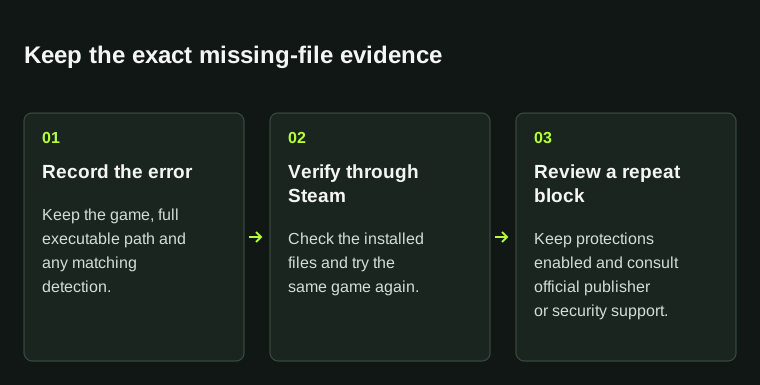
Keep the game, executable path and security status
Copy the complete Missing Executable message and note which game you launched. The path helps identify the installation Steam tried to use. This is more specific than a game that closes after a normal launch or Steam saying the game is already running.
Valve says a missing file, a failed download or another program blocking the file can cause this error. Check your security software’s recent detections for the same file and time. A detection deserves review; do not assume every warning is safe merely because it appeared while starting a game.
02
Verify the game files through Steam
Close the game and restart the computer before the documented file check. In the game’s Library Properties, open Installed Files and choose Verify integrity of game files. Let the operation finish, then launch the same game again and keep the result.
This checks the installation content Steam expects. It does not prove an unrelated executable downloaded from a forum is legitimate. Obtain replacement game content through Steam or the game publisher’s documented installer rather than a separate download offered as a fix.
03
If the same security detection returns
Record the security product, detection name, file path and whether it returned immediately after verification. Consult the security vendor and game publisher before approving a blocked file or adding an exclusion. The useful question is why that exact Steam-delivered file is being blocked.
Keep protections enabled while gathering the evidence. Disabling security globally or excluding an entire drive changes far more than the affected game and does not identify the cause. If the file cannot be validated, stop and use official support rather than repeatedly restoring it.
A security detection is not automatically a false positive. Avoid unrelated executable downloads or blanket drive exclusions.
04
Escalate with the result of the file check
Valve’s support procedure asks for the error and system information when the problem persists. Preserve the full error for private support, together with the verification result and any relevant detection. Review personal paths and account details before posting screenshots publicly.
If verification reports an additional disk or download error, follow that error next. If the executable is restored but the game then fails at another stage, record the new behavior as a changed result. Keeping the distinction avoids repeating the same repair after the original missing-file condition has gone.
BEFORE YOU CONTINUE
Quick checklist
- Preserve the complete error and executable path.
- Check security detections without overriding them automatically.
- Verify installed files through Steam.
- Use official publisher/security support for repeated blocking.
- Keep any changed launch error as a separate result.
Official sources
Official documentation reviewed on 7 November 2026.
- Steam Support — Failed to Start Game: Missing Executable · reviewed
- Steam Support — Verify integrity of game files · reviewed
- Steam Support — Installation error checks · reviewed
A security detection is not automatically a false positive. This guide does not recommend a blanket exclusion or an executable from an unofficial download.