
THE QUICK ANSWER
Send a saved clip to an eligible device and check that it arrives before deleting the original. Device transfer, a temporary share link and an MP4 export are different outputs.
01
Save the interval you want to move
On Steam Deck, open Media and find the recording. Make a saved clip of the interval you want to transfer before relying on a background session. Use a small sample first if you are trying the workflow for a longer recording.
Decide whether you want the clip in Steam on another device or a normal video file for an editor. Valve’s transfer option sends the clip to another signed-in device. Export Video File produces MP4. A temporary share link is a third option and should not be treated as your permanent backup.
02
Choose the receiving PC in the share options
Open the clip’s Share options and choose the option to send it to your PC or another device. Valve says eligible devices include PCs and Steam Decks where you have signed in within the last two weeks. Read the listed destination carefully when you have several computers.
The FAQ says the clip downloads when you next sign in on that receiving device within two days. Complete the handover promptly and inspect the received clip. An entry appearing in the eligible-device list is not the same as proof that the transfer has finished.
03
If the intended device is missing
Check that the destination is the device and account you meant to use, then compare it with Valve’s recent-sign-in requirement. Do not choose a similarly named computer simply to make the transfer proceed. Keep the saved clip on the Deck while checking the recipient.
If you miss the stated delivery window, return to the original saved clip and send it again through the available option. If the device route remains unavailable, use the clip’s supported export or sharing options appropriate to your task. A link that expires is suitable for a short handoff, not archival storage.
04
Verify arrival before editing or cleanup
Open the received clip and check its start, end, picture and sound. Export an MP4 from the receiving device if your editing program needs a standard video file. Check that exported file too, particularly if audio from another program was included.
Keep the original saved clip until the receiving copy and any required export are usable. This gives you a clear stopping point: the moment exists on the PC in the format you need. Merely pressing Send does not complete that check.
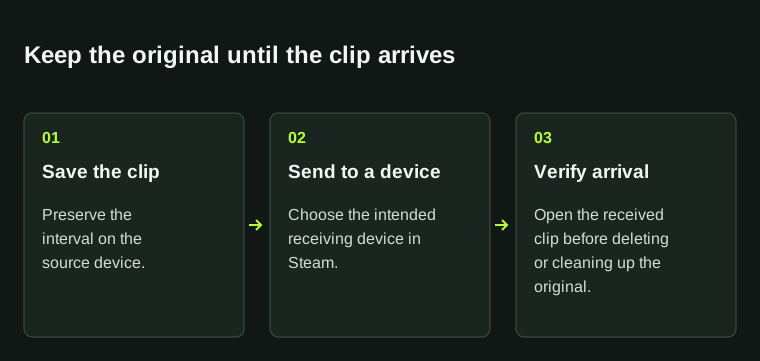
Device transfer, a temporary share link and an MP4 export are different outputs. Check the one you need.
BEFORE YOU CONTINUE
Quick checklist
- Save the clip before transferring it.
- Choose the correct recently signed-in device.
- Complete the receiving sign-in within Valve’s two-day window.
- Verify the received clip and export if necessary.
- Retain the original until the result is usable.
Official sources
Official documentation reviewed on 7 November 2026.
Valve currently documents a two-week recent-sign-in eligibility period and a two-day delivery window. Retain the source clip until the receiving copy is confirmed.