
THE QUICK ANSWER
Test the microphone in the operating system, then test a new Steam clip with the intended recording audio options. A working voice-chat call does not verify the saved video.
01
Identify what is absent from the saved clip
Start with a short saved clip and identify the missing source: the game, another voice-chat program or your own microphone. Those are different observations. “The video is silent” is not the same result as “game sound is present, but my voice is absent.” Listen to the exported file as well as the Steam preview.
Game Recording has its own audio choices under Steam → Settings → Game Recording. Review what is selected there, including microphone recording when you intend to keep your voice. Selecting other-program audio is a broader privacy decision, because that may include conversations unrelated to the game.
02
Check the input before chasing a capture fault
On Windows 11, open Settings → System → Sound, select the intended microphone under Input and run its microphone test. Speak normally and listen to the recorded sample. Check a physical mute switch and the selected device if the sample is silent.
Windows also controls microphone access under Privacy & security → Microphone. Review the device and desktop-app permissions appropriate to your setup. If the operating system cannot obtain a sample, resolve that input problem first; changing a Steam clip’s video quality cannot establish that the microphone is working.
03
Make a controlled new clip
Once the system sample works, record a short, low-stakes game session with a few seconds of game sound and one spoken sentence. Keep other private conversations out of the sample. Save and export the clip, then check which sources are audible. Use the clip guide for the save/export steps.
Keep the audio option and input-device names with the result. Change one relevant setting at a time and record another short sample. For example, compare a sample with microphone capture disabled and another with it enabled while leaving the game and device unchanged. This is more informative than changing every input, enhancement and capture option at once.
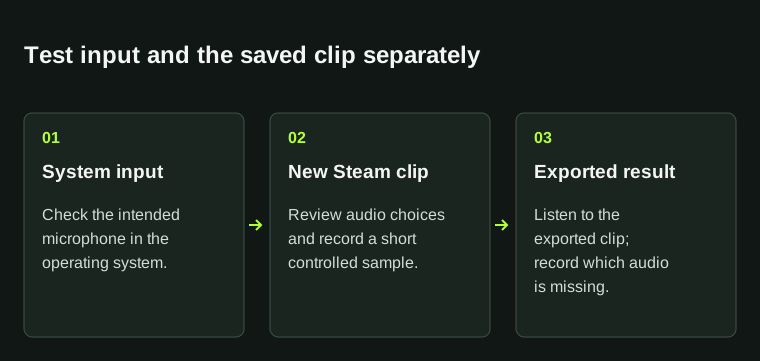
Voice chat working does not verify the audio in a saved video. Keep the system-input and clip results separate.
04
Report the layer that still fails
If the system test succeeds but the exported Steam sample still lacks your voice, report that comparison with the game, operating system, Steam client channel and recording settings. If the Steam preview has audio but the exported file does not, keep that as a separate export/playback observation.
Do not assume that a Steam Voice test, game voice chat and Game Recording must use identical processing or routing. A successful test answers the path you actually tested. Preserve the original sample for private support and remove unrelated voices before publishing any clip.
BEFORE YOU CONTINUE
Quick checklist
- Identify game, other-app or microphone audio.
- Test the intended microphone at system level.
- Review Game Recording audio choices.
- Save and export a short controlled sample.
- Report the system-test and clip results separately.
Official sources
Official documentation reviewed on 7 November 2026.
- Steam Support — Game Recording audio settings and export · reviewed
- Microsoft Support — Set up and test microphones in Windows · reviewed
- Microsoft Support — Microphone permissions in Windows · reviewed
- Valve — October 2, 2024 client beta notes documenting microphone recording · reviewed
The Windows steps apply to Windows 11. Audio options and device routing depend on the installed Steam version and system; no universal gain or noise-filter fix is assumed.