THE QUICK ANSWER
First establish which tool captured the image. Steam’s default F12 capture depends on the overlay; a screenshot made by another app belongs to that app’s storage.
01
Identify the capture tool
Valve documents F12 as Steam’s default screenshot shortcut in games with the Steam overlay enabled. Steamworks also provides a local screenshot library to which games can add captures. A game’s photo mode or an operating-system capture can use a separate workflow.
Write down which key or button you used and whether a capture notification appeared. If the image came from another utility, inspect that utility’s capture history instead of searching only in Steam. A missing Steam entry does not establish that every image of the moment is gone.
Which tool made the image?
Steam screenshot key
Check overlay and Steam media.
Game photo mode
Check the game’s own save workflow.
System or GPU capture
Check that tool’s capture location.
Original capture-origin decision aid; it does not invent a universal screenshot folder.
Original explanation · not an account screenshot02
Check the shortcut before repeating the moment
In Steam → Settings → In-Game, check the current screenshot shortcut and the overlay setting. Valve also documents an overlay switch in the individual game’s Properties → General. A custom shortcut may differ from F12.
Try one harmless, repeatable capture after checking the settings. Keep this test separate from a trade or purchase: you do not need to repeat an inventory transaction to learn whether an image was captured. If the overlay itself does not open, use the overlay guide rather than changing several capture tools at once.
03
Look for the saved capture in Steam
The current Steam recording FAQ names View → Recordings & Screenshots as the desktop media viewer. Open it, select the relevant game and look for the screenshot rather than a video timeline. On Steam Deck, Valve identifies the Steam menu’s Media tab.
Confirm the image’s contents and date before using it as evidence. A thumbnail of the wrong session can look convincing while omitting the actual error. Keep a local image file when a private support form needs an attachment; a Community page URL is a different deliverable.
- Open the desktop View menu and Recordings & Screenshots.
- Find the relevant game and screenshot capture.
- Open the image and compare the event and time with your notes.
- Use the selected image’s available file/share controls for the destination you intend; inspect the resulting file before attaching it.
A capture has more than one form
Saved local image
An image file that can be attached privately.
Community upload
An online item with its own visibility.
Video clip
A separate recording interval and export.
Original distinction between still image, publication and video evidence.
Original explanation · not an account screenshot04
Separate the image from its online visibility
A screenshot in a local library is different from an image you have chosen to publish to Steam Community. Before sharing, read the destination and visibility offered by the current client. Capturing an error does not require a public post.
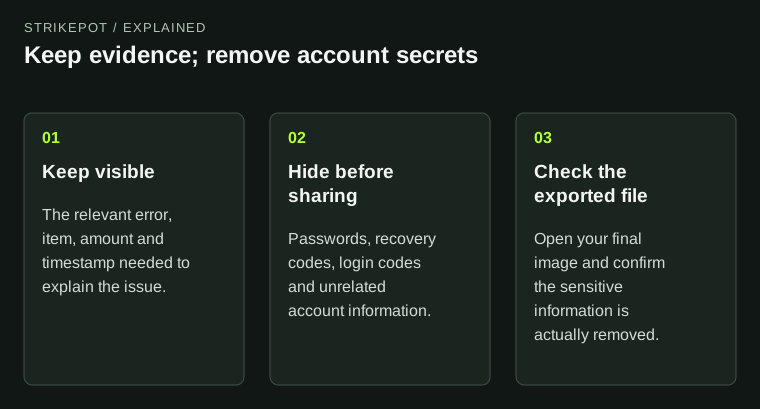
For a support image, include the error and useful context while removing account secrets and unrelated chat. If there is no capture, save a fresh one only when the issue can be repeated safely. A screenshot cannot reconstruct footage or account records that were never captured.
BEFORE YOU CONTINUE
Quick checklist
- Identify Steam, the game or another capture tool.
- Check the configured shortcut and overlay.
- Find the screenshot in the media viewer.
- Review the actual file and sharing destination.
Official sources
Public Valve documentation reviewed on 26 October 2026 (America/Toronto).
- Steam Support — Steam Community Overlay · reviewed
- Steam Support — Steam Game Recording (current media viewer path) · reviewed
- Valve Steamworks — Steam Screenshots · reviewed
The public FAQ was read from the complete embedded data-faqstore article in Steam Support HTML. Procedures are documented guidance; no account sign-in, client operation, security change or transaction was performed. Examples and decision aids are original editorial explanations.