THE QUICK ANSWER
Keep three things separate: the current bid, your maximum auto-bid and an actual completed purchase. Removing an auto-bid instruction is not the same as cancelling a bid it already placed.
01
Make sure you are looking at an auction
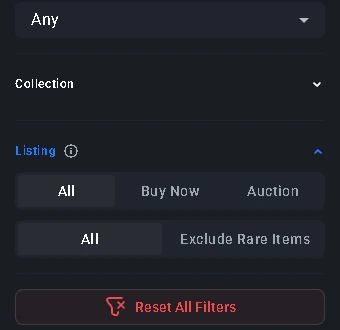
In CSFloat’s Market, open Listing and select Auction. The current official filter guide says auction results show a bid state and remaining time. Buy Now is the separate fixed-price option.
Compare the exact item as well as its price: weapon, finish, condition, float, pattern and applied stickers can all matter. Decide your own spending ceiling before opening a bidding confirmation. A small first bid does not tell you the eventual sale price.
02
Read the reserve and the live timer
CSFloat’s auction launch explanation, published on 1 May 2021, defines the public reserve as the starting minimum the seller accepts. If it is not met before expiry, that explanation says the item is delisted.
Use the actual listing’s timer and confirmation for today’s auction. Do not copy a duration, fee or minimum increment from an old screenshot. CSFloat’s API reference lists a different set of durations from the original announcement, which is one reason this guide does not give a universal schedule.
If you are selling, the same limit matters in reverse: choose a reserve you would accept. An auction is a different way to sell an item, not proof that bidders will meet a target valuation.
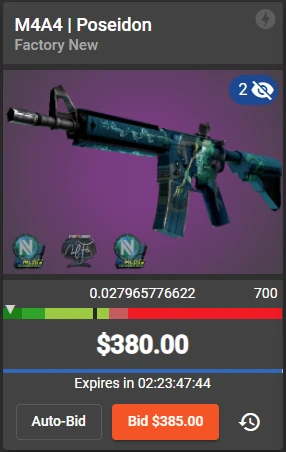
Historical official example — May 2021. The card separates an item’s current bid, countdown and Auto-Bid control. The pictured price, skin and layout are an old example, not a current listing or today’s minimum bid.
Open the full-size image to read small interface details.03
An auto-bid ceiling is not the current price
CSFloat’s 2021 explanation describes Auto-Bid as an instruction to raise bids when needed up to a maximum. It says removing that instruction does not remove active bids it already placed. The article also describes a separate Quick-Bid control for the next minimum bid.
Before confirming anything, distinguish “bid this amount now” from “allow bids up to this maximum.” Read the current confirmation rather than identifying the action from the colour or position of a button in a tutorial.
For your own notes, write down the highest amount you are willing to commit. Review the currently available balance separately, especially if you have other purchases or auctions in progress. If the confirmation does not explain what you are committing, stop and use official support before submitting.
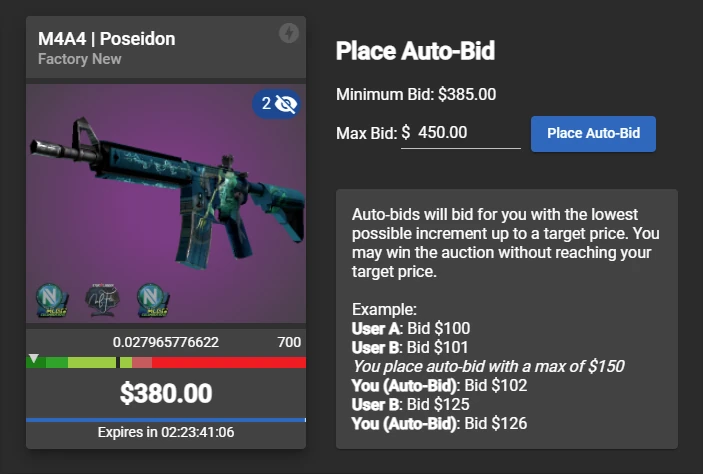
Historical official Auto-Bid illustration — May 2021. “Max Bid” is shown separately from the current auction amount. All displayed values belong to CSFloat’s published example; this image does not confirm today’s interface or bidding increments.
Open the full-size image to read small interface details.
Original StrikePot explanation, not a screenshot. An auto-bid instruction, an active bid and a purchase are different records.
04
Check the commitment before confirming
A watchlist is useful for keeping a listing easy to find, but do not treat watching an item as owning it. Check the actual result after expiry; an earlier screen saying you were the highest bidder does not settle what happened later.
- Open the exact auction and inspect its item details.
- Read the remaining time and the amount requested by the current bid control.
- If choosing an automatic bid, check its maximum separately from the current bid.
- Read any balance, cancellation or confirmation notice before submitting. Stop if the terms are unclear.
05
After expiry, follow the resulting purchase
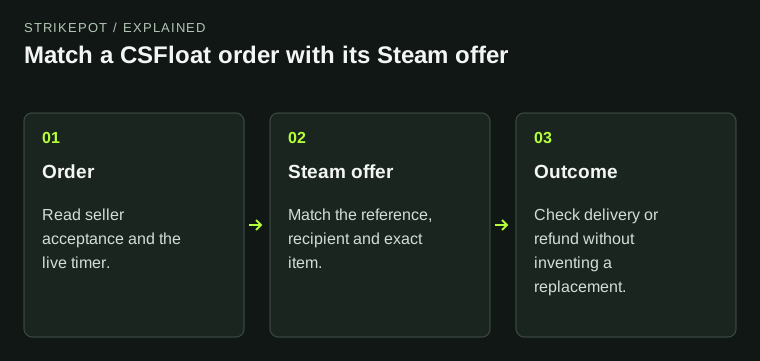
When the auction ends, check whether CSFloat created a purchase for you. If it did, follow that record and its seller status, delivery timer and Steam offer. Winning a bidding process and receiving the skin are different steps.
Use the offer linked to the purchase and match the item and recipient before accepting anything. If a trade is missing, use the purchase-help guide below. Do not send a second item or follow an unsolicited chat link to “complete” an auction.
If no purchase appears or the result is disputed, keep the auction reference and its final status together. Ask official support about that specific auction. A screenshot taken before the last bid cannot establish the final outcome.
BEFORE YOU CONTINUE
Quick checklist
- Separate the current bid from a fixed Buy Now price.
- Check the listing’s current timer and confirmation.
- Understand an auto-bid ceiling and any bid already placed.
- After expiry, check the actual result and resulting purchase record.
Official sources
Current listing-type documentation and CSFloat’s dated auction explanation were reviewed on 24 October 2026.
- CSFloat — Current Listing filter guide · reviewed
- CSFloat — Introducing Auctions and Watchlists (1 May 2021; historical mechanics and examples) · reviewed
- CSFloat — API reference: auction listing type, reserve and durations · reviewed
- CSFloat — FAQ and purchase-help entry points · reviewed FAQ headings indexed; direct application open returned a JavaScript shell. No signed-in purchase examined.
The official current Listing filter text was read through indexed extracts; the auction blog and API reference were readable. Auction screenshots are CSFloat’s historical May 2021 examples and are labelled as such. No live bid, auto-bid, auction listing, purchase or cancellation was submitted. Current increments, auction extensions, fees and account-specific requirements were not independently tested; the listing and its confirmation must be checked before bidding.