THE QUICK ANSWER
A low auction bid is not a fixed sale price. Use the Listing filter before comparing prices, then add only the item details that matter to you.
01
Separate fixed prices from auction bids
Open the CSFloat Market and find Listing in the filter panel. Buy Now shows fixed-price listings; Auction shows timed bidding. All mixes the two. An auction’s current price and remaining time need a different comparison from a fixed asking price.
Start with the type you want rather than sorting a mixed list by the smallest number. This avoids treating an opening bid as an item you can buy immediately for that amount.
- Search for the weapon, finish or item you want on the Market.
- Open Listing and select Buy Now or Auction.
- Set a price range, then add the relevant item filters below.
- Open a result and check its type and exact item details before acting.
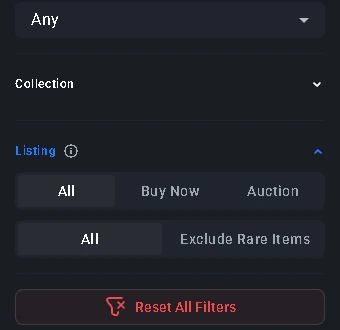
CSFloat’s public Listing panel, captured 24 October 2026: choose Buy Now for fixed prices or Auction for bidding. Exclude Rare Items is a separate control.
Open the full-size image to read small interface details.
Original StrikePot explanation, not a screenshot. Market filters help select candidates; they do not submit a buy order or prove an item’s value.
02
Use wear and pattern as separate filters
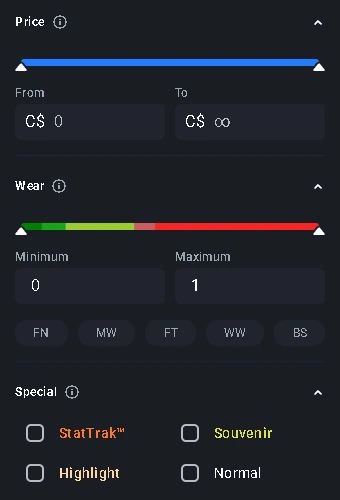
Wear lets you choose a condition preset or enter an exact minimum and maximum float. For a custom range, check both ends. For example, 0.01 and 0.10 are different limits; one extra zero can exclude the items you expected.
Paint Seed is a separate criterion. Use it when you already know the pattern number you need. A float limit is not a substitute for that seed, and a matching seed is not a reason to skip looking at the actual item.
| Listing | Buy Now: compare fixed asking prices. |
|---|---|
| Wear | 0.00–0.01: a deliberately narrow example range. |
| Paint Seed | Add a particular number only when it is part of your requirement. |
| Price | Set your own ceiling; no current skin valuation is implied. |
03
Check item type and sticker placement
Use Special to distinguish Normal, StatTrak, Souvenir and Highlight results. Do not assume two listings are the same type because they share a weapon and finish name.
CSFloat’s Sticker filter supports named stickers and slot criteria, plus Sticker Combos for repeated crafts. Begin with the sticker itself; add a slot only when its placement is part of what you want. Requiring every possible detail at once can turn a useful search into an empty one.
04
If the search returns nothing, loosen one condition
An empty result list does not prove an item never existed. It says no results were returned for that search at that moment. Keep the exact item selected, then remove optional conditions one at a time: a sticker slot, an exact seed or a very tight wear range.
Check Exclude Rare Items too. CSFloat describes this as removing items with low quantity listed across the global CS2 market. It is separate from the in-game Rarity filter for tiers such as Restricted or Covert. Turning it on may work against a search for a scarce item.
Distinguish “no matching items” from a loading or server error. Changing a float range will not explain a page that failed to fetch its results.
05
Save the useful search, then inspect the result
Once the results reflect your requirements, save the combination as a Saved Filter. Give it a name you will understand later, such as the skin and wear range, rather than a promise that every result is a bargain.
Reopen a saved search to browse today’s results, not to reserve yesterday’s listing. Before a purchase, inspect the chosen skin, read its seller and delivery details, and review the final amount. Filtering helps you find candidates; it does not confirm their appearance or complete a purchase.
BEFORE YOU CONTINUE
Quick checklist
- Choose fixed-price listings or auctions before comparing amounts.
- Treat float, paint seed, special type and stickers as separate requirements.
- If results are empty, loosen one optional condition at a time.
- Save the search and inspect the individual item before buying.
Official sources
Official CSFloat guide text checked on 24 October 2026. The source-access limits are recorded below.
- CSFloat — Listing filter: Buy Now, Auction and Exclude Rare Items · reviewed
- CSFloat — Wear filter: presets and minimum/maximum float · reviewed
- CSFloat — Sticker filter · reviewed
- CSFloat — Special filter · reviewed
- CSFloat — Saved Filters · reviewed
The current official guide text was available in search-engine extracts on 24 October 2026; direct application-page opens returned a JavaScript shell. No signed-in saved filter, purchase or live price was tested. This guide explains Market filtering, not how to place a buy order. Exact UI capture availability is recorded in the illustration captions. The public English Market controls were also read and captured in a browser on 24 October. No bid, purchase or saved-filter submission was made.