THE QUICK ANSWER
Match the completed trade to the item and counterparty. An old offer in Offer History is not evidence that its items were delivered.
01
Start with the question you need to answer
If you need to establish whether an exchange happened, open Trade History. If you need to explain what happened to a proposed exchange, use the Trade Offers page and its history. Steam provides both because an offer can end without becoming a completed trade.
Steam Support links directly to your trade history from its Trading help page. Its offer FAQ also documents access from Trade Offers or the three-dot menu in Inventory. The account-specific records require your own Steam sign-in; a public profile does not expose them.
Which history answers your question?
Did an exchange happen?
Use Trade History and compare both sides.
Why did a proposal end?
Use Offer History and its final state.
Did a website pay?
Use its separate order or payment record.
Original record-selection aid; these cards are not a reproduction of Steam screens.
Original explanation · not an account screenshot02
Match one exchange across the records
Start with the approximate time and game, then compare the full item descriptions and the other account. Record which items went out and which came in. A similar thumbnail or nickname is weak evidence when several exchanges happened close together.
Keep a website order reference in a separate field from the Steam record. For example, write “Website request A expected item X; Steam offer B is declined; no matching completed exchange found.” That reports the actual observation without treating a site status as a Steam result.
- Open Steam directly and confirm the account you are viewing.
- Find the relevant time in Trade History and compare both sides of the exchange.
- Open the corresponding offer history when an offer reference is available.
- Save the record type, reference or URL, timestamp and item names in one private note.
03
Read an ended offer without inventing a transfer
Valve says an offer containing an item that is no longer available becomes inactive and moves to Offer History. Several offers can therefore refer to the same item while only one accepted exchange transfers it.
The Steamworks API likewise separates GetTradeOffers from GetTradeHistory. That technical distinction supports the record choice; you do not need an API key or a third-party exporter to follow this guide.
One item can appear in several proposals
Offer A
Proposes the same item but never completes.
Trade B
An accepted exchange transfers the item.
Offer A becomes inactive
Its history entry does not create a second transfer.
Illustrative sequence based on Valve’s overlapping-offer rule; no personal trade is shown.
Original explanation · not an account screenshot| Offer expired or declined | Record the ended proposal; look for a separate completed exchange before claiming delivery. |
|---|---|
| A matching completed trade exists | Compare its actual items and counterparty with what you intended. |
| Completed record is unfamiliar | Preserve the reference and use the compromised-account guide before another trade. |
04
Keep the smallest useful record
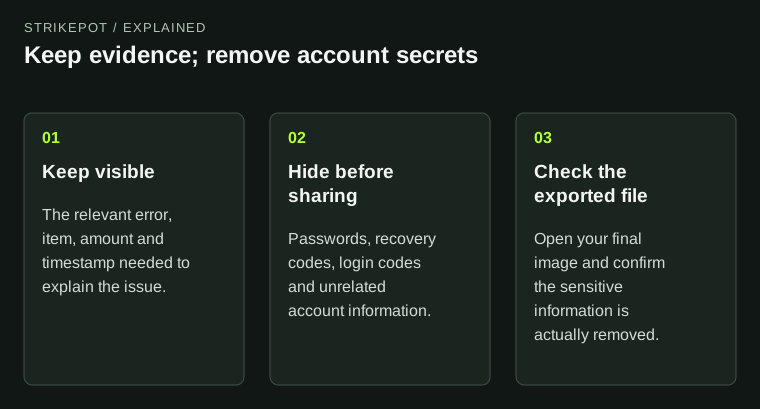
Capture the relevant entry with enough context to identify its direction and time. If several similar items exist, include the distinguishing description. Keep unrelated trades, account credentials and recovery material out of a public image.
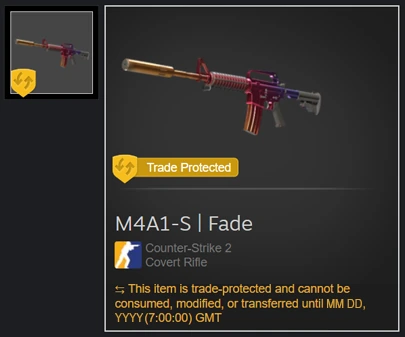
A history entry helps identify an event; it does not establish a separate website payment or guarantee an item-restoration outcome. For a recent CS2 protected exchange, read the existing Trade Protection guide before considering any reversal action.
BEFORE YOU CONTINUE
Quick checklist
- Choose Trade History or Offer History for the question.
- Match time, counterparty and both item lists.
- Keep the Steam and website references separate.
- Save an unfamiliar completed exchange before account recovery.
Official sources
Public Valve documentation reviewed on 26 October 2026 (America/Toronto).
- Steam Support — Trading help · reviewed
- Steam Support — Steam Trade Offers · reviewed
- Valve Steamworks — IEconService · reviewed
The public FAQ was read from the complete embedded data-faqstore article in Steam Support HTML. Procedures are documented guidance; no account sign-in, client operation, security change or transaction was performed. Examples and decision aids are original editorial explanations.