THE QUICK ANSWER
Vault Withdraw moves funds back to your Gamdom wallet. It does not send a payment to a bank or crypto address.

01
Open the internal Vault
Gamdom places the Vault under Wallet → Vault. It holds a separate balance inside the same account; Gamdom documents instant, fee-free moves between it and the wallet.
Read the selected currency and both balances before doing anything. A smaller wallet balance can simply reflect funds kept in the Vault. Do not add the same transfer to your records as a new external deposit.
Where a Vault withdrawal goes
Vault
Separate internal balance
Withdraw from Vault
Returns the selected amount to the wallet
Gamdom wallet
External payout remains a separate request
An internal transfer does not send funds to a blockchain address.
Original explanation · not an account screenshot02
Choose the direction you actually need
- For wallet → Vault, open Deposit in the Vault, enter the amount and review Deposit to Vault.
- For Vault → wallet, open Withdraw in the Vault and review Withdraw from Vault.
- Check the source and destination balances after a confirmed move. Keep the time, amount and currency if they disagree.
03
Keep an internal transfer separate from a payout
A Vault withdrawal returns funds to the account wallet. An external withdrawal is a different request with a destination and payment record.
For example, moving a hypothetical 20 units from a 50-unit wallet to an empty Vault leaves 30 in the wallet and 20 in the Vault, before any unrelated activity. It does not create another 20 units or deliver funds outside Gamdom.
One transfer, two balance changes
Before
Wallet 50; Vault 0
Move 20 to Vault
Wallet decreases by 20; Vault increases by 20
After
Wallet 30; Vault 20
Hypothetical units; assumes no other account activity.
Original explanation · not an account screenshot04
If the amount or security prompt is unexpected
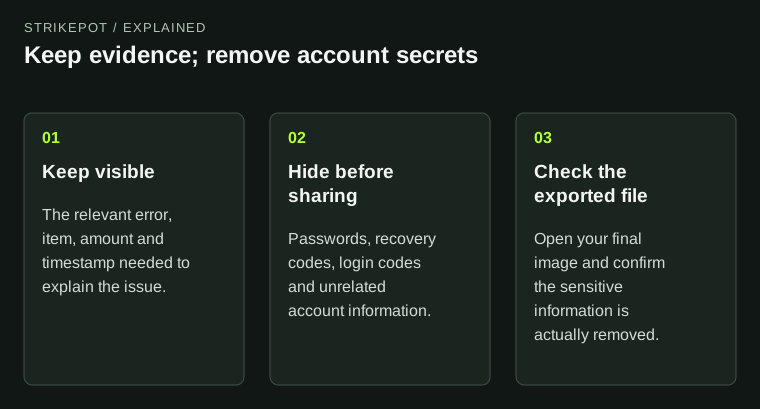
Gamdom’s Vault help says enabled 2FA is requested when withdrawing from the Vault. Use the account’s own prompt; keep authenticator codes and the setup secret out of screenshots.
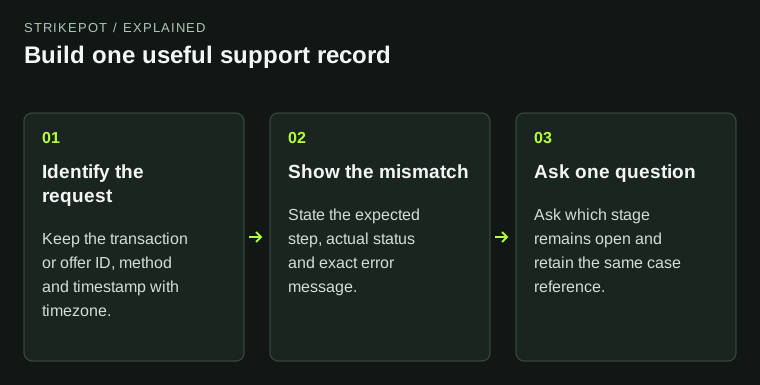
If a confirmed internal move does not reconcile, report both balance readings, transfer direction and time through official support. If you do not recognize the move, report possible account compromise promptly. A second transfer makes the record harder to follow.
BEFORE YOU CONTINUE
Quick checklist
- Check Wallet and Vault in the same currency.
- Read Deposit to Vault versus Withdraw from Vault.
- Reconcile both balances before repeating a move.
- Keep 2FA codes private.
Official sources
Official help describes the feature. StrikePot’s checks explain how to read the account record and report a mismatch.
- Gamdom · Introducing Gamdom Vault · reviewed
- Gamdom · Account Compromise Procedure · reviewed
Public documentation reviewed on 26 October 2026 (America/Toronto). No account login, claim, deposit, gameplay, withdrawal or recovery test was performed. Account controls and available options can change; follow the current official screen.
Need the details for a particular website?
The code directory records each partner’s code, referral method and offer status. Use the relevant partner page when your question also involves one of those details.
Partner pages may include affiliate links. A listing does not confirm a reward or account eligibility.