THE QUICK ANSWER
Valve’s 2026 announcement says Global General Rank 40 lets you reset Profile Rank to earn or upgrade the 2026 Service Medal. Display items cannot be removed from the account after addition.
01
Check Profile Rank rather than a rating
The 2026 Service Medal announcement names Global General, Rank 40, as the claim point. It describes resetting Profile Rank to earn or upgrade the year’s medal. The number to check is the Profile Rank shown by CS2.
A Premier rating, Competitive rank and Major Event Coin describe other systems. Save the exact label beside the number you are reading so a support request does not mix them together.
From Profile Rank to the year’s medal
Profile Rank
Read the actual CS2 profile progression.
Global General 40
Valve names this as the Service Medal claim point.
Reset or upgrade
Read the current year and confirmation in the client.
Original progression diagram based on Valve’s 2026 announcement.
Original explanation · not an account screenshot02
Read the claim or upgrade before confirming
At the eligible rank, inspect the action and medal year shown by your game. Reaching the rank and choosing the reset are separate steps. Read the current confirmation before changing progression.
Valve’s 2026 announcement makes that year’s medal available from 1 January 2026. An old article showing another year’s artwork or date is not evidence that the old medal is still claimable.
| Profile Rank 40 | The Service Medal announcement names this eligibility point. |
|---|---|
| Premier rating | A separate competitive rating; it is not Profile Rank 40. |
| Major Event Coin | Event challenges and Viewer Pass rules apply separately. |
03
Treat it as an account display item
Valve’s display-item FAQ says Service Medals, coins, badges, pins and other display items cannot be modified or removed once added to an account. Do not expect a medal claim to produce an ordinary skin for resale.
Keep earning eligibility separate from the display selection. If the item is already present but not the one shown near your avatar, identify the display item you intend to select rather than claiming another reward to test it.
Three numbers or symbols that mean different things
Profile Rank
Used by the Service Medal claim rule.
Premier rating
A separate competitive measure.
Event Coin
A Major or operation display item with event rules.
This comparison prevents the wrong progression system from being used to diagnose eligibility.
Original explanation · not an account screenshot04
If the expected action is absent
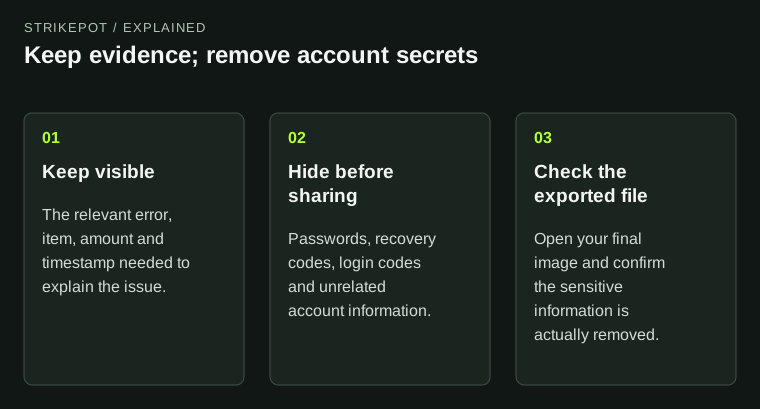
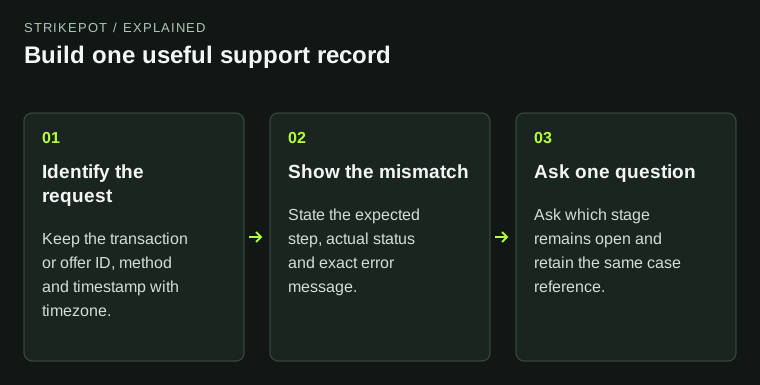
Record the Profile Rank, intended medal year and the exact action shown. State whether you have already claimed that year’s medal. Use a screenshot with unrelated account details removed.
BEFORE YOU CONTINUE
Quick checklist
- Read the CS2 Profile Rank label.
- Check the medal year and claim/reset action.
- Separate Service Medals from rating and event coins.
- Keep the account-bound display-item rule in mind.
Official sources
Public game documentation and item descriptions reviewed on 26 October 2026 (America/Toronto). Community-maintained references are labelled where used.
- Valve — 2026 Service Medal · reviewed
- Steam Support — CS2 Service Medals, Coins and Display Items · reviewed
The 2026 announcement was available as current indexed Valve text; its direct news page returned no extractable body. The display FAQ was also image-only on direct extraction, so its indexed permanence rule is identified as such. No account rank, medal claim, reset or display selection was tested.
Keep exploring skins & trading
Find practical guides for inspecting CS2 skins, understanding Rust cosmetics and comparing TF2 items.