THE QUICK ANSWER
Valve says keyless containers such as Souvenir Packages can open on their own. Scanned containers cannot be traded or marketed, and another scan waits until the revealed item is purchased and claimed.
01
Identify the container before looking for a key
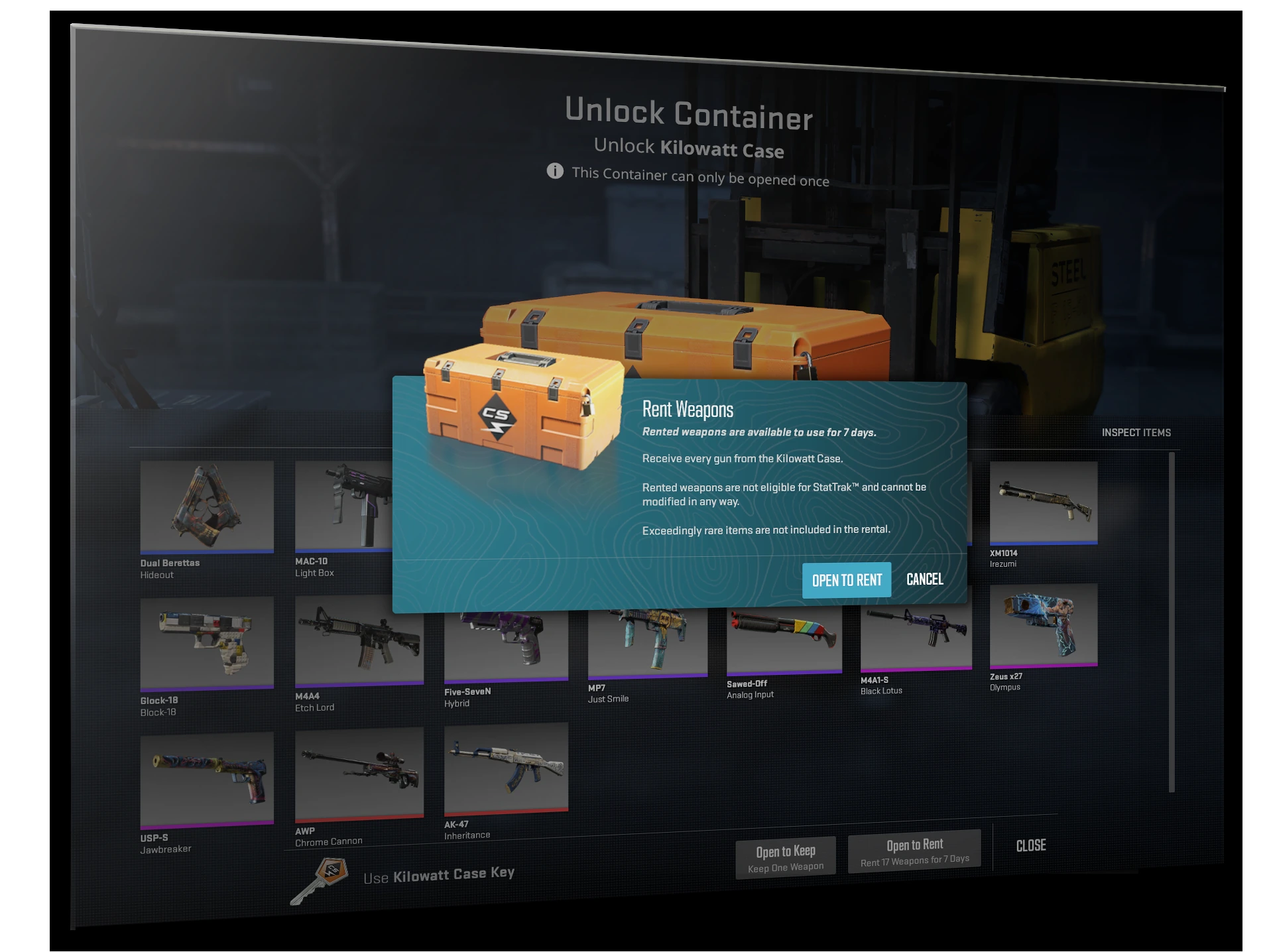
Use the complete item type. Valve’s current X-Ray FAQ explicitly treats Souvenir Packages as keyless containers that can open without the scanner. A Weapon Case, Sticker Capsule and Souvenir Package should not be treated as interchangeable labels.
Read the actual container action and local client notice. This guide explains the distinction; it does not recommend opening a container or estimate the value of an unknown result.
Which container route applies?
Keyless package
Souvenir Packages can open without the scanner.
Scanner required by client
Read the local interface before revealing contents.
Reveal already pending
Resolve that displayed claim before another scan is possible.
Original route diagram; it does not illustrate or predict container rewards.
Original explanation · not an account screenshot02
Scanning changes what you can do next
For accounts using the X-Ray Scanner, Valve says a scanned container cannot be traded or sold on the Community Market. Revealing its contents is therefore a consequential step, rather than a reusable listing preview.
After a reveal, the FAQ requires purchasing and claiming that revealed item before scanning another container. If a second scan is unavailable, first identify the item already waiting in the scanner.
| Keyless Souvenir Package | Valve says the scanner is not required. |
|---|---|
| Container already scanned | Check the revealed item awaiting claim. |
| Want to trade the scanned container | Valve says scanned containers cannot be traded or marketed. |
03
If the old container entry looks absent
Record whether you only selected the container or actually completed its scan. Save its exact name and the scanner’s present state before reporting a missing inventory entry.
A pending reveal, a finished claim and a website inventory refresh are different stages. Tell support which stage is visible instead of buying another container as a test.
Inspecting and scanning have different consequences
Read a container
Identify its exact type and current action.
Scan a container
Its revealed state blocks trading and Market sale.
Claim the reveal
The FAQ gates the next scan on purchasing and claiming.
A state comparison for readers who mistook scanning for a harmless preview.
Original explanation · not an account screenshot04
Use the account’s actual interface
The scanner is an account and regional feature. Follow the interface and support notice you actually receive; do not change store country or copy a regional workaround to force a different opening route.
BEFORE YOU CONTINUE
Quick checklist
- Identify the exact container type.
- Read whether the client requires a scanner.
- Check for a previously revealed item awaiting claim.
- Understand the trade consequence before scanning.
Official sources
Public game documentation and item descriptions reviewed on 26 October 2026 (America/Toronto). Community-maintained references are labelled where used.
- Steam Support — CS2 X-Ray Scanner · reviewed
The current indexed Valve FAQ verified keyless opening, scanned-container transfer limits and the one-reveal claim gate. Direct extraction of the English FAQ returned only an image. No region list, transaction, container scan, purchase, claim, opening, reward probability or price was tested.
Keep exploring skins & trading
Find practical guides for inspecting CS2 skins, understanding Rust cosmetics and comparing TF2 items.