THE QUICK ANSWER
Choose the language control for the part that is wrong. A game may need a separate selection, supported language files and a restart before its text or audio changes.
01
Identify which language is wrong
Valve distinguishes the Steam client interface, individual game language, mobile app language and store language preferences. Third-party games may also use their own independent in-game setting. Record whether the problem is Steam menus, game text, subtitles or spoken audio.
Check the game’s store language table before changing files. A title may support a language for interface text but not full audio. A translated product page does not by itself mean every in-game component has that translation.
Four language controls have four scopes
Interface
Steam’s own menus.
Game
Supported game text/audio selection.
Mobile app
Account-following or app override.
Store preferences
Language-aware discovery and recommendations.
Original scope map based on Valve’s language FAQ, not a fake settings panel.
Original explanation · not an account screenshot| Steam interface | Use Steam’s Interface language control. |
|---|---|
| One game | Use its Properties language control or documented in-game option. |
| Mobile app | Use the app’s own language setting if it should differ. |
| Store recommendations | Use Store Preferences → Language Preferences. |
02
Choose client-wide or per-game language
Valve’s client route is Steam → Settings → Interface, followed by the language choice and restart. For a single game, it documents Library → game Properties and the Language control. Its FAQ calls this a Language tab; current placement can differ, so find the language selector within the game’s Properties rather than assuming every title has the same tab layout.
Keep the previous value before changing one setting. If the game exposes its own language options, follow that developer’s procedure. Avoid adding guessed launch flags when a documented selector is available.
03
Let required language files finish
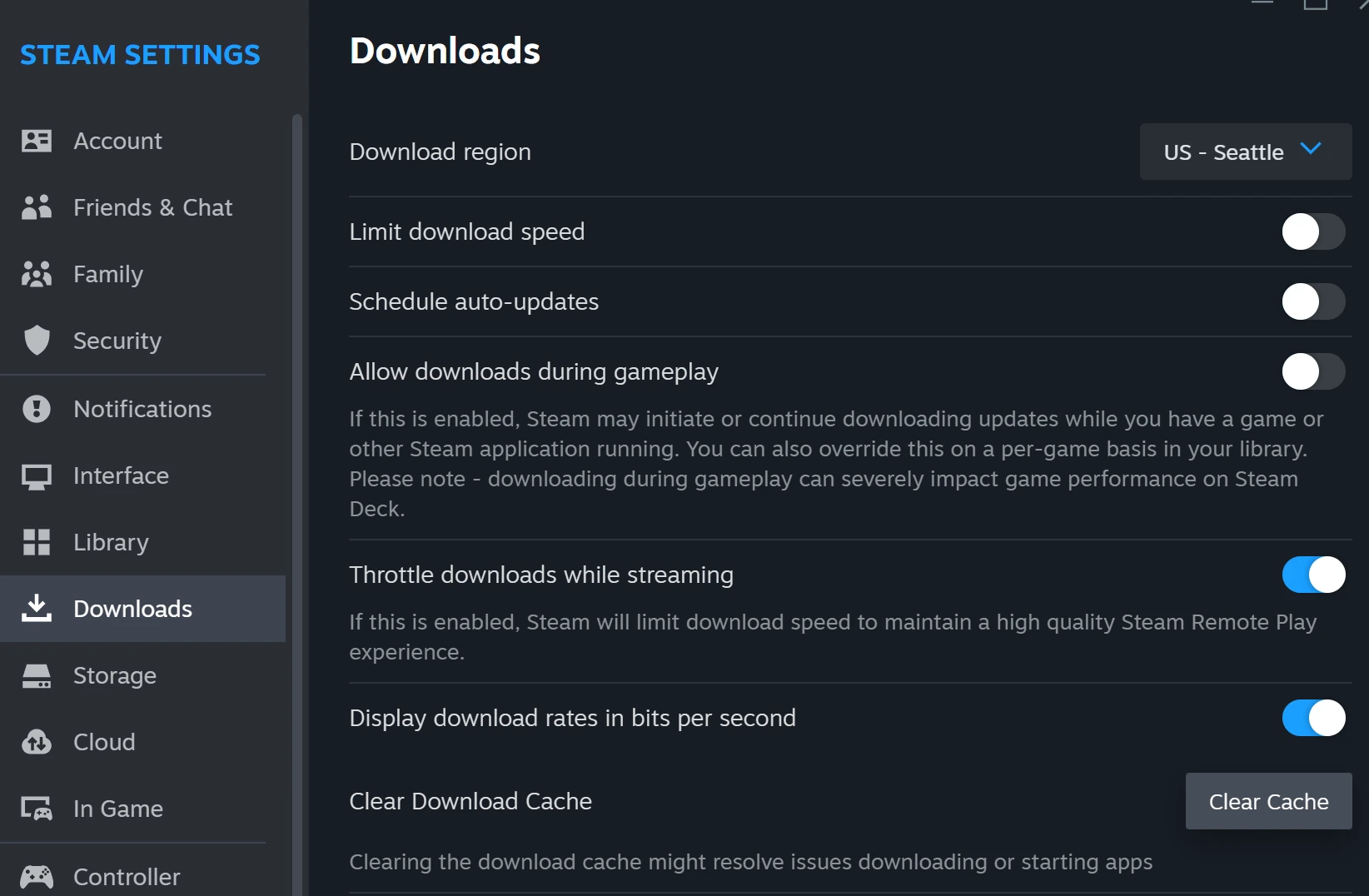
Valve notes that supported language files may need to download before play. Check Downloads after the selection and let that work finish before retesting. A language-related update is not evidence that an inventory item or account setting was reset.
Test the specific component you wanted to change: menu text, subtitles or audio. For an unresolved problem, record the selected Steam and game languages, supported-language listing and completed download state. Those details are more useful than simply saying the game stayed English.
- Check the game’s supported interface, audio and subtitle languages.
- Select the intended language in the relevant client/game control.
- Complete any requested restart and language-file download.
- Retest the exact text or audio component.
Check the component you want to change
Support table
Check interface, audio and subtitle availability.
Select
Use the relevant language control.
Finish
Wait for files and restart if requested.
Verify
Inspect that exact text or audio component.
Original language-change workflow; no unsupported translation is promised.
Original explanation · not an account screenshot04
Keep mobile and store preferences distinct
The mobile app normally follows account settings, but Valve documents an override under the app menu → Settings → language. A restart may be needed when it follows a changed desktop language. Store secondary/additional languages instead help Steam present games available in those languages.
If you are reporting an inventory or item error in another language, retain the original wording and add a translation separately. Changing language can help you read a notice; it does not remove the restriction described by that notice.
BEFORE YOU CONTINUE
Quick checklist
- Identify interface, game text, subtitles or audio.
- Check actual language support.
- Change the relevant control and finish any download.
- Keep the original error text when translating a report.
Official sources
Public Valve documentation reviewed on 26 October 2026 (America/Toronto).
The public FAQ was read from the complete embedded data-faqstore article in Steam Support HTML. Procedures are documented guidance; no account sign-in, client operation, security change or transaction was performed. Examples and decision aids are original editorial explanations.