THE QUICK ANSWER
Type combatlog in the F1 console after an encounter. Read each event’s attacker, target and result together; a rejected projectile entry is not the same as damage applied.
01
Open your recent combat events
After the encounter, press F1, type combatlog and press Enter. Facepunch’s command reference describes it as recent damage you dealt and received. Start with that bare command rather than copying a long command string from an old guide.
The log is a record of events, not a video replay. Look for the fight you want to review, then check which side of each event represents you. The attacker and target swap when you switch from dealing damage to receiving it.
- Press F1 while in Rust to open the console.
- Enter combatlog and read the resulting event list.
- Identify the attacker and target for the event you want.
- Read its weapon, body part, distance and health information together.

Original explanation, not combatlog output. Separate the player dealing damage from the player receiving it before comparing rows.
02
Read a row before adding up damage
Facepunch’s original combat-log announcement lists the attacker, target, weapon, hit body part, distance and health information. These fields answer different questions. A weapon name identifies the reported source; the target tells you whose health the row concerns.
Use the displayed health values for that event instead of treating a remembered weapon damage figure as the result. An example change from 75 health to 42 health is a decrease of 33. That is an invented arithmetic example, not a captured fight or a current weapon statistic.
Keep separate rows separate while checking them. Do not count a received hit as damage you dealt, or add health values from different targets. An isolated health change does not describe every event before or after it.
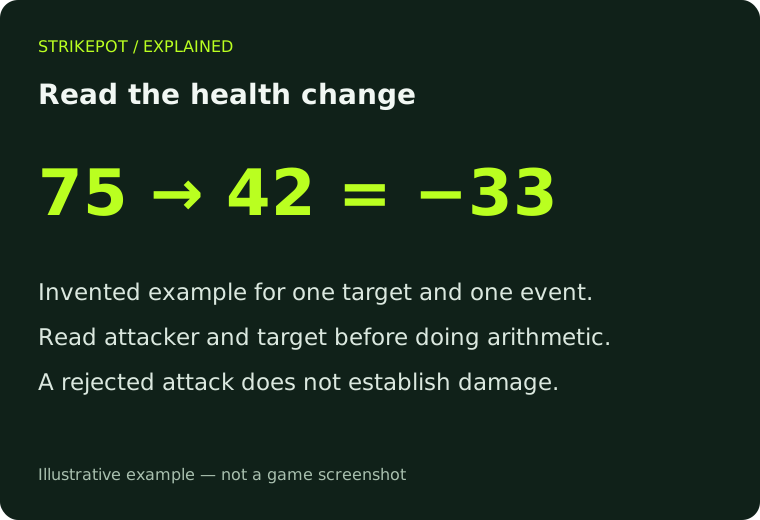
A made-up health change shows the calculation for one event. It does not recreate a combatlog row or identify a current weapon’s damage.
Open the full-size image to read small interface details.| Attacker and target | Who caused the event, and who was affected? |
|---|---|
| Weapon, body part and distance | What was reported for this hit? |
| Health and result | What change or rejection does this particular row report? |
03
A projectile entry can describe a rejected attack
Facepunch added rejected attacks and rejection reasons to the combat log in August 2016. That distinction matters: an attack appearing in the table does not, by itself, show that its damage was applied.
The developer has also documented past bugs involving reload_cooldown followed by projectile_invalid messages. Those historical fixes do not diagnose a current fight. If your log shows a rejection reason, preserve its exact wording rather than deciding that the opponent cheated or that one setting will fix it.
Compare the entry with what you were doing and the surrounding events. A single message is useful evidence for a report; it is not a complete explanation of the client, connection and server state.
04
If the fight is missing or the command looks different
The log is recent history. Facepunch’s 2016 announcement described a server-controlled history size and a limited set of entries printed to the client. Do not treat those launch-era default numbers as a guarantee for every server today.
The current Wiki documents an optional Steam64ID argument for administrators viewing another player’s log. That is different from an ordinary player reviewing their own events. You do not need another person’s SteamID to start.
For an unrecognized command, use the Wiki’s documented lookup method: find combatlog. Its example screenshot searches input, so it illustrates command discovery rather than the output of a combat log.
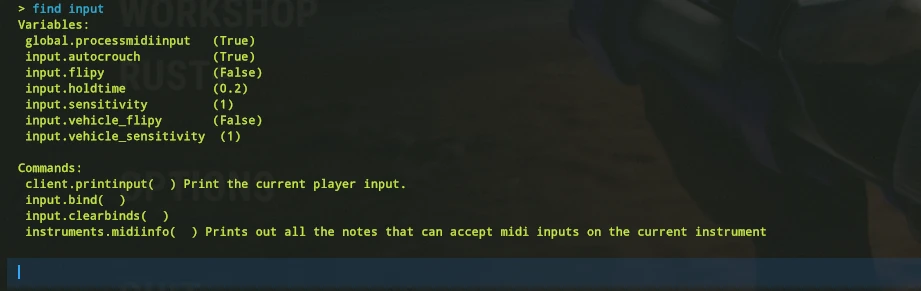
Facepunch Wiki’s example searches find input in the F1 console. It demonstrates command lookup, not combatlog output. Use find combatlog to look up that command.
Open the full-size image to read small interface details.05
Copy the useful part with its context
Facepunch documents console.copy for copying the F1 console contents. Read the copied text before posting it: the clipboard may include console information beyond the row you wanted.
For a reproducible problem, keep the server, approximate encounter time, relevant surrounding entries and the exact rejection text together. Redact account identifiers or other unrelated information before sharing it publicly. There is no need to install a parser just to read the built-in log.
BEFORE YOU CONTINUE
Quick checklist
- Open F1 and start with combatlog.
- Check attacker and target before interpreting health changes.
- Separate rejected attacks from damage applied.
- Save the exact event and context without exposing unrelated console data.
Official sources
Facepunch’s current public command reference and original developer explanations reviewed on 24 October 2026. Historical announcements are identified by their publication dates.
- Facepunch Rust Wiki — Useful Console Commands (community-maintained) · reviewed
- Facepunch Rust Wiki — Keybinds (community-maintained) · reviewed
- Facepunch — Devblog 120: original combat logging announcement (28 July 2016) · reviewed
- Facepunch — Devblog 123: rejected attacks and reasons (19 August 2016) · reviewed
- Facepunch — The Electric Anniversary: historical invalid-projectile fixes (6 December 2018) · reviewed
No Rust client session, live combat encounter or server configuration was tested. The 2016 and 2018 articles explain the feature and historical fixes; they do not establish current weapon values, universal history limits or a diagnosis of a present rejection. The reference image illustrates command lookup, not a current combatlog output.