THE QUICK ANSWER
Choose the preferred side in settings, then check Switch Viewmodel Left/Right Hand separately. Valve documents H as the original US-keyboard default for temporary switching.
01
Choose a preference, then inspect the switch binding
Valve’s 25 April 2024 CS2 release introduced a preferred handedness setting and a separate gameplay action for temporary switching. The preference and the key action answer different questions.
Find the handedness option in your current settings and record its value. Then find Switch Viewmodel Left/Right Hand in the key bindings. Use your actual assigned key; an old default may have been changed by you or a configuration.
Preference and temporary action
Preferred side
The setting that expresses the saved left/right choice.
Switch binding
The action that changes the side temporarily.
Observed view
Record whether the view belongs to you or a spectated player.
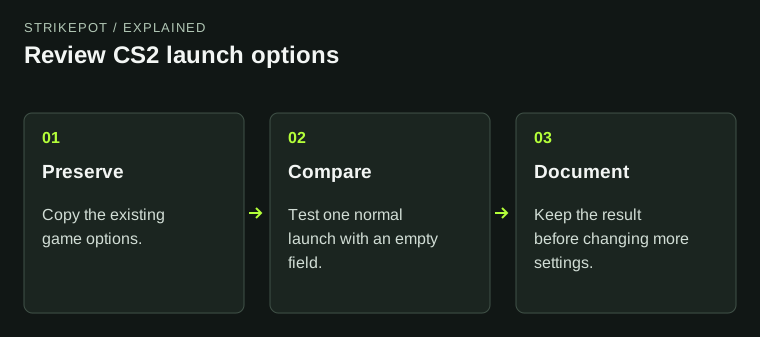
Original control comparison; it does not reproduce the CS2 interface.
Original explanation · not an account screenshot02
Compare the controls in a practice session
Set the preferred side you want, enter a practice session and observe the weapon view. Use the assigned switch key once and compare the temporary view with the saved preference.
Change one control at a time. If a side changes unexpectedly, note whether it happened after a key press, weapon action, reconnect or configuration load. That sequence is more useful than a screenshot of one frame.
| Preferred handedness | Your saved side preference. |
|---|---|
| Switch action | Temporary switching during gameplay. |
| Unexpected result | Record the event that preceded the change. |
03
A spectator can see the player’s handedness
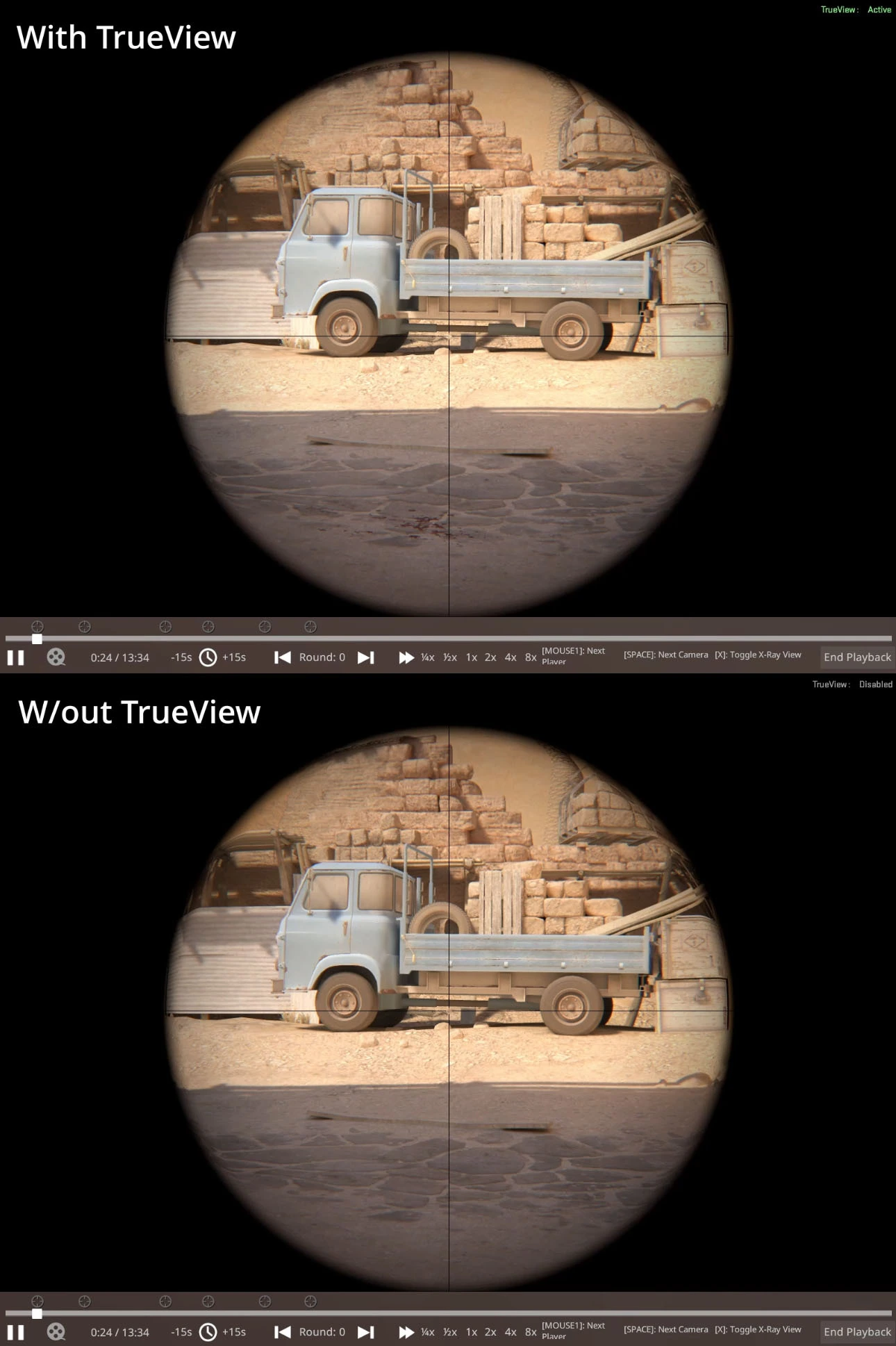
The same official update says viewmodel position and left/right state are networked to first-person spectators. A spectated weapon view can therefore reflect the observed player’s state.
When comparing screenshots or demos, record whether you were playing, spectating or watching a recording. Do not diagnose your own preference from another player’s first-person view.
Reproduce an unexpected side change
Record
Save the preference and assigned key.
Practice
Observe the starting weapon view.
Single action
Press the switch key or repeat the triggering event.
Compare
Keep the before/after state and game build.
An editorial observation sequence, not a performed game test.
Original explanation · not an account screenshot04
Use the current controls before an old command list
The release notes also deprecated the Couch viewmodel position. A copied CS:GO-era viewmodel pack is not evidence that every old command or preset remains appropriate in CS2.
Keep your original settings before importing a configuration. If the current named controls remain inconsistent, report the game build, preferred side, assigned key and a short reproduction. This guide does not prescribe an aim advantage or a weapon-position value.
BEFORE YOU CONTINUE
Quick checklist
- Record your preferred side.
- Check the actual hand-switch binding.
- Compare in practice before importing configuration files.
- Label player, spectator and demo views separately.
Official sources
English primary documentation reviewed on 26 October 2026. Historical release notes are dated; current-client observations are not implied.
- Valve — CS2 release notes, 25 April 2024 · reviewed
Documentation review only. No personal game client, account, server, download or setting was tested. The comparison and evidence suggestions are original editorial guidance.