THE QUICK ANSWER
A CS2 demo is replay data, not a video file. Open an available replay or .dem file in CS2, use demoui for the playback panel, and check version compatibility when TrueView looks different or is disabled.
01
Start with a demo, not an MP4
A .dem file stores a game recording for the game to replay. An MP4 is already a video, so it cannot provide the same player and camera switching. If you only need to share a moment with somebody who does not use CS2, record or export a video of the useful interval separately.
For a match replay available in CS2, let the download finish before diagnosing a playback problem. Valve added a visible download-progress indicator in October 2026. For a demo supplied by a tournament or another service, use that provider’s actual recording rather than a screenshot or a link that only describes the match.
Do not rename a compressed download to .dem or assume a file extension converts its contents. If a provider supplies an archive, extract the actual demo using the archive’s normal extraction process.
02
Open the playback panel
For a local demo that the game can locate, the CS2 console command playdemo starts the recording; demoui shows or hides the playback interface. These commands are listed in the Valve-hosted CS2 command reference. That reference is community-maintained, so this guide distinguishes it from Valve’s own release notes.
If the command cannot find the recording, check its actual filename, whether it was extracted and the path you supplied. That is a file-location problem to resolve before changing playback settings. This guide does not claim that every old demo remains playable in the current build.
Keep the original demo. Work from a copy if you are arranging files, and keep the match date with it. The game version matters when comparing what the replay shows with a player’s original experience.
| playdemo "your_demo_name" | Open a recorded .dem that the game can locate; replace the example with your file. |
|---|---|
| demoui | Show or hide the demo playback interface. |
| A .dem is not found | Check the real file and path, rather than retrying a guessed filename. |
| Need a shareable video | Capture playback with a recorder; renaming the .dem is not video export. |
03
Use the timeline and round controls
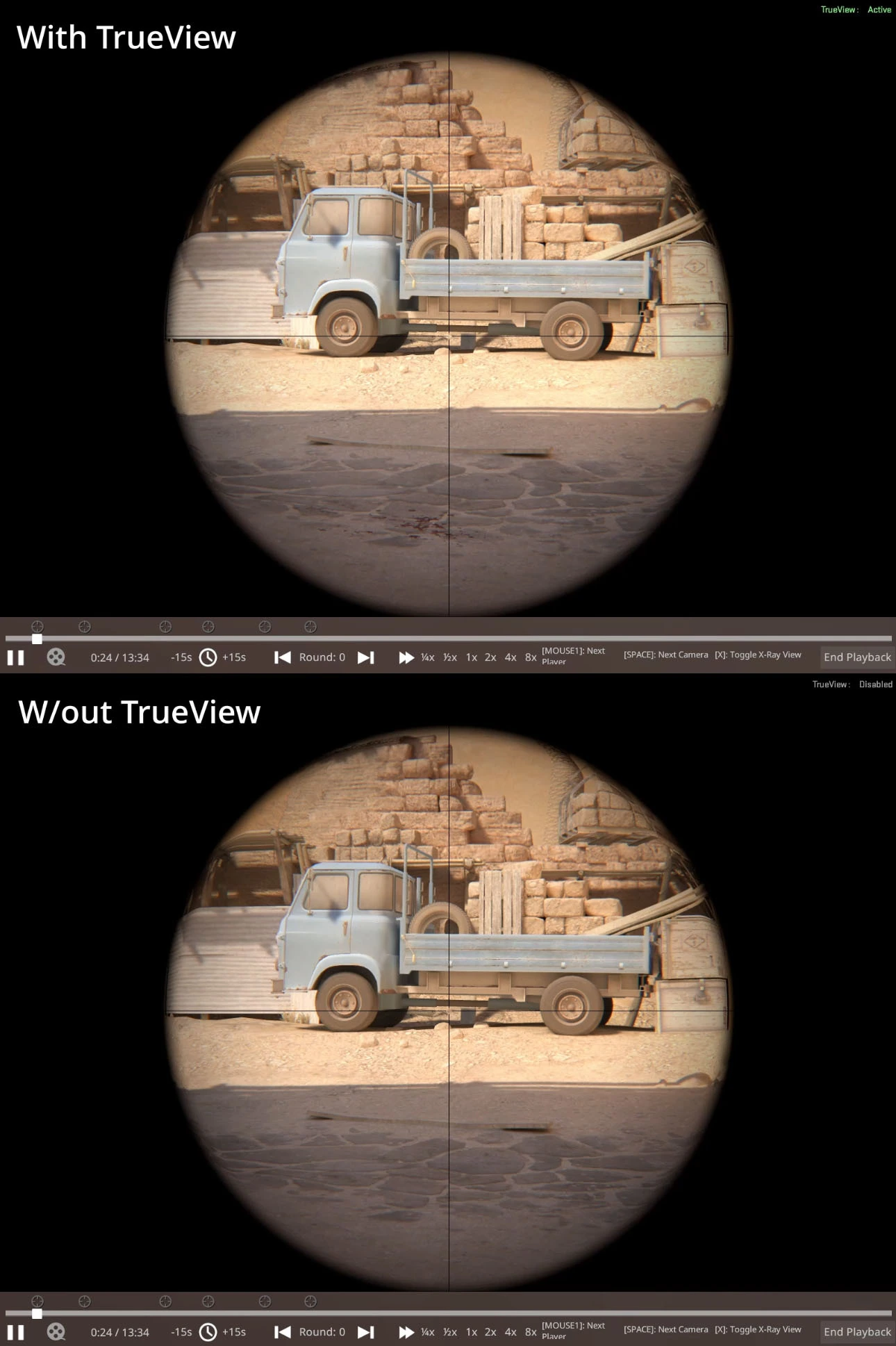
The control strip in Valve’s TrueView illustration shows play/pause, a timeline, short time jumps, round navigation and playback speeds. Its player and camera hints are shown beside those controls. Read the labels in your client if its layout has changed.
Start at normal speed to understand the sequence. Pause just before the decision you want to inspect, then use slower playback or another view to answer a specific question. Repeatedly scrubbing an entire match makes it easy to lose the moment you meant to study.
- Open the recording and bring up the playback panel.
- Use the round selector or timeline to reach the relevant round.
- Watch the event once at normal speed from the player’s perspective.
- Pause before the important action and compare a different view if it helps.
- Return to normal speed and the original perspective before drawing a conclusion.

The timeline and controls from Valve’s November 2025 comparison poster. Labels in your current client take precedence if the layout has changed.
Open the full-size image to read small interface details.04
Change the camera without confusing the viewpoints
Valve’s October 14, 2026 update changed demo camera interaction to click and drag. It also made free and chase cameras usable while a demo is paused and fixed seeking issues.
Use another angle to inspect spacing, cover or the timing of a move. Then return to the observed player’s view. A free camera can reveal an opponent the player could not see, so information from that angle should not be treated as information the player had during the round.
For a useful review, leave with one specific adjustment to try: a position, a timing choice or a communication cue. A different camera angle explains context; it does not replay the player’s thoughts.
05
Check TrueView before judging an odd-looking shot
TrueView re-runs the observed player’s client-side prediction to represent their experience more closely. Valve introduced it in November 2025 because the older server-view playback could make hits and misses look confusing.
By default, TrueView is disabled when the playback game version differs from the version used to record the demo. Even when active, Valve says differences can remain, especially in slow motion. Damage effects and other reactions do not necessarily appear at exactly the same time as they did during play.
Keep the match date, game version where known, playback speed and TrueView state together when comparing a replay with a video. A single slow-motion frame is not enough to prove a hit-registration problem. If you report a bug, include the original recording and a short description of the repeatable moment rather than an unsupported conclusion.
BEFORE YOU CONTINUE
Quick checklist
- Confirm that you have replay data rather than only a video.
- Finish the replay download or extract the supplied .dem.
- Use the timeline and round controls to find a specific moment.
- Compare player and free-camera views separately.
- Check TrueView state and game-version context.
Official sources
Valve’s TrueView announcement, October 2026 replay notes and the Valve-hosted CS2 command index were reviewed on 24 October 2026.
- Valve Developer Community — CS2 console command reference: playdemo and demoui (community-maintained) · reviewed
- Valve — Introducing TrueView (4 November 2025) · reviewed
- Valve — CS2 demo and replay viewer update (14 October 2026) · reviewed
Valve’s release-note bodies and original TrueView poster were read through Steam’s public news feed; the player controls in the poster were visually inspected. The poster is from November 2025, not a new capture of the October 2026 viewer. The current CS2 command index returned a direct-access error, but indexed entries explicitly confirmed playdemo and demoui. No CS2 client, downloaded demo, account match-history menu, retention period, folder path or shortcut key was tested. This is a guide to an available recording and its controls, not a guarantee that an old or unavailable match can be downloaded.